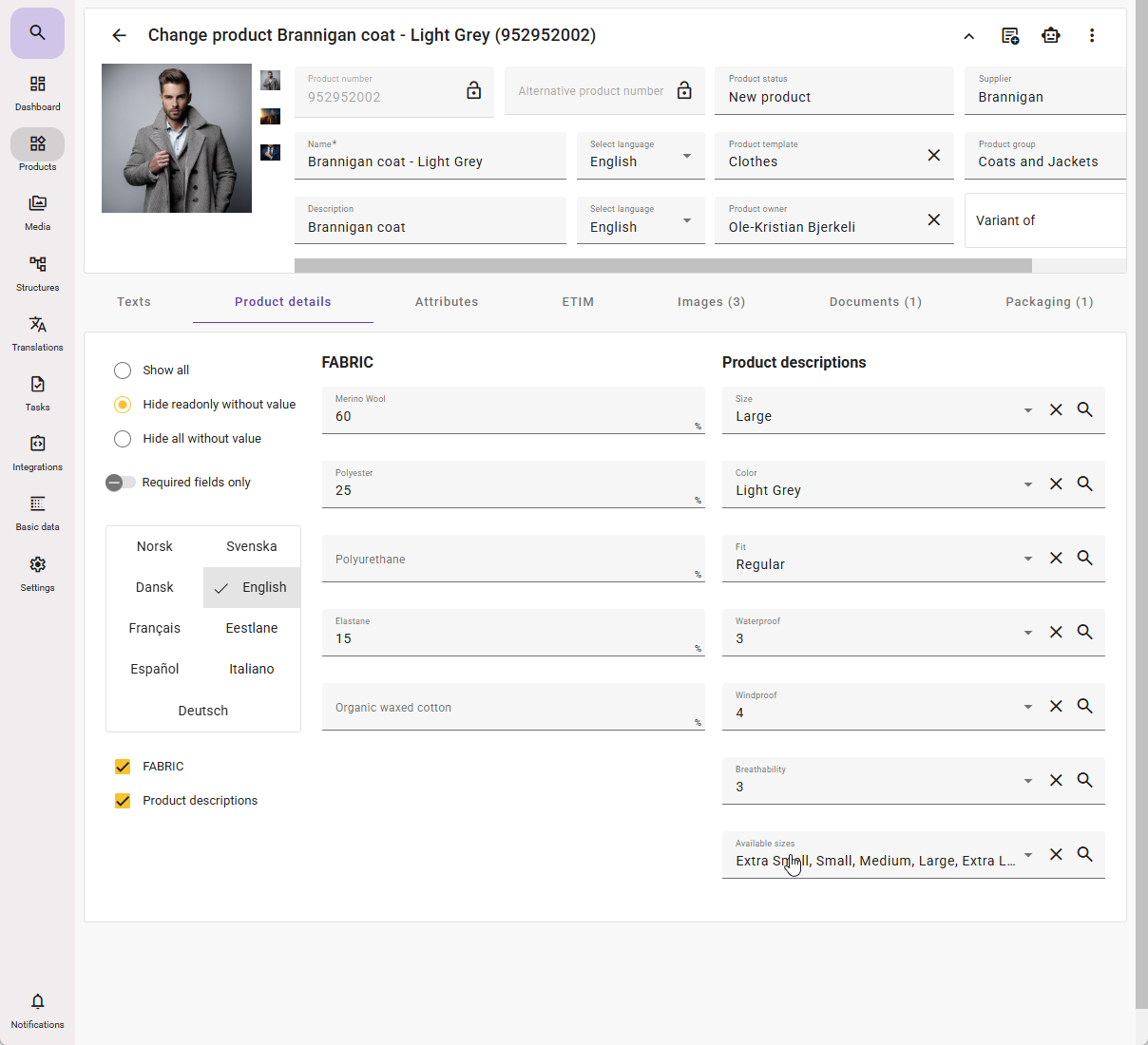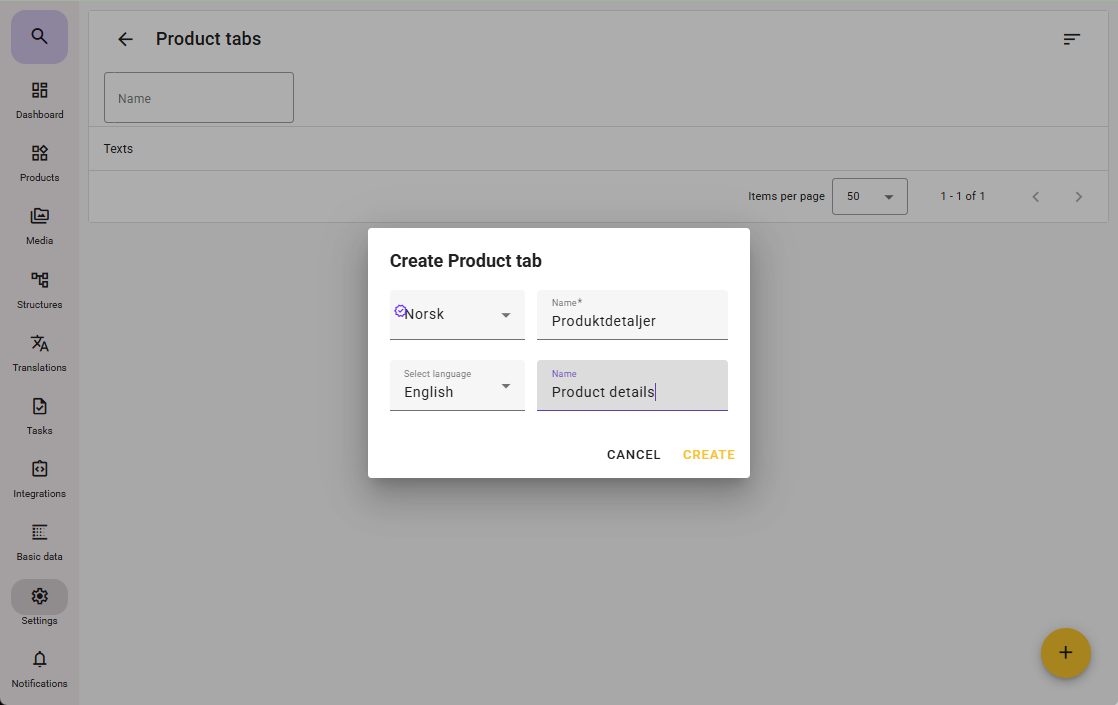
Product tabs allow you to create custom tabs containing selected attributes grouped together in a single tab.
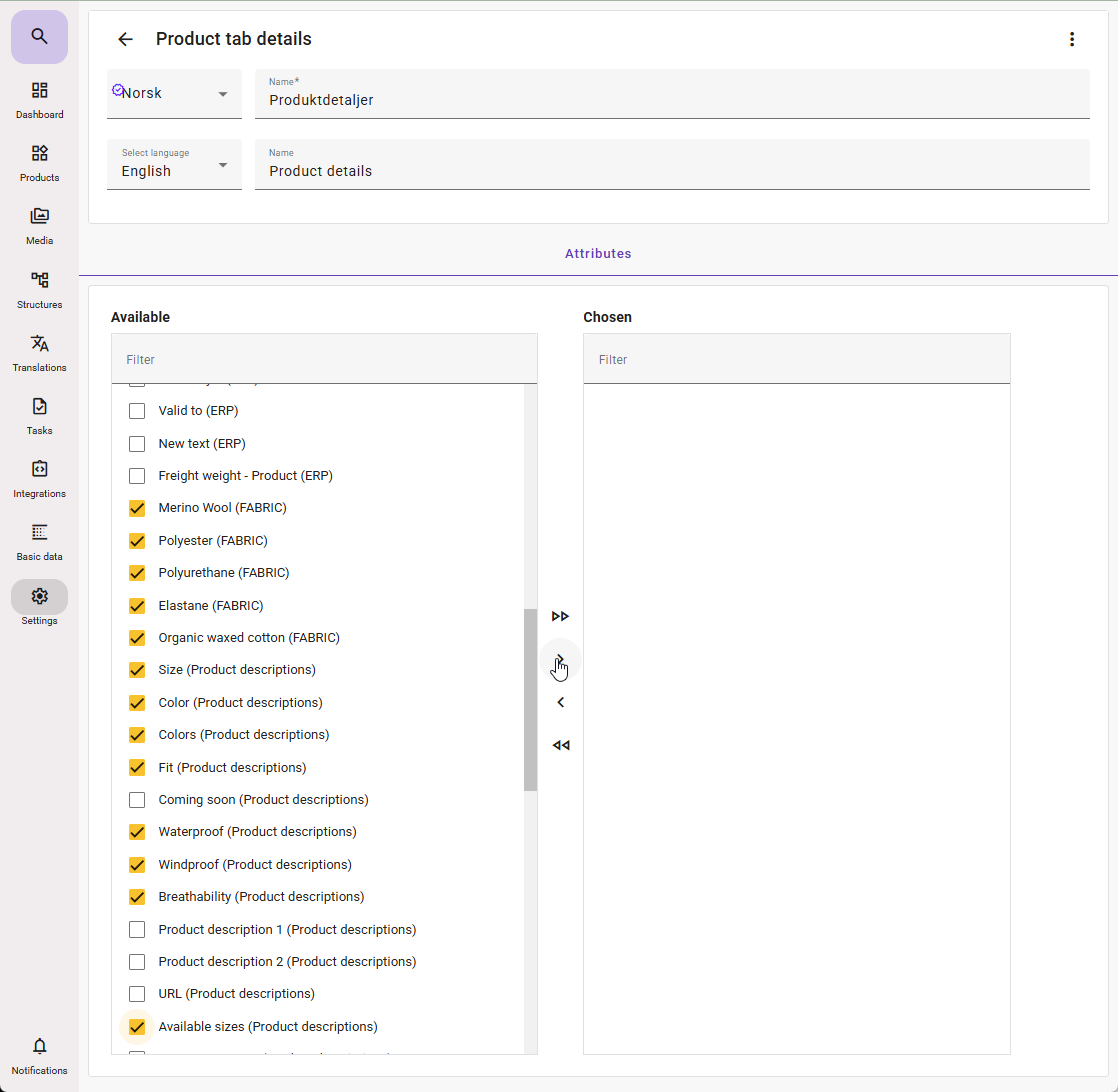
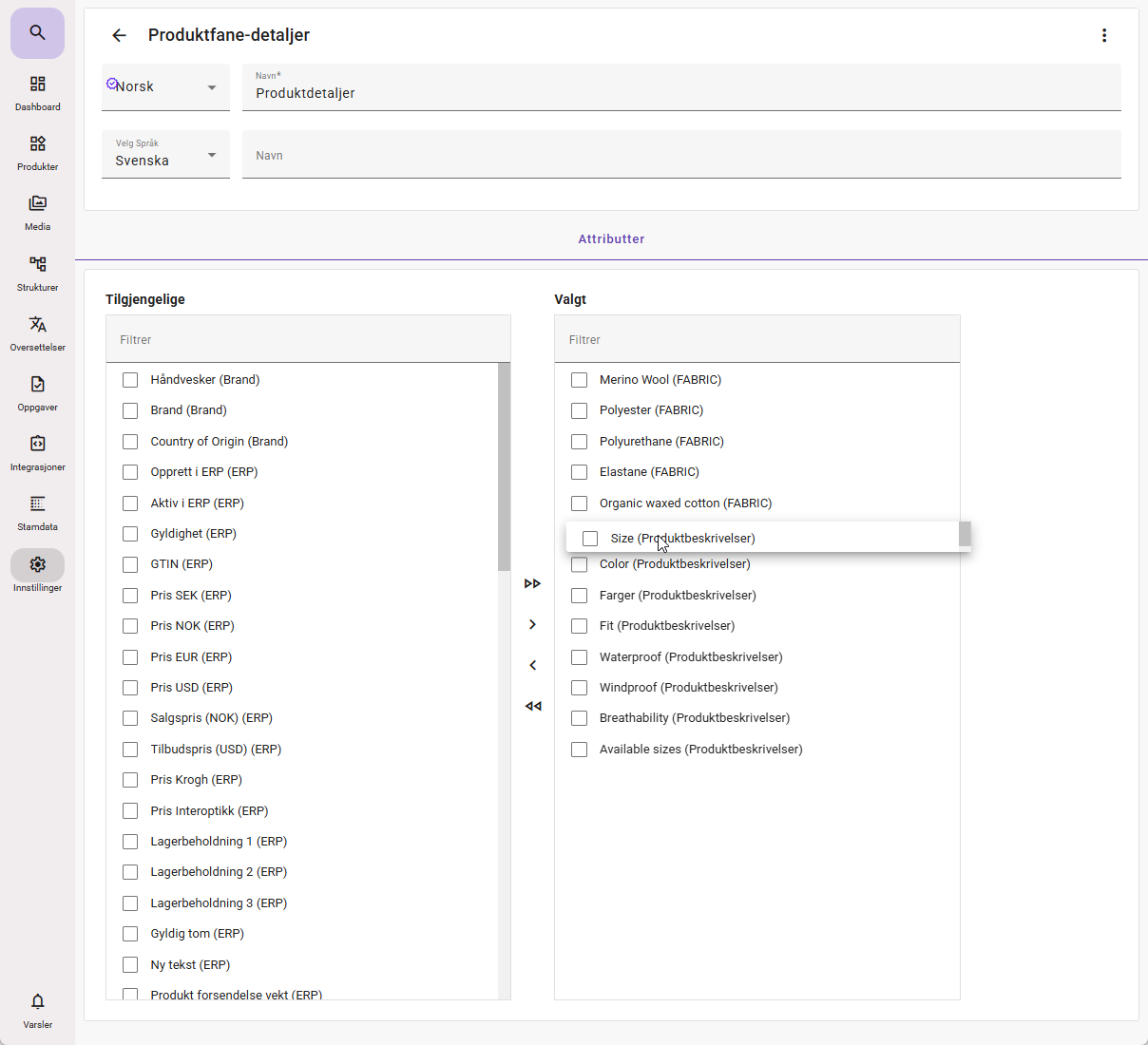
Select the attributes you want to include. If you have many attributes, you can use the search function.
Use the arrow buttons in the center to move selected attributes to Selected.
The double arrow will move all available attributes. This is not recommended, unless you use search to filter the desired attributes.
You can also select attributes on the right-hand side and click the single arrow pointing left to remove attributes from the tab.
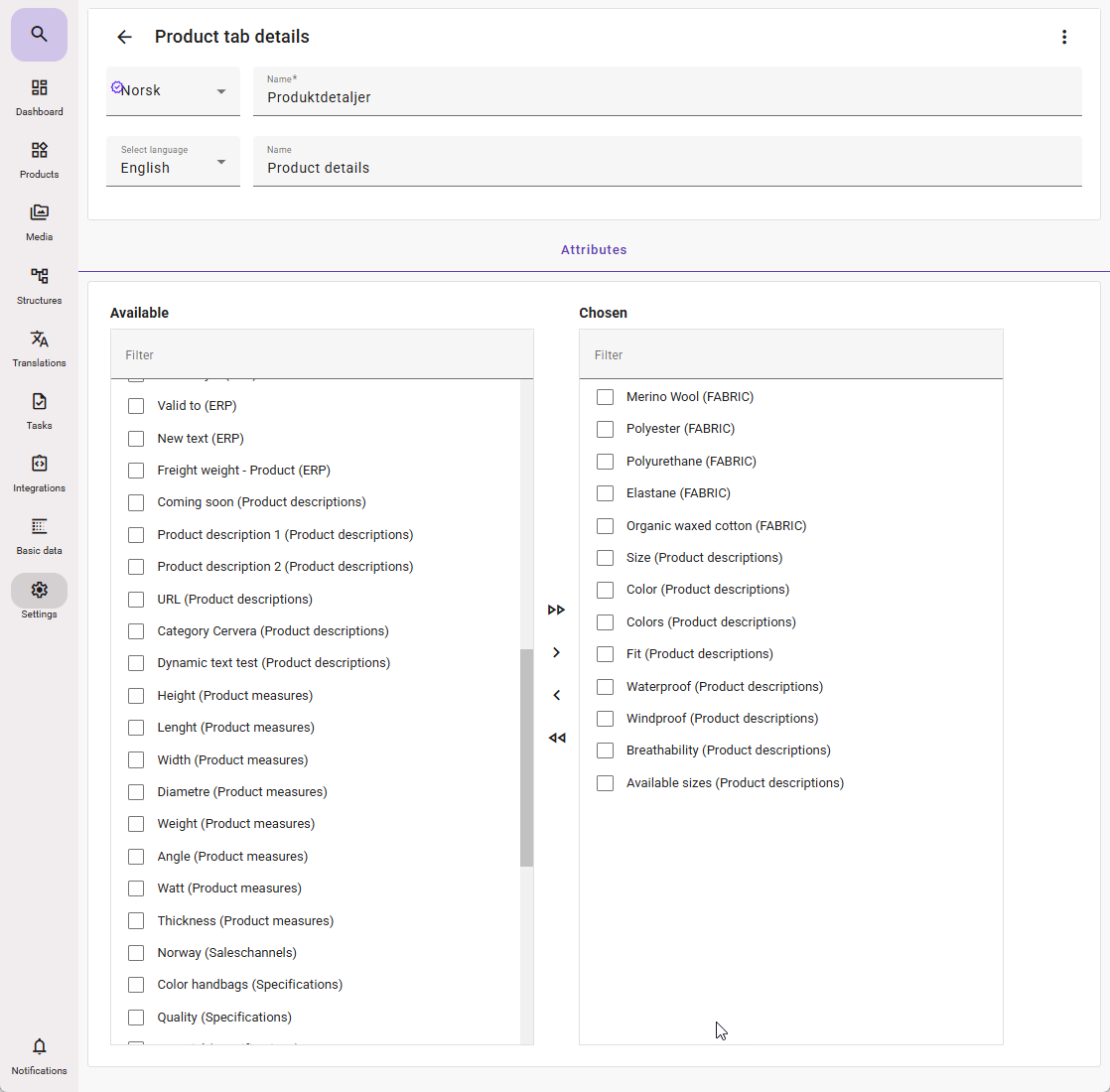
If you want to change the order in which the attributes are displayed, you can drag and drop the attributes on the right-hand side into the desired order.
Once you are satisfied, you can click any menu item to leave this page.
Info: Once an attribute has been used in a custom tab, it cannot be used again in other custom tabs you create.
After this, the new tab will automatically be available on the product sheet in the feed.
If you have generated a tab that only displays attributes visible on one or a few specific product templates, the tab will not be shown where a product template does not contain the attributes you have added.