Text attributes are, by default, placed in the attribute group in which they were created.
You can select the language you want to view by choosing it from the left side of the product.
If you cannot find the text field you are looking for, it may be because the text field is not included in the product template assigned to the product. Alternatively, the text field may not have a value, or it may have been imported via integration and set to read-only without a value. Click “Show all” to display all text fields in the tab.
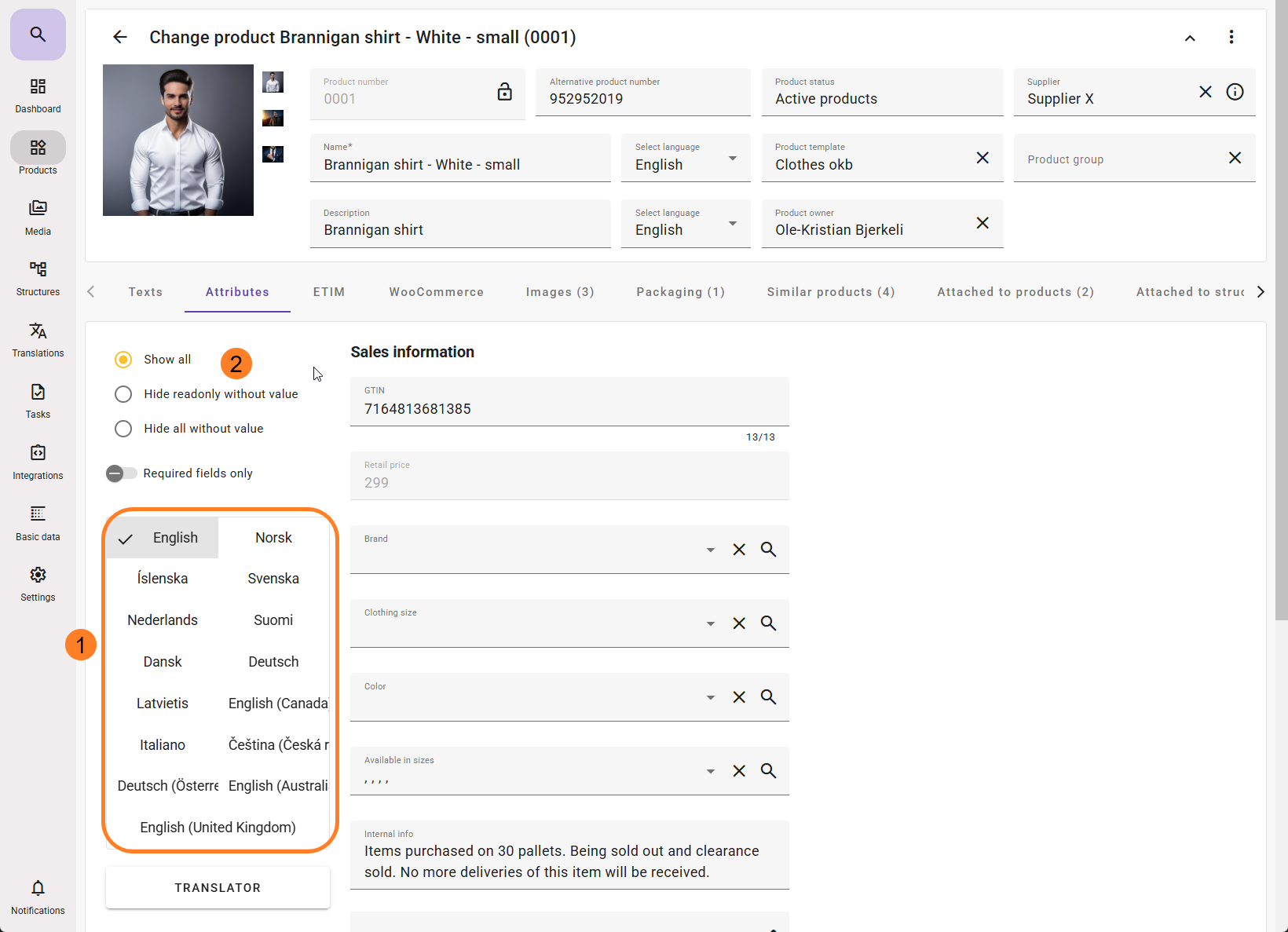
If you are working with translation of texts, you can enter text directly into the fields above.
Important: If the field is read-only, you cannot translate the text field. You must go to Basic data, locate the attribute, and remove the read-only setting.
If the text field is of the type dynamic text field, it is also locked for translation. Dynamic text fields are built from multiple attributes, and changes must be made in the individual attributes they are composed of. If you have added elements of “constant translatable text” to the dynamic text field, you must go to Basic data, navigate to the dynamic attribute, and edit it so that all constant translatable texts have a value.
Translator
- If you click “Translate” on the left side, only text attributes will be displayed (with the exception of dynamic text fields, which are built from multiple separate attributes).
If you have created a custom product tab and moved certain text fields to this custom tab, you must open that tab to access those text fields. - In this window, you can switch between “Per language” and “Attributes.”
- Per language displays all text attributes, and you can remove the languages you do not wish to see.
- Attributes shows checkboxes at attribute level, allowing you to work with the specific text attributes you want, while all languages set in feed are displayed for the selected attributes.
- Aide translator at attribute level: This icon is only visible if the Aide module is activated in feed (contact salg@isys.no). At text attribute level, you can translate the text you have created into all or selected languages on the product.
- After clicking Confirm, the job starts in the background. You can close the window.
- When the translations are completed, a notification will appear in the bell icon in the lower left corner.
- If you are still on the same product page and want to see the translations, refresh your browser to update the view. This is not required for the translations to be generated.
- Aide translator at tab level:
This works in the same way as described above but allows you to quickly and easily translate all text attributes within the current tab, for that product. If there are specific text fields you do not wish to translate, you can deselect them. It only applies to text fields within the tab you are currently viewing. If you have created custom tabs containing text fields, you can perform the same steps on those tabs.
Aide translator respects the character limit set on the field. If the translated text would exceed the original length, the translation will be adjusted to remain within the character limit defined for the text field, without cutting text or giving you an error message.
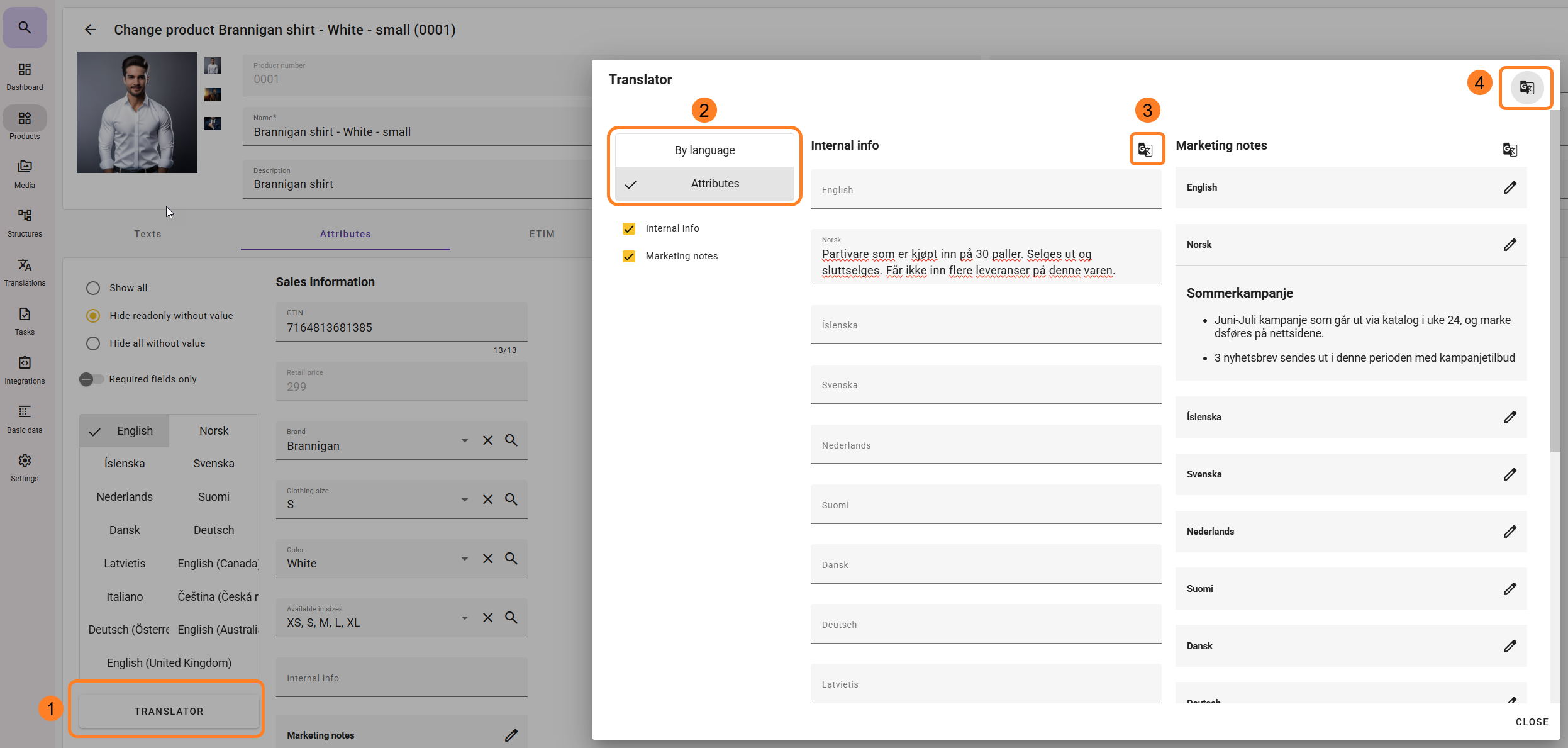
Aide translation at text attribute level:
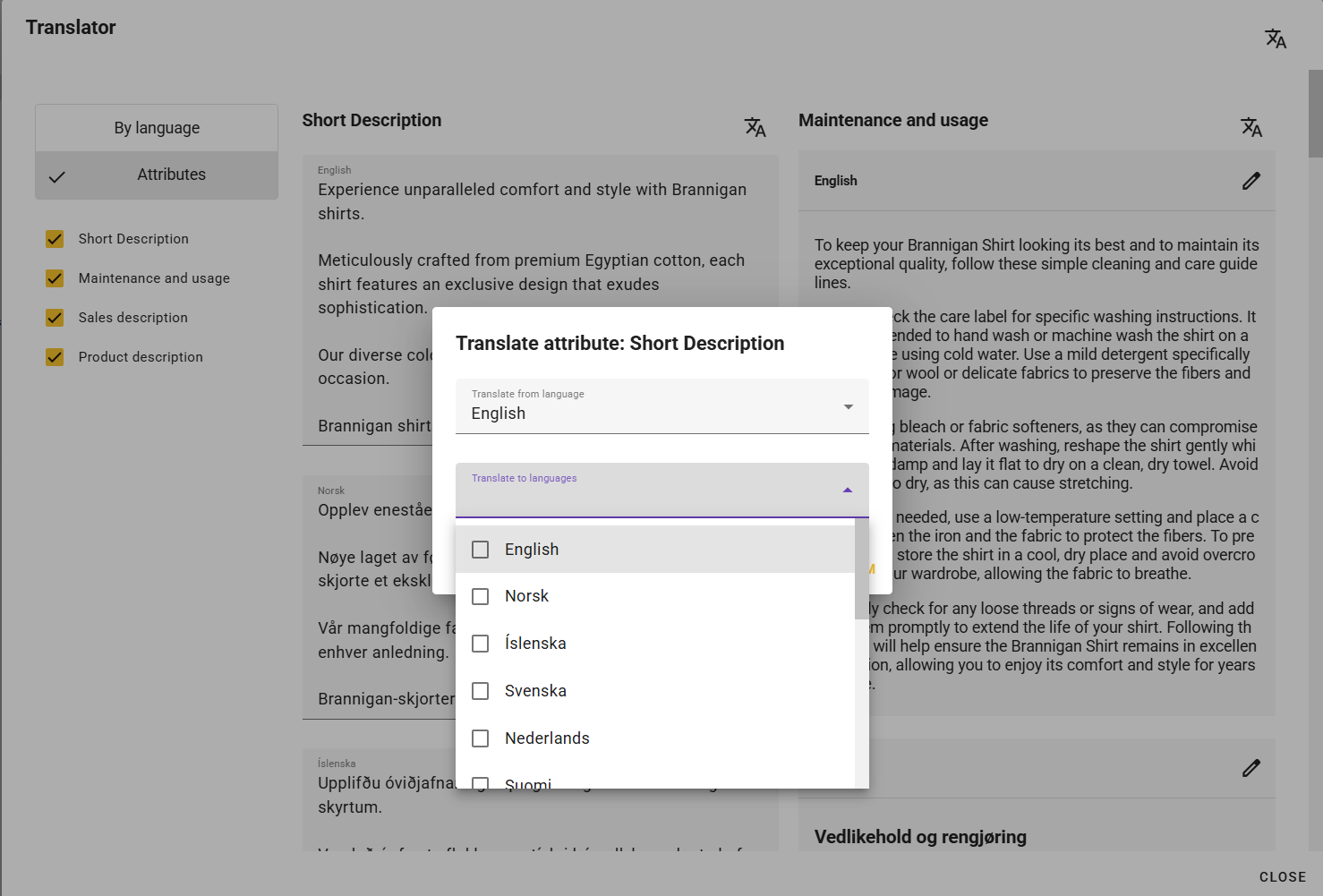
Aide text translation at tab level: