
Some tips before you get started
Start by building the high-level chapter structure for the catalog as a folder structure.
Test layout and generation frequently:
Reduce DPI to speed up generation while testing.
Test the sub-structure you are working on; it is faster than generating the entire catalog every time.
Work with a small structure until you are satisfied with the template design.
Use the shortcut in the context menu on folders to quickly upload updates/changes to design templates, instead of navigating to the template overview each time.
Use folders inside chapters to switch templates or folder-level content to create more variation in the catalog—just remember to set those folders to not be included in the ToC.
Step 1: Create a structure for the catalog
“Structures” in feed® are how you set up your catalog structure, so the first step is naturally to create a structure to work in. It is important to ensure you select the correct structure type when creating it.
Create a structure for your catalog and choose the type “Catalog generation” (Note: it is important to choose “Catalog generation” and not “Catalog” if that option is available).
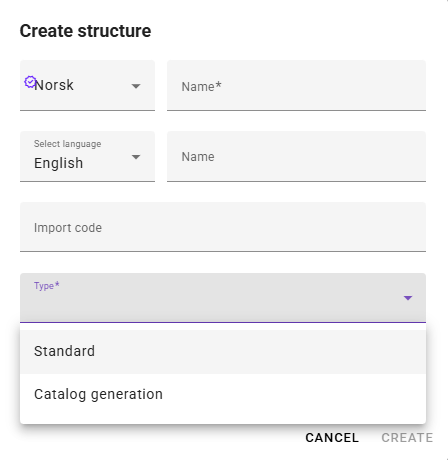
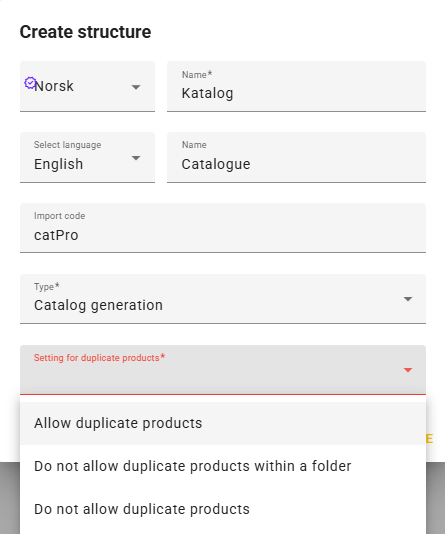
Enter the desired name, code, and define rules for duplicate products:
Allow duplicate products
Do not allow duplicate products within the same folder
Do not allow duplicate products
Be aware that if you link products into a folder via a product search, feed® will not be able to validate that these rules are being followed.
Step 2: Build the catalog structure
You now have an empty catalog structure that is ready for you to start working with. This structure is how you build the content for your catalog. On folders, you select the design template and link products, either directly or via product search, for inclusion in the catalog. The folder structure also becomes your table of contents in the catalog if you have created a “TOC” (Table of Contents) template and want to use it.
By default, all folders will be included in a ToC, but you can choose to exclude folders if desired, for example, if you only want to switch templates within the same chapter.
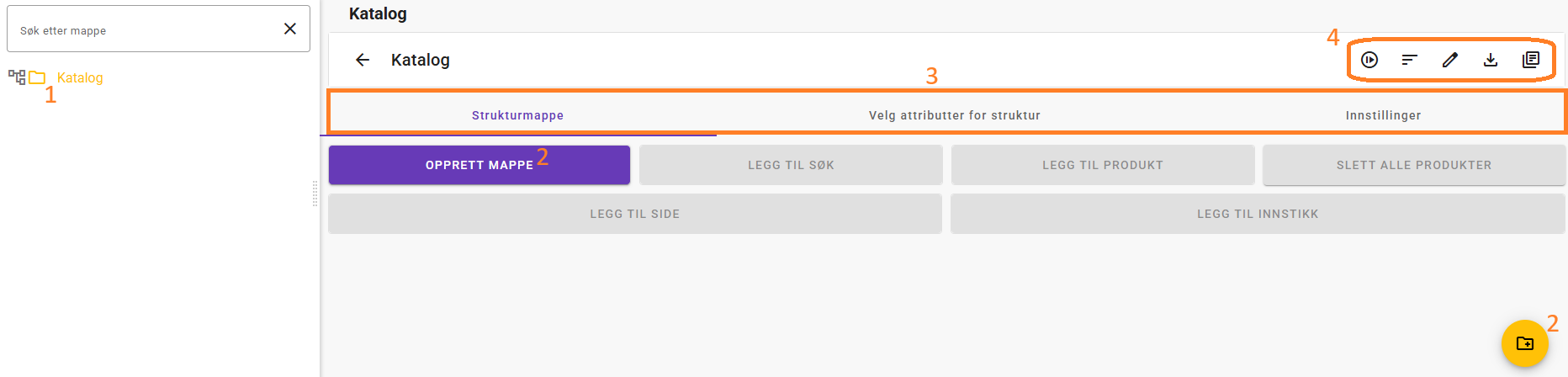
Root folder for the catalog. This defines the catalog name (in the example, “Catalog”). This name is used as the default name for generated PDF files unless you change it. You cannot add products, pages, or inserts directly in the root folder—at least one subfolder must be created.
To create a new folder, you can click “Create folder”, use the hotkey “C”, or use the icon at the bottom-right of the page.
At the catalog root level, you have the following tabs (more about these later):
Structure folder
Select attributes for structure
Settings
This area allows you to:
Generate catalog

This icon starts generating a PDF from the catalog folder you have selected. If you are in the root folder, a PDF is generated for the entire catalog, but you can also select a folder further down in the structure and generate a partial catalog.
This is recommended while building and testing a new catalog. When you click it, a dialog appears where you can change the desired name of the generated catalog and choose whether the catalog should be archived. Non-archived catalogs are automatically deleted from feed® after some time.Sort subfolders at the current level

Edit name, import code, and duplicate rules.

Navigate to generated catalogs

Here you can navigate to the overview of generated catalogs. A generated catalog is normally stored for 2 weeks, but you can choose to archive it. Archived catalogs are not automatically deleted.
Structure folder
From the “Structure folder” tab you can create folders, add product searches, add products, and delete all products in the current folder. You can also add the two special node types “Page” and “Insert” (more on these later). On the top level (the catalog root), you can only add new folders.
Folders / chapters
An important thing to note about folders you create in the catalog structure is that they are treated as chapters if you create a table of contents (TOC) template. When you create a new folder, it is included in the table of contents by default, but you can disable this if you do not want it included.
A table-of-contents template, like all other templates, is created as a Word or LibreOffice document and uploaded the same way as other templates.
Note: “Table of contents” is a bit special: the folder that has this template must be placed at the top level under the root node (the catalog) and should not contain anything under it. Any folders with products placed under it will not be included when generating the catalog. You may have folders before and after the table of contents folder at the same level if you want content to appear before the ToC in the final generated PDF.
Add page: This is not available on the top folder, but can be used when you are in a “regular” catalog folder. This requires that you have at least one “page template” configured. Pages can be used for customized page templates without product information, such as a full page with a background image, company information, etc.
Add insert: This is not available on the top folder, but can be used when you are in a “regular” catalog folder. This allows you to upload a pre-generated PDF that is then used as an insert in the catalog—meaning the PDF is inserted at a defined location “as-is”. The catalog will read the number of pages in the insert (an insert can be multiple pages) and continue correctly after the insert.
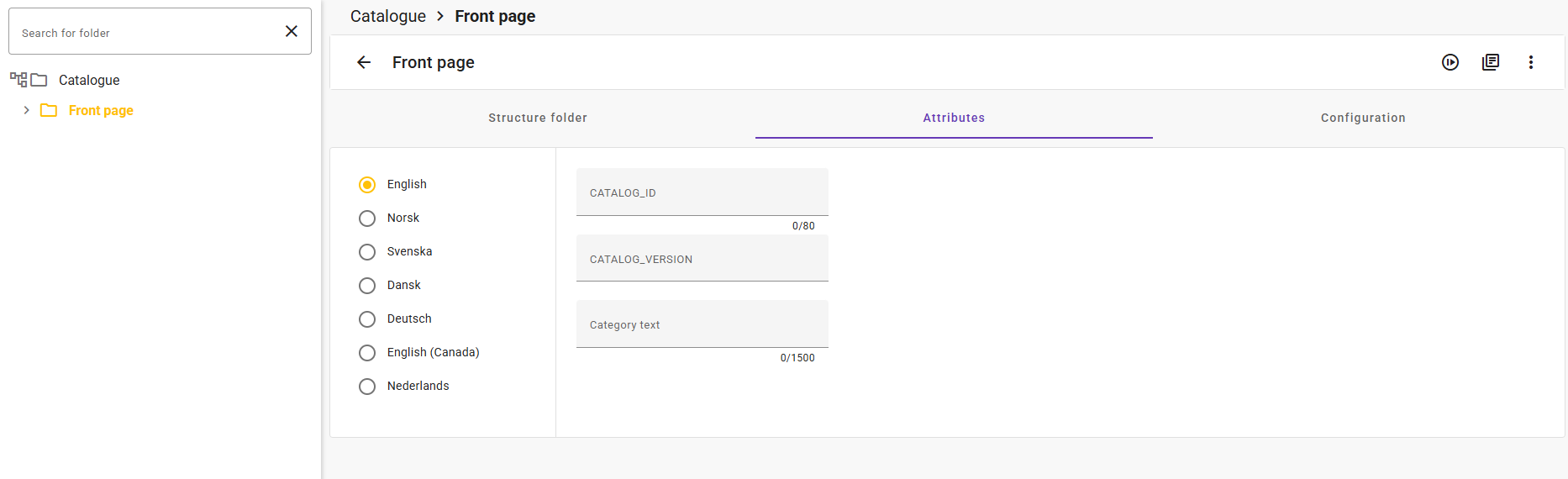
Attributes
When using structure attributes, you can add attributes to the catalog structure to send information that can be used in the templates. Structure attributes are mapped into templates in the same way as product fields, via template configuration.
The attributes selected above then become available on underlying folders, where you can enter values that can be mapped into both product templates and page templates.
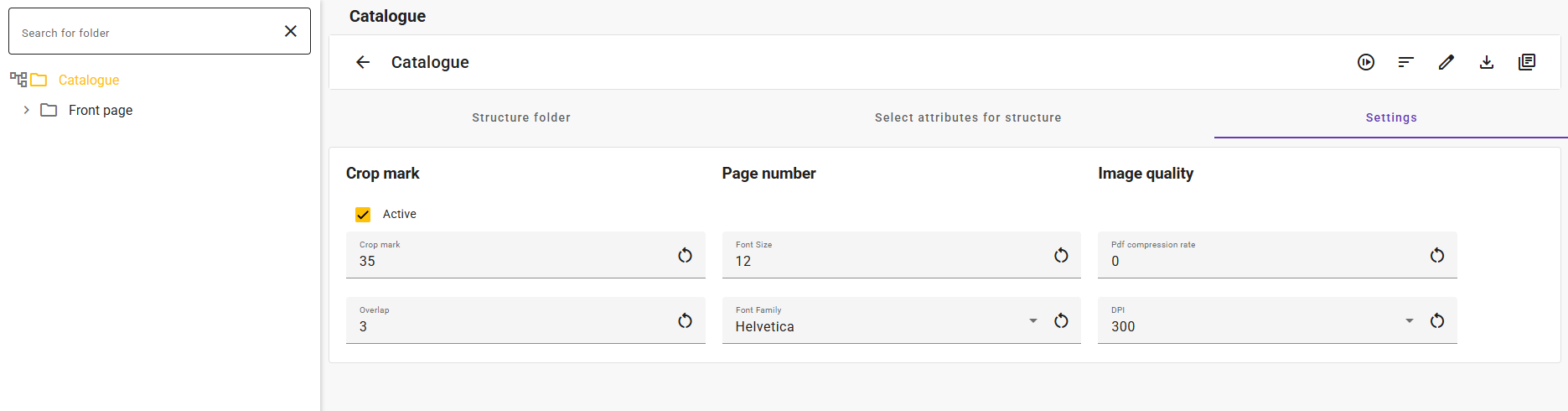
When you are in the “Settings” tab, you have the following options:
Crop mark: If selected, bleed will automatically be added to the generated PDF. This is typically needed for the final version if it will be sent to a print house for producing a printed catalog.
Image quality: Here you can specify the desired DPI for PDF generation. We recommend setting this lower while working on and testing the catalog to speed up generation, and then increasing it when producing the final version that will be sent to print. You can also set the compression percentage to reduce the size of the generated PDF.
Page number: Here you can choose font and size for page numbers that are automatically added to the catalog pages. (Tip: set size to 0 if you do not want page numbers.)
Step 3: Create and upload design templates
Before you can start generating catalogs, you need templates in the solution to define the look of the final catalog. Feel free to use the included example templates to test with, and copy them as a starting point for creating your own designs.
These examples show how to code dynamic fields from feed® into the template, how to build lists that repeat rows or “step” across columns to build tables, etc. There are many possibilities in the template framework, and this guide does not go into depth on everything that is possible; for that, it is recommended to consult Docmosis’ own guide (available from their resources site)https://resources.docmosis.com/.
If you have a design you want to create but need assistance building the template, feel free to contact us.
A CatPro template can be created in Microsoft Word or LibreOffice. We recommend LibreOffice, which is easier to work with when designing templates, among other things because Docmosis uses the dollar sign ($) as a variable in iterations, and this is not allowed in bookmarks in Word.
See “Document templates and inserts” for more information on how to create and upload templates in feed®.
Step 4: Create template configurations and apply them in the structure
A design template needs a configuration before it can be used. This is where you map which data, either from the product or from the corresponding structure folder, should be used in the dynamic fields in the design template. A design template can be used in multiple configurations, allowing you to reuse the same design while mapping different information into the fields if desired.
See “Template configuration (mapping)” for more information on how to create a configuration.
When you have created configurations for the templates you want to use, it is time to attach them to the folders in the structure where they will be used.
Table of contents (ToC)
If you want a ToC in the catalog, you need a configuration of type “Table of contents”. This has some special template coding to print folder names and the page number where they start in the final generated catalog. This template must be placed on its own folder at the top level of the catalog, and nothing should be placed under that folder, it is only for the ToC.
Page templates
Configurations for these can link in data from the parent catalog folder where the page is inserted. They can also contain a fixed, hard-coded design and do not necessarily need any dynamic content. These can only be used where you add “Page” nodes under a catalog folder, only there can you use configurations of type “Page.”
Product templates
This is where you primarily work to display dynamic content for products. Here you can map dynamic fields from products, and you can also pull in data from the parent catalog folder. These template configurations must be set on the folder in the structure where you place products.
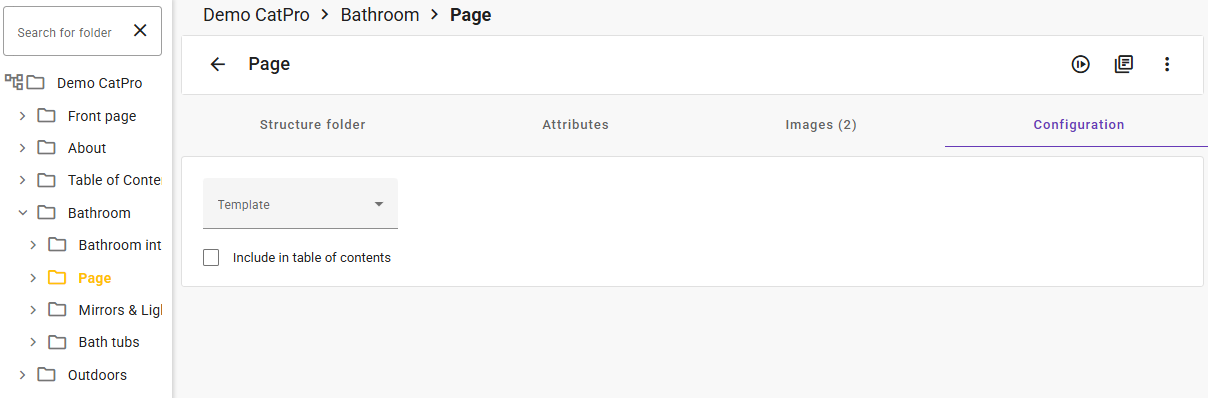
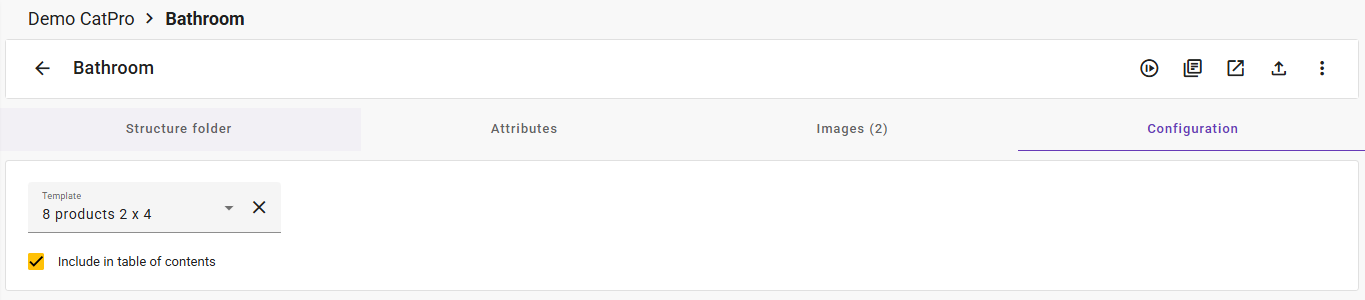
To specify which template should be used for products in a folder, go to the “Configuration” tab as shown below.
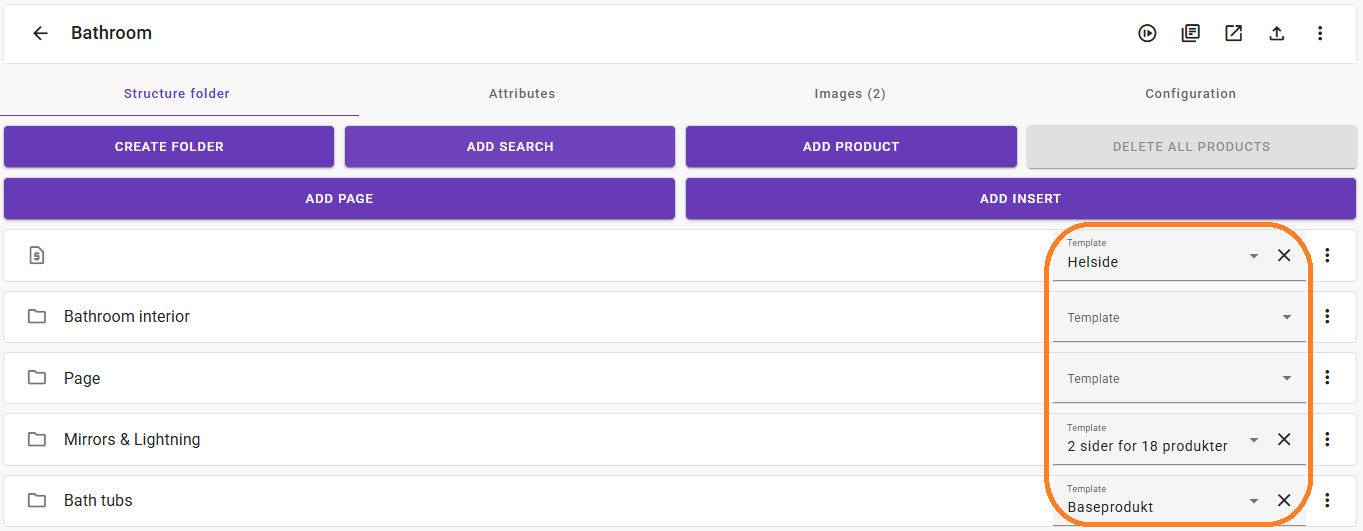
It is also possible to do this directly from the structure for underlying folders:
Step 5: Add products and test
Once you have applied the desired templates/configurations on folders in the structure, you can add the relevant products in the right places, click the Generate catalog icon (), navigate to the catalog overview (), and, when generation is complete, download and review the result.
Not satisfied with the layout? Adjust the design in the template, upload the updated template (tip: use the upload icon directly from the folder where the template is used), generate again, and review the result. Repeat until you are satisfied.
Since you often make small adjustments to get the layout exactly right, it is recommended to generate only the folder you are currently working on. It is much faster to generate a small PDF with a few pages, so you avoid waiting for the full catalog to be generated every time. You can also speed this up by reducing DPI generation settings at the top catalog node.
When you are satisfied with that part of the catalog, generate from the top node to test the full catalog end-to-end.