
With CatPro you have full control over the design by creating custom templates. This is generally quite simple, but it can also become somewhat complex depending on how much logic you want in the templates.
If you cannot do this yourselves, we at iSYS are ready to help you create a document template based on your design preferences.
CatPro also comes with some example templates that you can download, copy, modify, or delete if you no longer need them. They can be a useful tool to get started and learn how to work with templates.
Want to learn more about templates
CatPro uses something called Docmosis to generate PDF files based on design templates. For more information about what is possible, see their help pages and download the latest version of the Tornado – Template Guide for more information on how to create templates for CatPro. https://resources.docmosis.com/
A CatPro template is a Word document (.docx) or a LibreOffice document (.odt) that contains the desired design and variables for dynamic content. We talk about three types of catalog templates:
Table of contents (ToC)
Product templates
Page templates
Each of these can be used in one or more configurations, which you can read more about in the section “Template configuration (mapping)”.
Uploading and/or updating templates
To upload or update a template in feed®, you can do this by navigating to:
Integrations – Catalog generation (under modules)

Click the  icon in the top-right corner and you will get an overview of available templates in the solution. Here you can click the + icon in the bottom-right corner, or use the keyboard shortcut “C”, to open the upload template dialog.
A template must be a Word document (.docx) or a LibreOffice document (.odt).
Tip: We recommend using LibreOffice for designing templates, especially when working with images and repeating columns/rows, this is easier to work with there than in Word.
When you have one or more templates available here, you can create configurations where you map data into the templates; see “Template configuration (mapping)”.
Updating templates
When you have a template configuration and have put it into use in the folder structure, you can navigate directly to the mapping and/or upload new versions of the template directly from the structure you are working in. You do not need to navigate to Integrations – Catalog generation every time.
Table of contents templates
These are a bit special, and here I recommend that you look at the attached example to see how you can build them to get the correct structure.
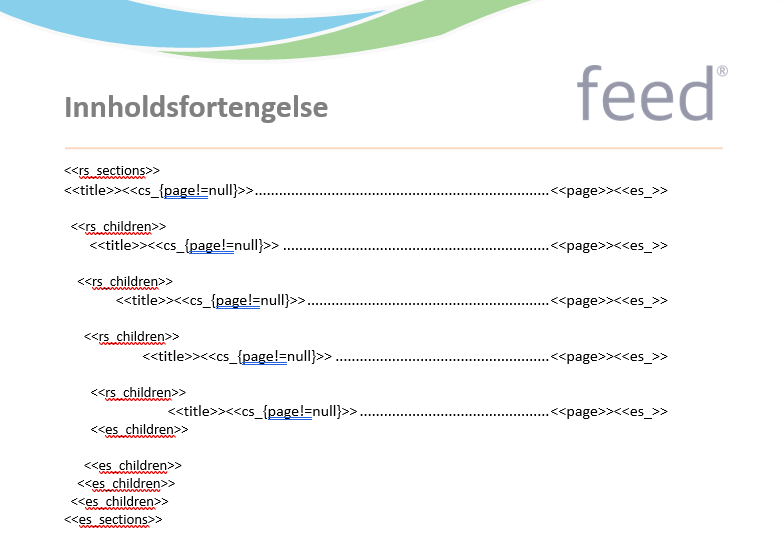
In a template of this type, you have access to two special “tags” that are used to output the correct title and page number for chapters (folders) in the catalog:
<<title>>for the folder name<<page>>for the page number
You can then build a table of contents by creating sections for each “level” in the structure that you want to include.
In the example below, there is a ToC that supports 5 levels. Each level has its own section that iterates over its sub-levels (children). By adjusting how many such “children” sections you include, you can control how “deep” into the structure the table of contents should go. In the structure itself, you can also choose whether a folder should be included in or excluded from the ToC.
There is no need to map any fields into these templates in the configuration.

Product templates
These are the templates that allow you to create dynamic and varied product templates to produce an attractive product catalog. You can create a catalog with only one product template, but it is often desirable to have several different product templates to add some life and variation to the catalog.
Tip: Give the templates good names so it is easy to find and select the correct design template in the structure when you build it.
In Word or LibreOffice (recommended), you build the desired design for what a product template should look like. In the simplest form, you build a fairly static template where you can merge in dynamic fields from the product (or the folder in the structure) wherever you want to include dynamic information by using the following syntax:
<<Desired name>>
“Desired name” is completely optional, but it should indicate what kind of data from the product/folder you intend to map into this spot in the configuration, so you can easily connect the correct field to the template. This name does not need to match 100% with the attribute name or master data in feed®, but it should be understandable in terms of what the user should map in when they set up mapping. For example: <<Product number>>, <<Product name>>, <<GTIN>>, etc.
It is also possible to include more logic in the templates by using the “Tornado” scripting language for Docmosis. We refer you to the documentation found at Docmosis’ resources site; https://resources.docmosis.com/ feel free to look at the examples included with the module, or contact us for assistance in creating what you want.
Examples of what is possible with some simple logic:
Include images based on media roles
Create repeating sections with rows and columns for many products on the same page
Create rule-driven display, e.g., hiding fields or rows if there is no value for a variable
List variants or related products
Generate barcodes or QR codes based on product values
+++
Page templates and inserts
Sometimes there is a need to include content in the catalog that is not directly related to product information. This could be information about you as a company, perhaps an article about a product family, or maybe just a full page with an image, or an empty page to start a new chapter on the “right page” in the catalog.
This can be done either by including an Insert or by adding a Page template.
Insert
This is a pre-generated PDF that you want to include at a specific place in the catalog. Perhaps you have a ready-made PDF with information about the company’s history, vision, or employees that you want to use. Perhaps you already have important safety information or FDV documentation available in connection with a chapter and its products.
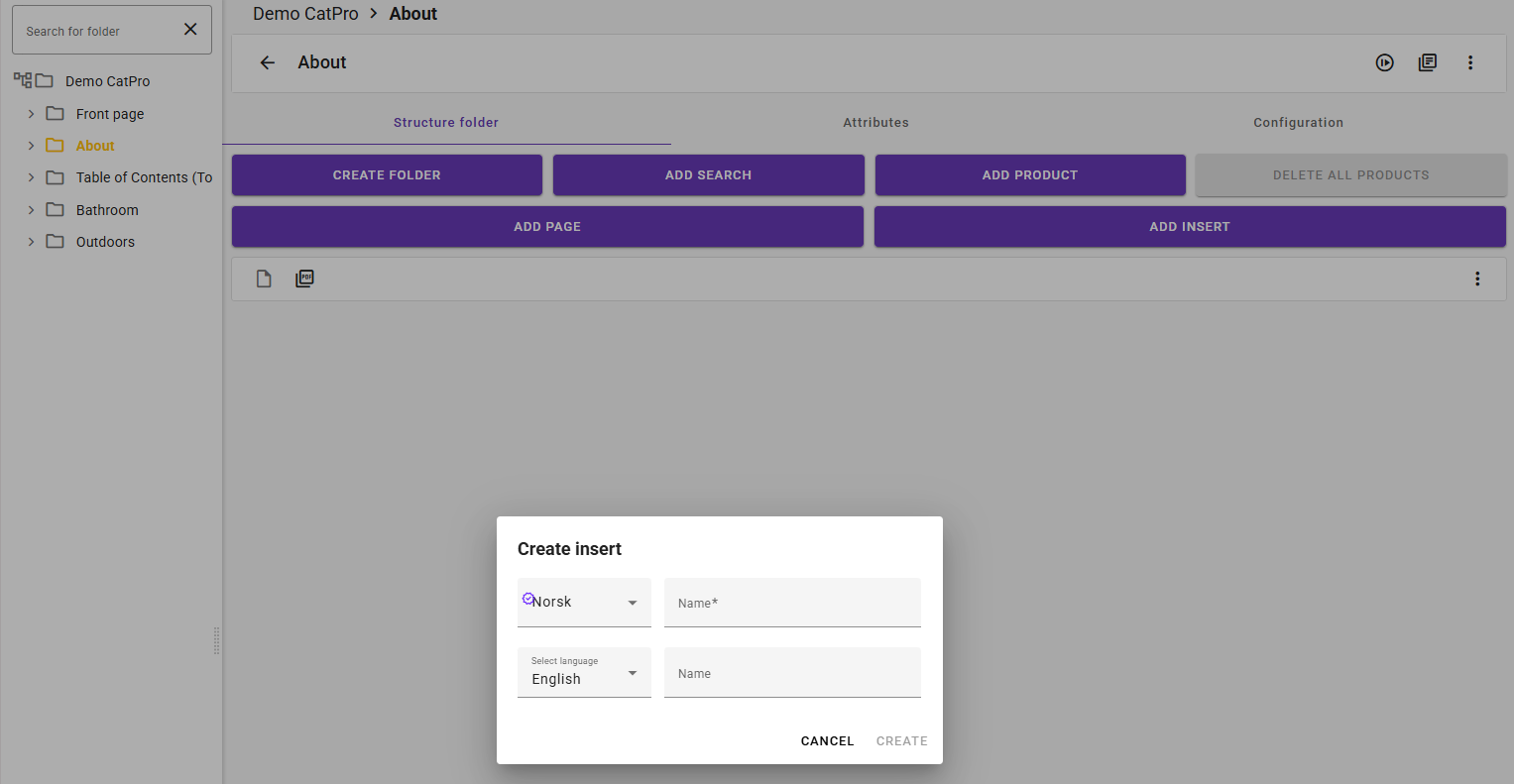
In any case, it is easy to merge an existing PDF into the finished catalog by creating an Insert node where you want it to be placed. Click “Add Insert”, give it a suitable name, and click “Create.” You will then get an Insert node under the folder, where, via the context menu on the right, you can upload or link a PDF from the media bank.

Page template
If you do not have a finished designed PDF to include, you can also create the desired design in Word or LibreOffice by adding images, graphical content, text, etc., and upload it as a template in the same way as product templates. You can then create a configuration for this of type “Page template” that can be linked in similarly to Insert above.
A page template does not have dynamic content from products, but it is possible to pull in dynamic content from the folder where it is placed if desired. In this way, you can reuse the same page template in multiple places with, for example, different images, fetched dynamically from images uploaded to the structure folder for the catalog.
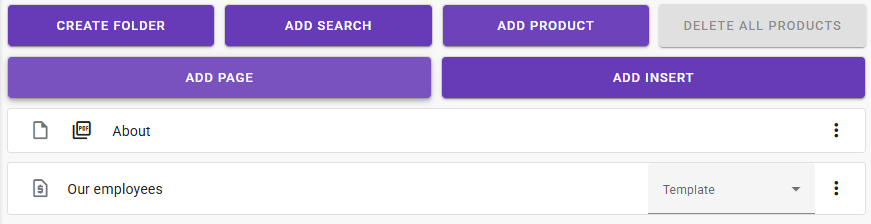
When you add a “Page”, it is inserted as a “Page” node, and you have the option to select the desired template configuration from the list on the right. By using the sorting icon on the folder, you can control the order, for example, if you want “Our employees” in the example above to come before “About.”