
Once the configuration is set up and any necessary approvals have been completed, the product data is ready to be imported.
There are several ways to perform an import:
- From the Configuration – Start the import directly from the specific configuration.
- Via the Scheduler – Automate imports at scheduled intervals.
- Single Product Import – Import a single product manually.
From the configuration
In the context menu of the configuration (...), there are three buttons for synchronizing and importing products to feed:
“Synchronize all products”
- If product approval is not required in the configuration, this option will import all updates and create new products.
- If product approval is required in the configuration, “Synchronize all products” will place new products included in the sync into the Pending approval list, while approved products will be updated or created.
“Synchronize approved products”
This option only retrieves updates from approved products, and imports, updates, or creates products that are approved into your feed®.
“Synchronize new products”
The synchronization job identifies products that are not yet in the recipient feed and retrieves updates only for these products.
- The Awaiting approval list will be updated with new products.
- Products that are not yet created in your feed®, but are listed as Approved, will be created in your feed®.

Via the scheduler
In the scheduler, you can set up a scheduled job of the feed2feed type.
The main difference between a job run through the scheduler and one started via the configuration is that a job from the configuration always performs a full retrieval and import, whereas a job run through the scheduler only retrieves changes made since the last run.
This means that an import run via the scheduler is much faster for importing updates, but a full import may be more suitable if you want to import all products for some reason.
Single product import
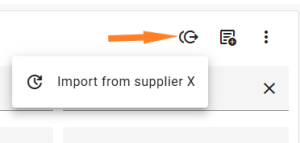
It is also possible to import a single product at a time. Navigate to the product and locate the feed2feed icon (this may be hidden in the product's context menu).
When choosing this import method, the same logic as a "full import" will be applied, but only for that specific product.
Log
Similar to other types of jobs, there will be a log available under Integrations → Jobs.
Here, you will find any errors that have occurred, as well as information about how many products have been created or updated.