
...
By default, all folders will be included in a ToC, but you can choose to exclude folders if desired, for example, if you only want to switch templates within the same chapter.
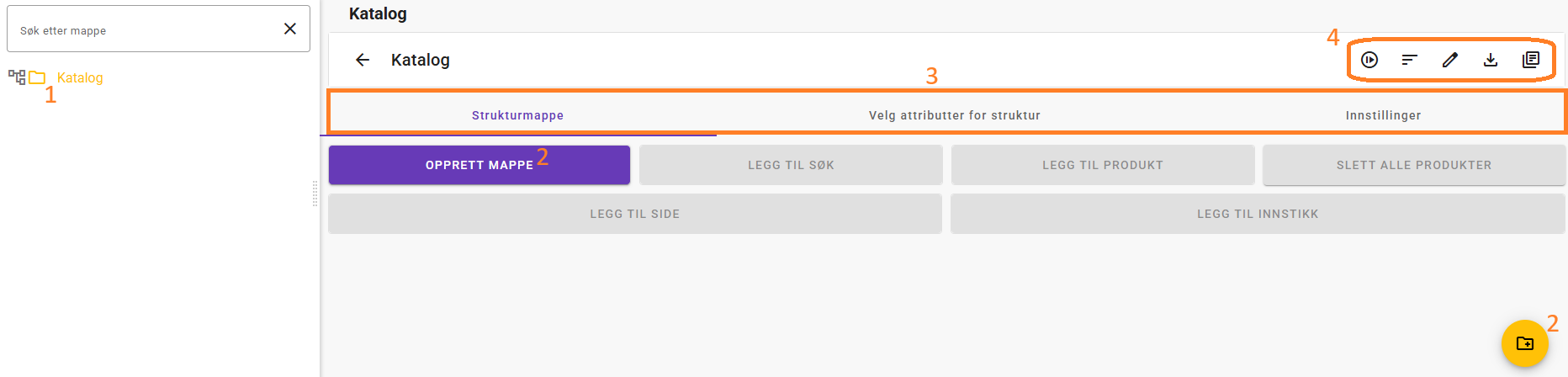
Root folder for the catalog. This defines the catalog name (in the example, “Catalog”). This name is used as the default name for generated PDF files unless you change it. You cannot add products, pages, or inserts directly in the root folder—at least one subfolder must be created.
To create a new folder, you can click “Create folder”, use the hotkey “C”, or use the icon at the bottom-right of the page.
At the catalog root level, you have the following tabs (more about these later):
Structure folder
Select attributes for structure
Settings
This area allows you to:
Generate catalog

This icon starts generating a PDF from the catalog folder you have selected. If you are in the root folder, a PDF is generated for the entire catalog, but you can also select a folder further down in the structure and generate a partial catalog.
This is recommended while building and testing a new catalog. When you click it, a dialog appears where you can change the desired name of the generated catalog and choose whether the catalog should be archived. Non-archived catalogs are automatically deleted from feed® after some time.Sort subfolders at the current level

Edit name, import code, and duplicate rules.

Navigate to generated catalogs

Here you can navigate to the overview of generated catalogs. A generated catalog is normally stored for 2 weeks, but you can choose to archive it. Archived catalogs are not automatically deleted.
...
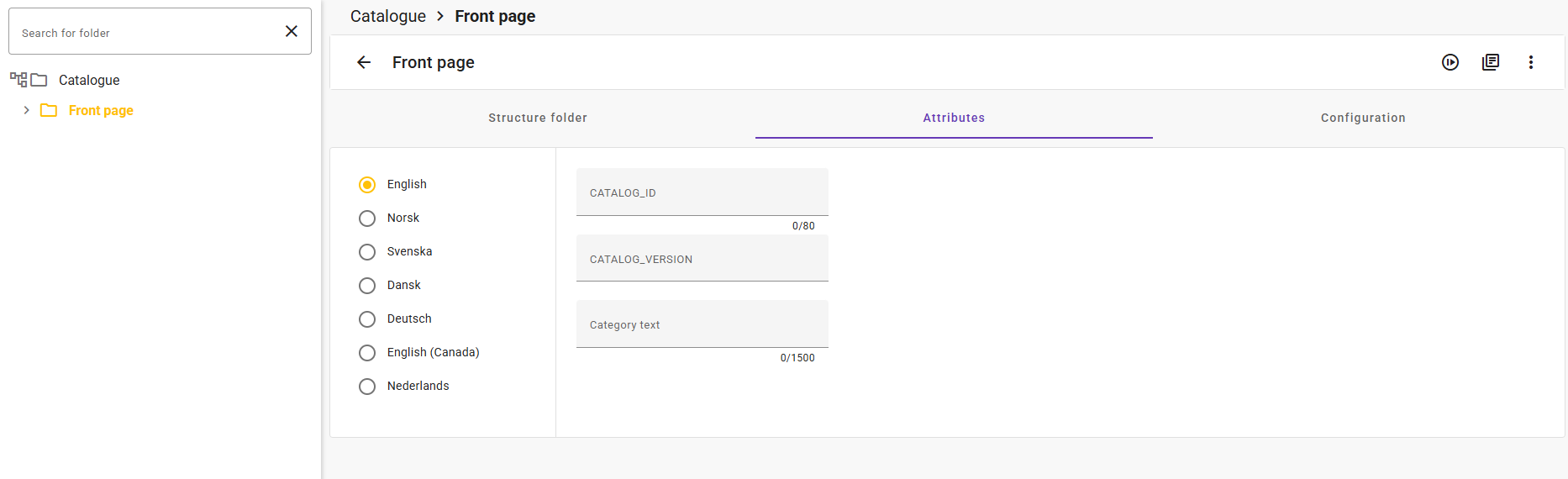
The attributes selected above then become available on underlying folders, where you can enter values that can be mapped into both product templates and page templates.
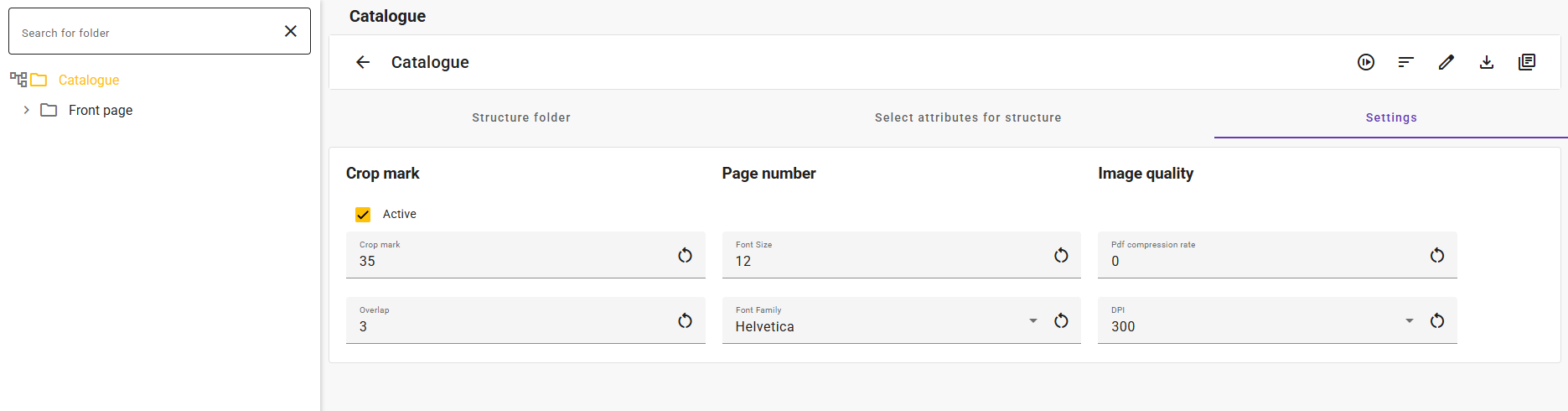
When you are in the “Settings” tab, you have the following options:
...
To specify which template should be used for products in a folder, go to the “Configuration” tab as shown below.
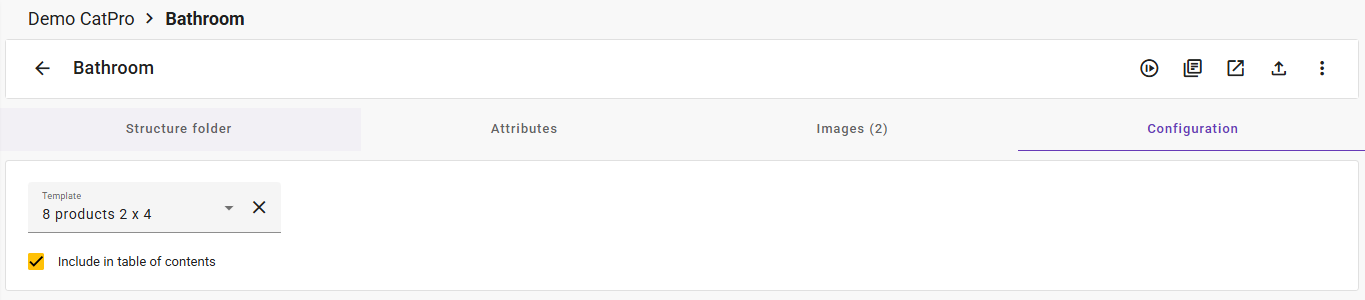
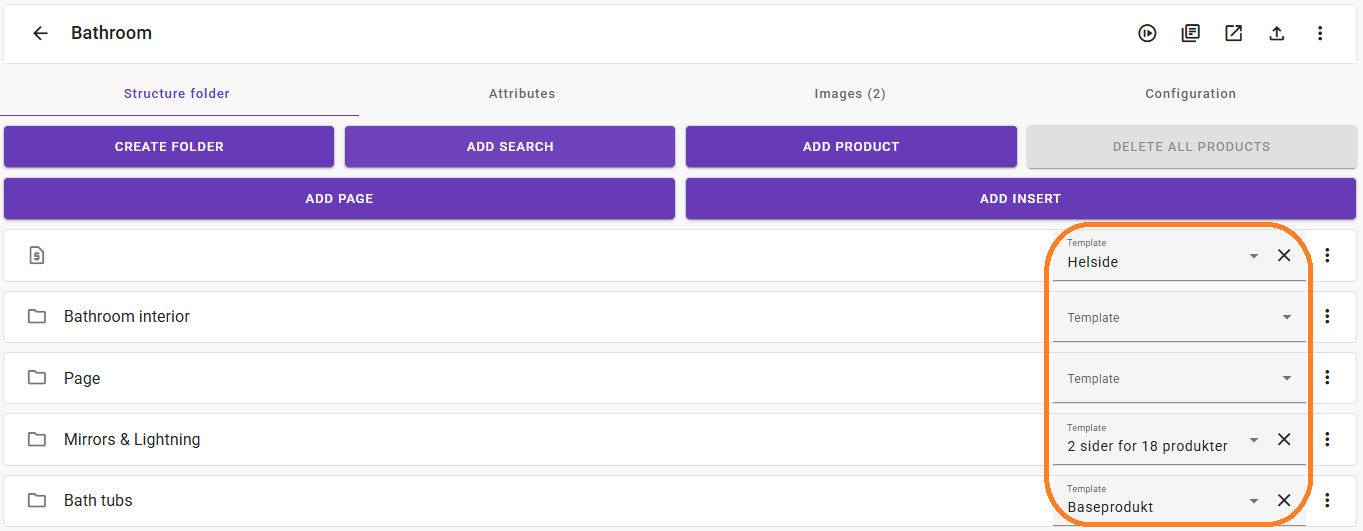
It is also possible to do this directly from the structure for underlying folders:
Step 5: Add products and test
...