

Attributes with data registers
When one wishes to define a set of valid values for an attribute in feed®, the natural solution is using data registers. By using data registers, one eliminates the possibility of typos and variations in fields that should have defined values. With the help of the master data function for data registers, one can ensure consistency across all products. To use this feature, one must:
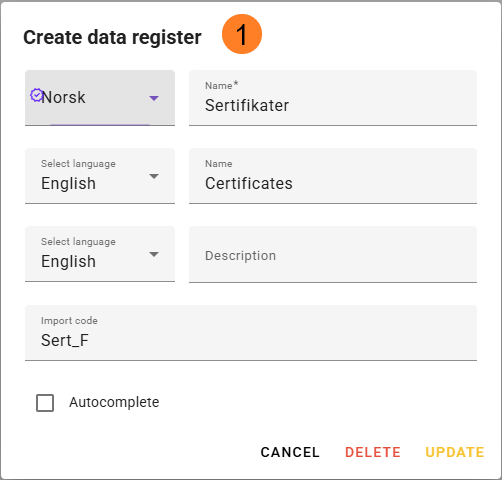
- Create a data register and give it a descriptive name, brief description, and an import code if it is to be used via API.
a. Navigate to Basic Data - Product - Data Registers and click on the yellow + icon, or use the shortcut "c".
b. It is possible to translate the name and description into the languages activated in feed®.
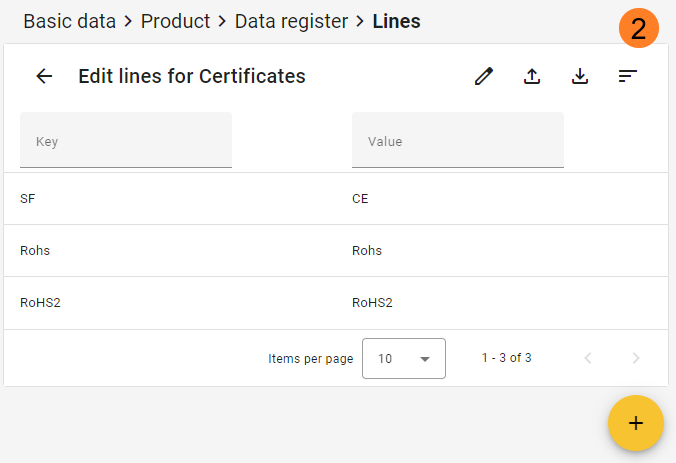
c. Use the autocomplete checkmark if you just want the feed user to search for available options, instead of getting a dropdown list of available options*. - Create data lines for your new data register. These are the values that can be selected for the corresponding attribute. A line consists of a "Key" and "Value". The key is the code and must be unique for a data register. The value is what is displayed to the end user in the dropdown list, and this value can be translated into the languages activated in feed®.
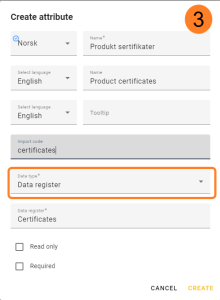
- To utilize a data register, one must create an attribute and select data type = "Data Register" or "Data Register Multiselect". Then, one can search for and select the desired data register to link it to the attribute.
* Autocomplete: To improve performance when using large data registers, use the checkmark: Autocomplete. When this is enabled, users must search for values via the search icon instead of selecting from a long list that is loaded directly into the dropdown within the attribute. This prevents the browser from struggling to display large amounts of data and provides a significant performance improvement.
You activate "Autocomplete" by going to Basic Data → Data Register, opening the desired register, clicking the pencil icon in the upper right corner, checking "Autocomplete," and saving.
The dialog can also be used if the field is not checked, but in that case, feed® will still load large amounts of data so that the dropdown list remains available.