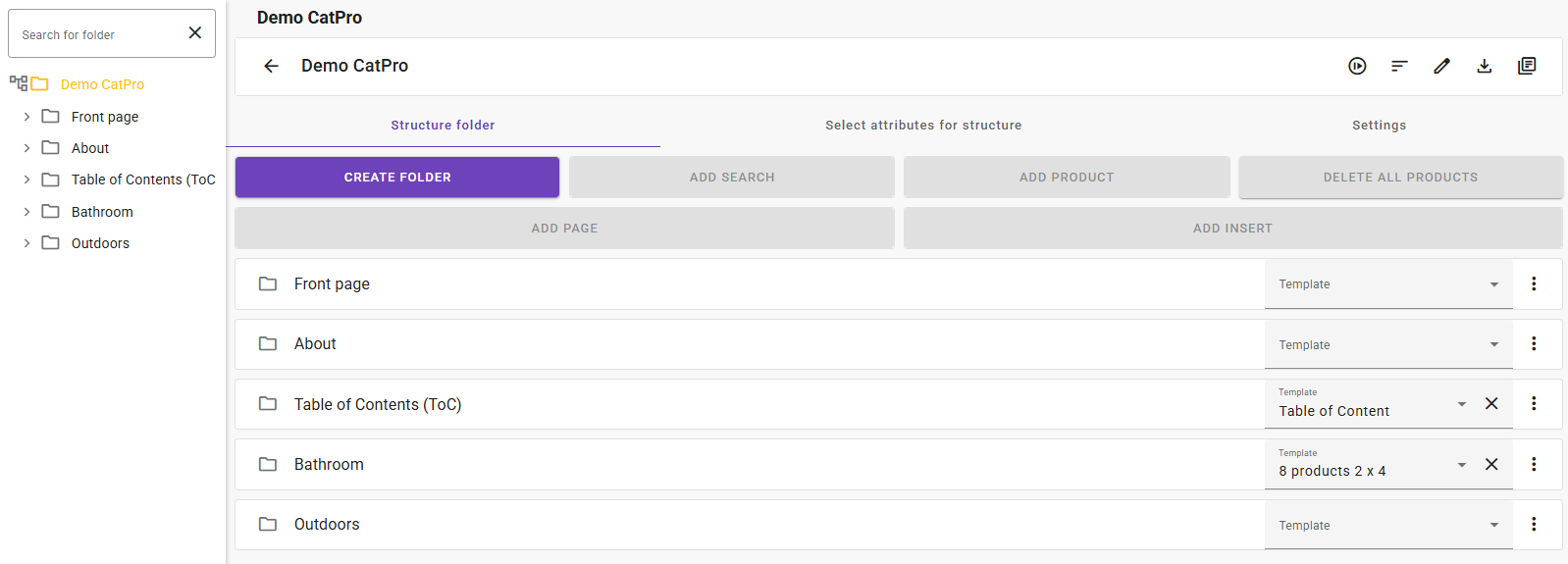
A design template from Word or LibreOffice can be used in one or more different configurations. This is where you map the variables you have defined in the template to data from feed®.
Since you can create multiple configurations for the same template, you have the option to connect different information into the template for different types of products. So, if the template fits design-wise for both “Dishwashers” and “Children’s clothing” … yes, you can reuse the same template and map different data fields for the different product types, if desired. confluence.isys.no
Step 1
Navigate to Integrations – Catalog generation and click the + icon in the bottom-right corner, or use the keyboard shortcut “C”, to create a new configuration.
You must give it a name, choose which template type it is (Table of contents, Product, or Page template), link it to the actual template you previously uploaded, and specify how many products (max) the template is designed to contain before it starts a new page.
TIP: Give it a clear, descriptive name so it is easy to choose the right template when working in the catalog structure itself
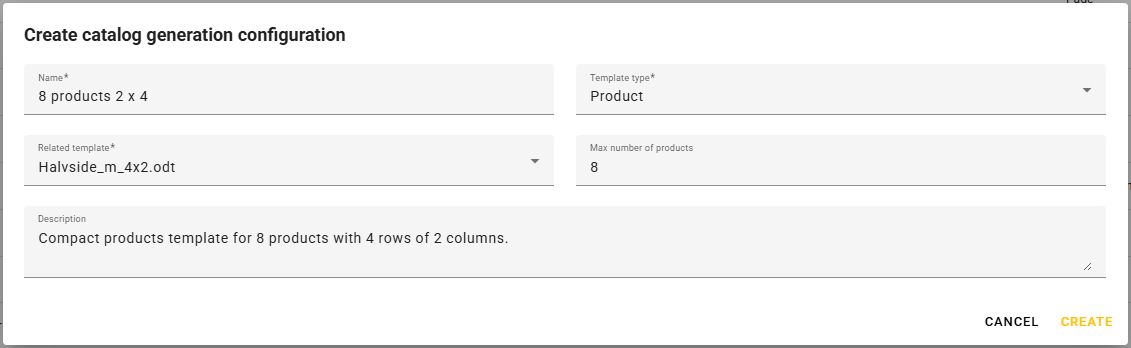
After you click “Create”, you can click the configuration in the overview to start mapping data (if applicable).
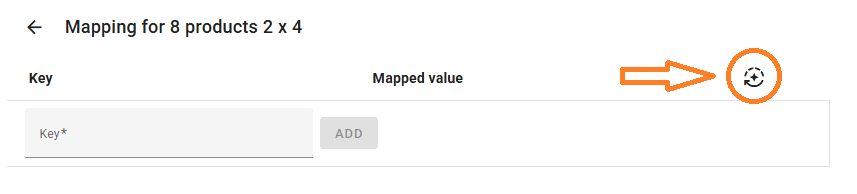
First, you must retrieve which fields are available from the template by clicking the icon highlighted under “Fetch available fields.”
Depending on how you designed the template, you will then get a list of variables in the template that you can map to corresponding fields on the product, or to structure data in feed®.
If you have worked with DocPro or Excel import, the mapping functionality here will feel quite familiar.
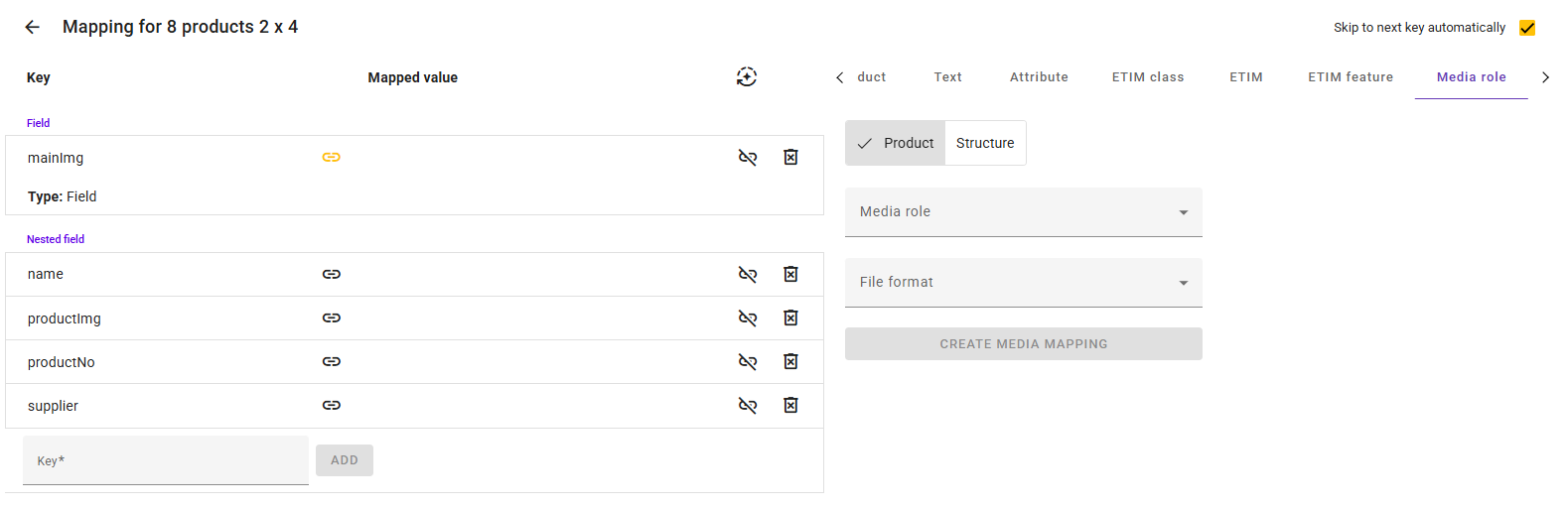
When you have finished mapping a template configuration as shown above, it is time to put it into use in the catalog.