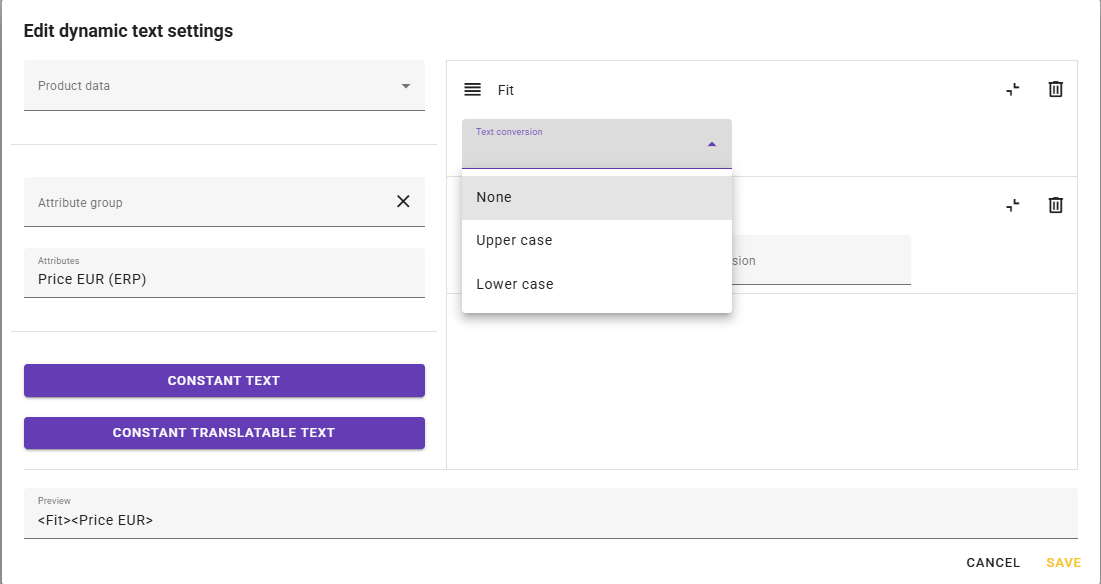
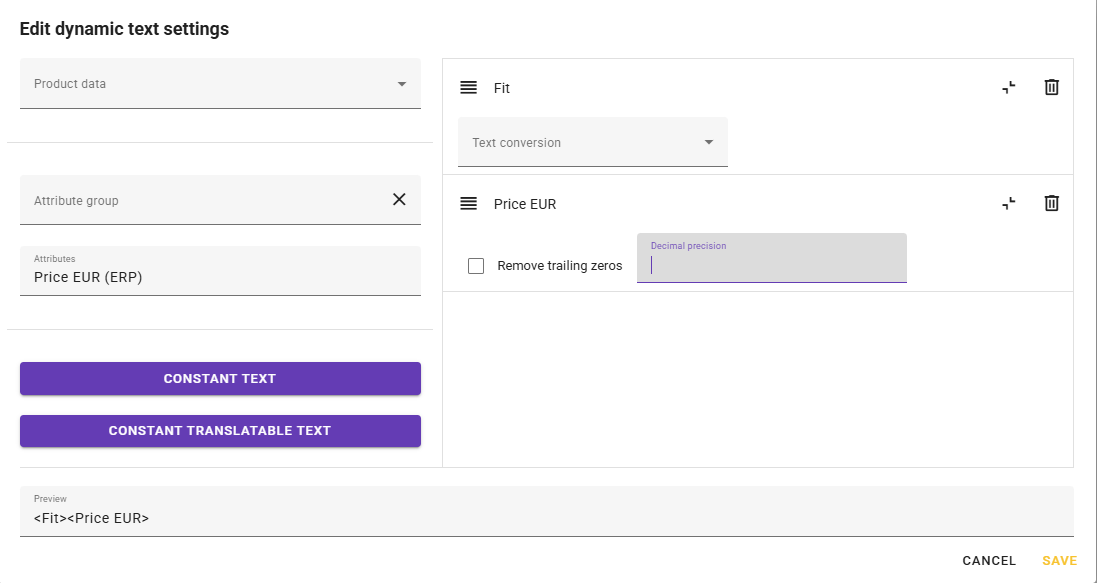
Dynamic text is a powerful tool that can combine several attributes and insert preformatted text (both language dependent and "universal text". This can be useful for values you want to be used in integrations, that will simplify the integrations and also give you a visible result in feed.
Creating Dynamic texts:
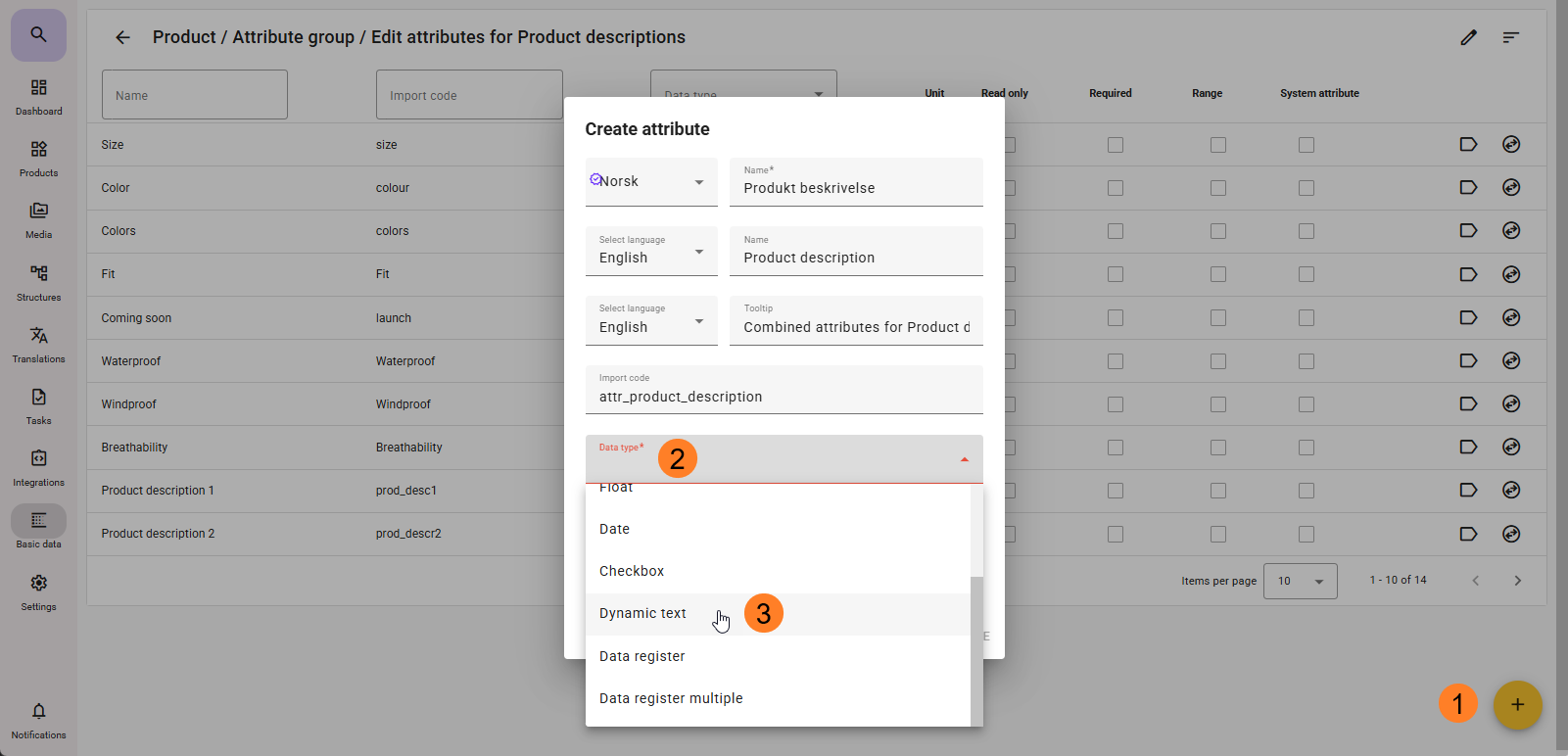
- Go to Basic data - Attributes, find an attribute group you would like to place the Dynamic text field in, and click on the round circle in the lower right to create an attribute, or press c on the keyboard.
- Type in a descriptive name. Also include an import code so a integration can fetch the field.
- Select data type Dynamic text and click create.
After create, a window appears where you can select Product data fields or attributes. You can also create constant text ("universal text") or Constant translatable text (language dependent text).
The Constant text is useful for adding spaces or separators between attributes you add to the dynamic text. You can also use it for language independent text.
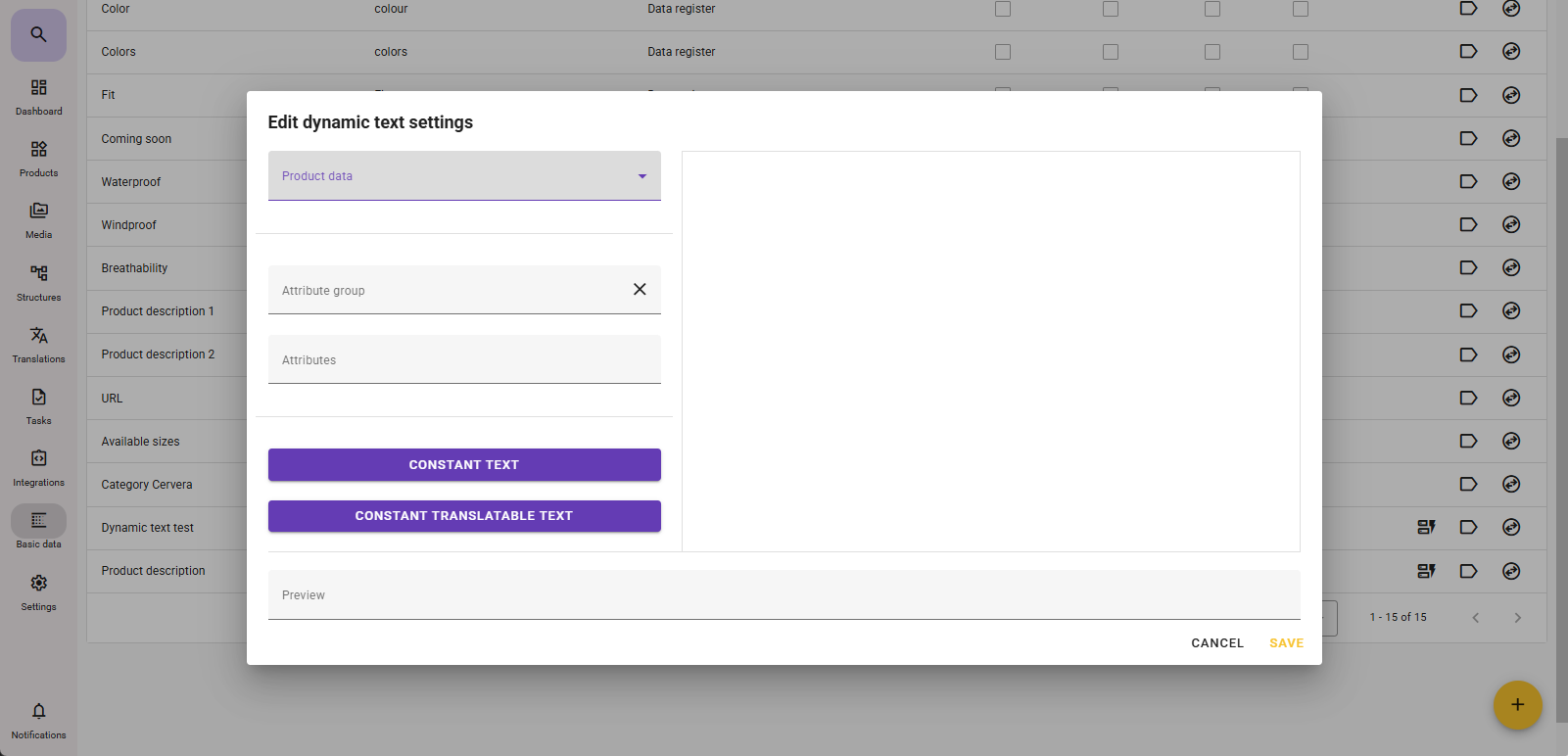
When you add attributes and constant text or Constant translatable text it will be added to the right side of the screen.
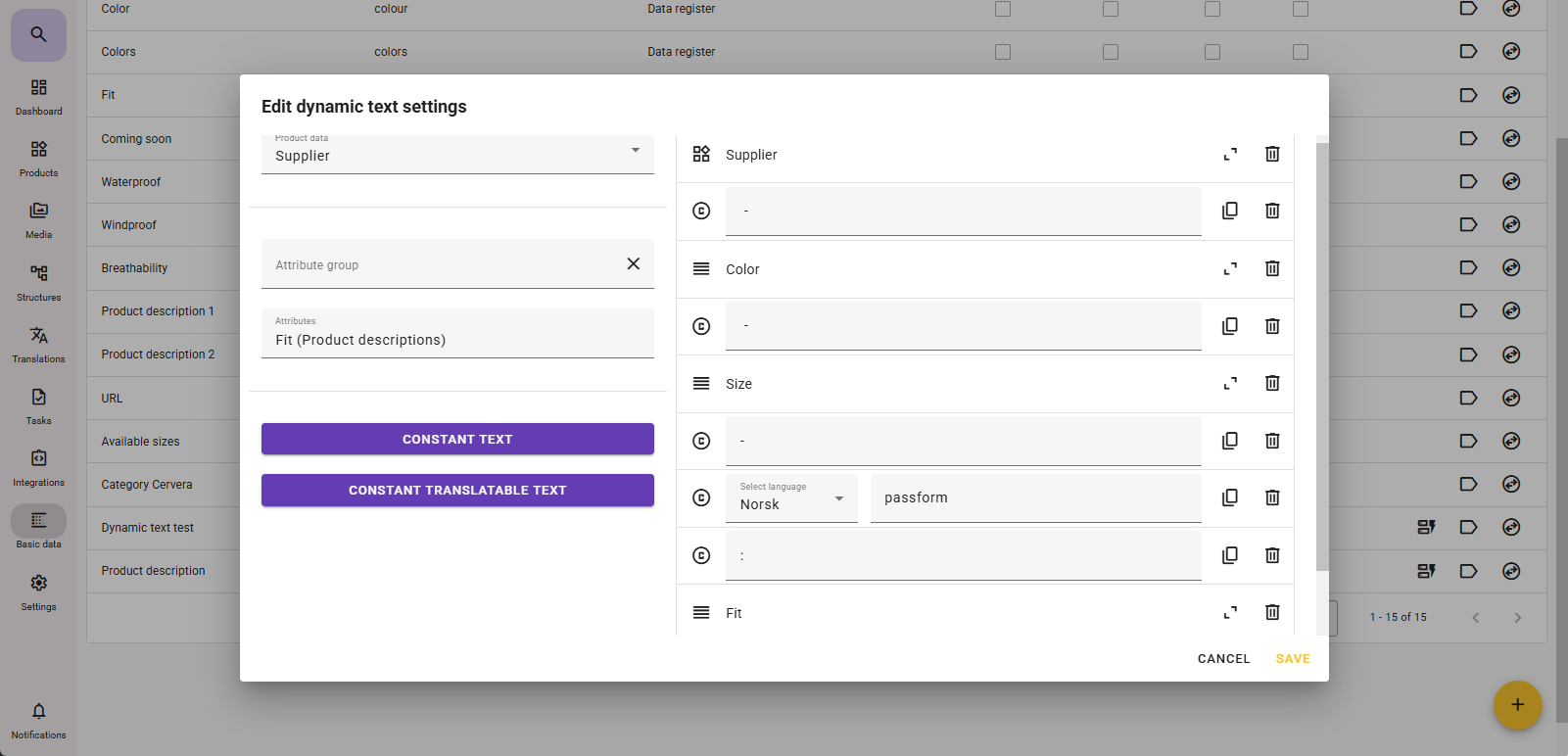
You can drag and drop the selected attributes on the right side if you need to change the order of the fields. You can also delete these by clicking on the bin if you have selected something that you don't want to be included.
Click save when you are done.
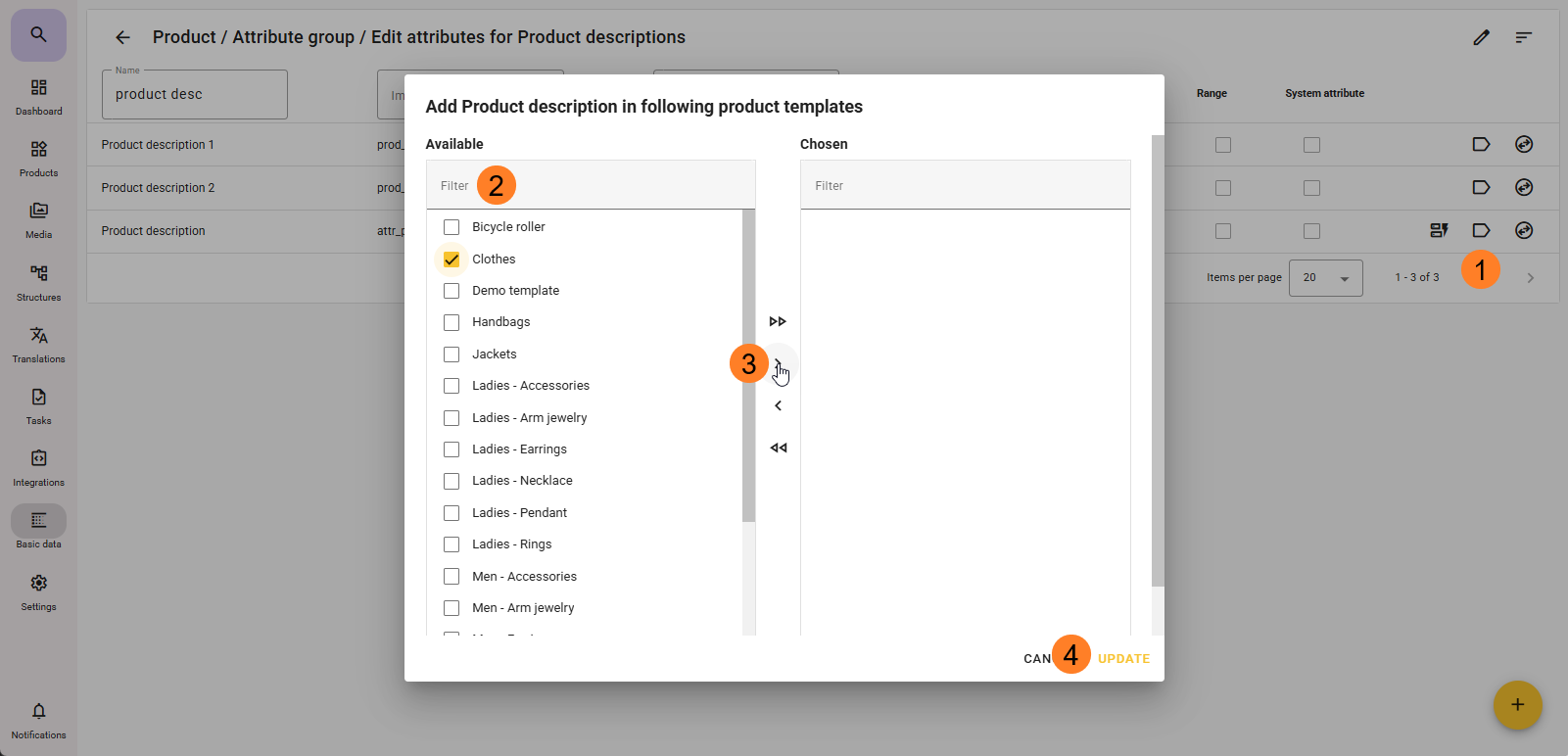
After this step you need to include the field in product templates that it should be visible in.
Find the Dynamic text attribute in the Attribute group and click on the bold arrow to open the template list.
Select the product templates you want to include the Dynamic text field, and click on the center arrow to move it to Chosen templates list on the right side.
Click update to activate the inclusion.
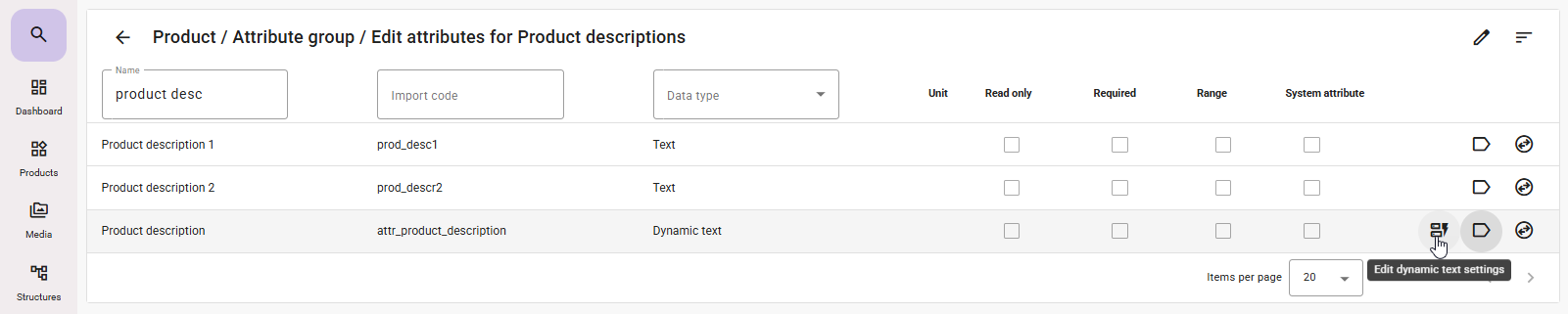
If you need to edit the Dynamic text attribute later on you can do so by locating the attribute again under Basic data - Attributes - Attribute group. Find the attribute and click on the edit icon.
The attribute from the above example will look like this on the products:
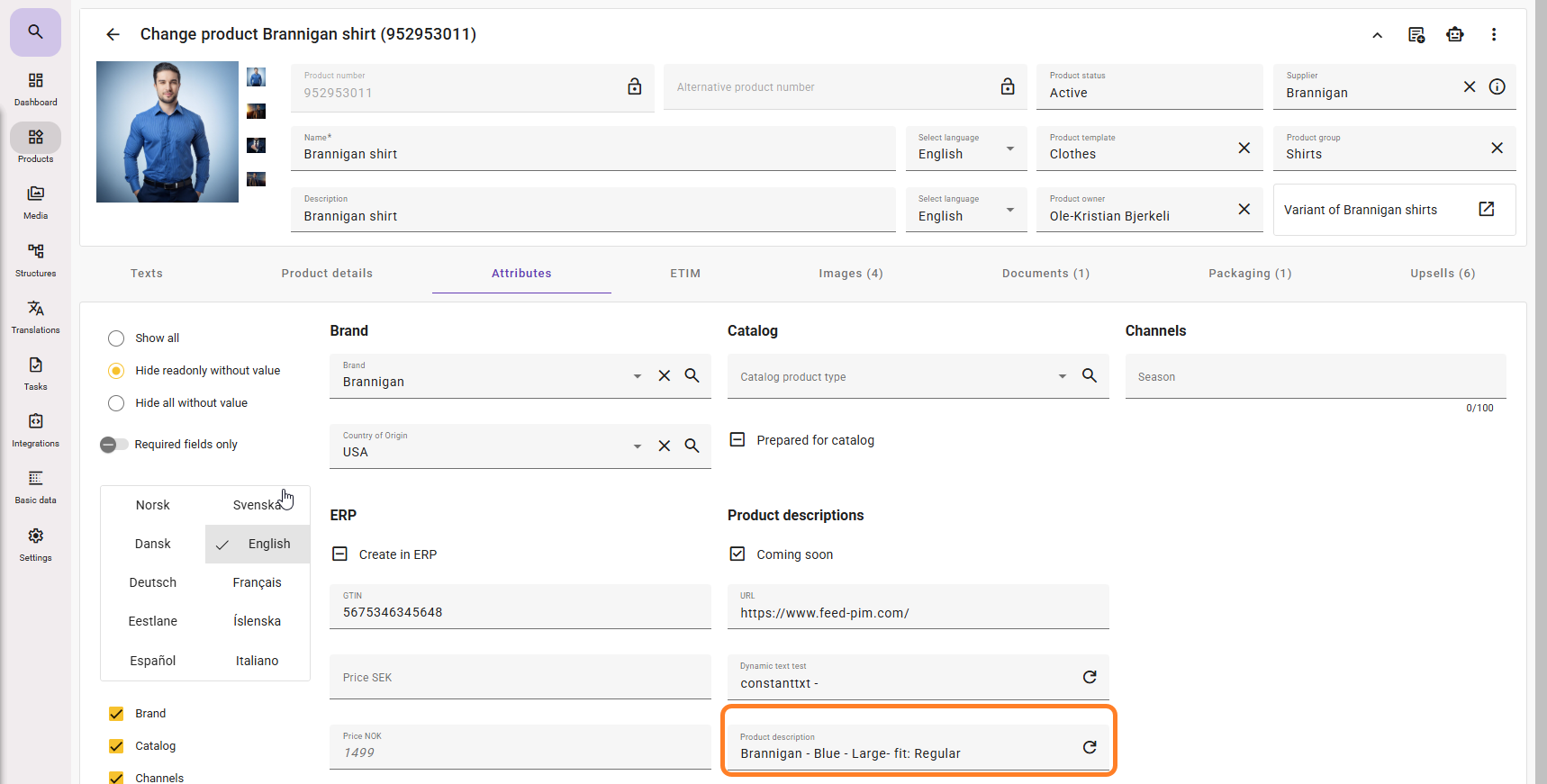
Keep in mind that with "Dynamic text" the result is based on several attributes, and if some of the attributes don't have values, it might not look right.
You cannot edit the value directly in the attribute. You then need to add values to the attributes that is missing data.

Formatting of dynamic texts In the configuration dialog for dynamic texts, supports both text and numbers. For text, you can choose uppercase, lowercase, or original value. For numbers, you can specify the number of decimals and whether trailing zeros should be removed. For example, if you choose 4 decimals and remove trailing zeros, 8.123456 becomes 8.1234, while 8.1200000 becomes 8.12. Click the angled brackets (<>) to the right of the mapping to view and change the formatting.