
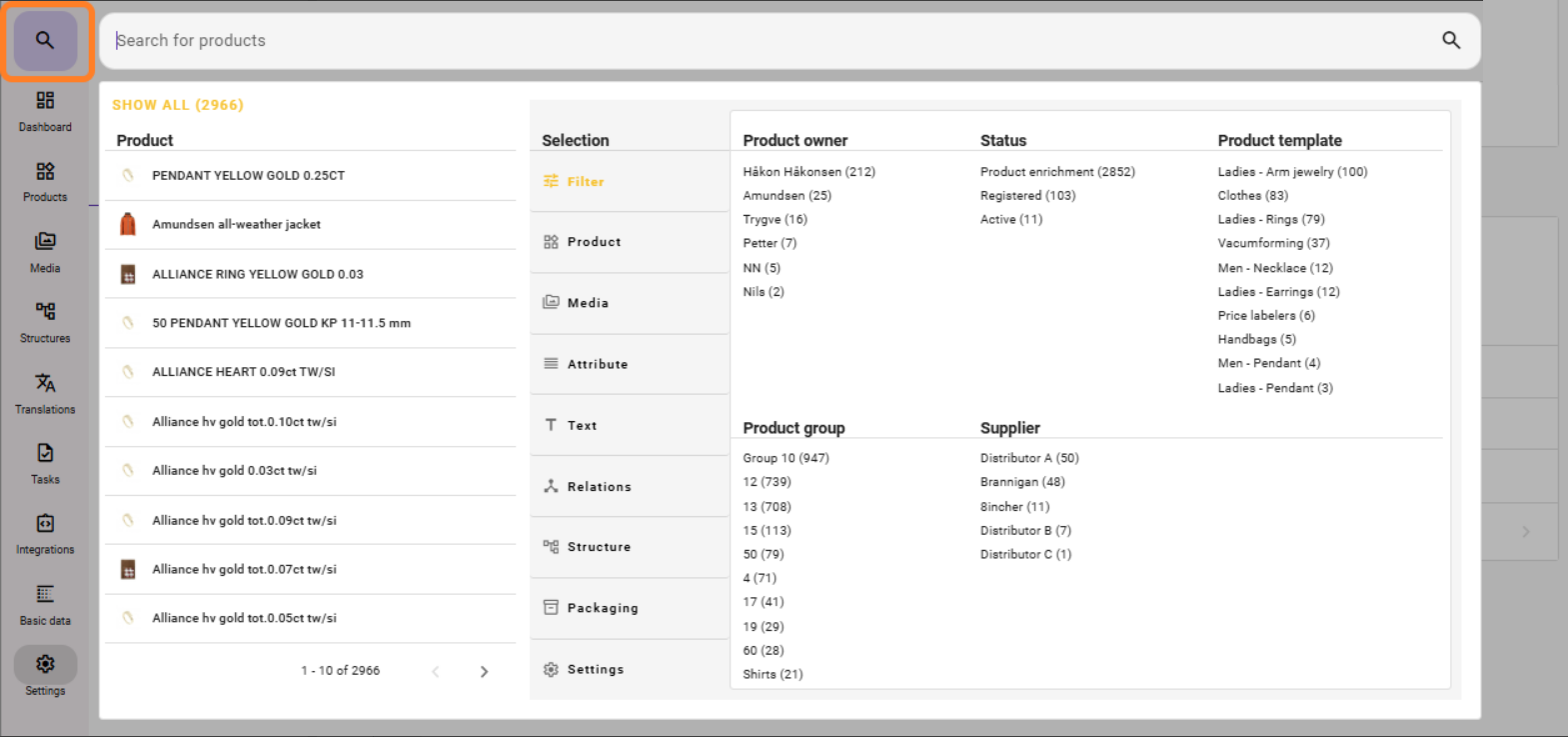
In order to access product search in feed, click on the  icon on the left side corner of feed, and the searchbar and available filters will be presented to you.
Free text search in feed®
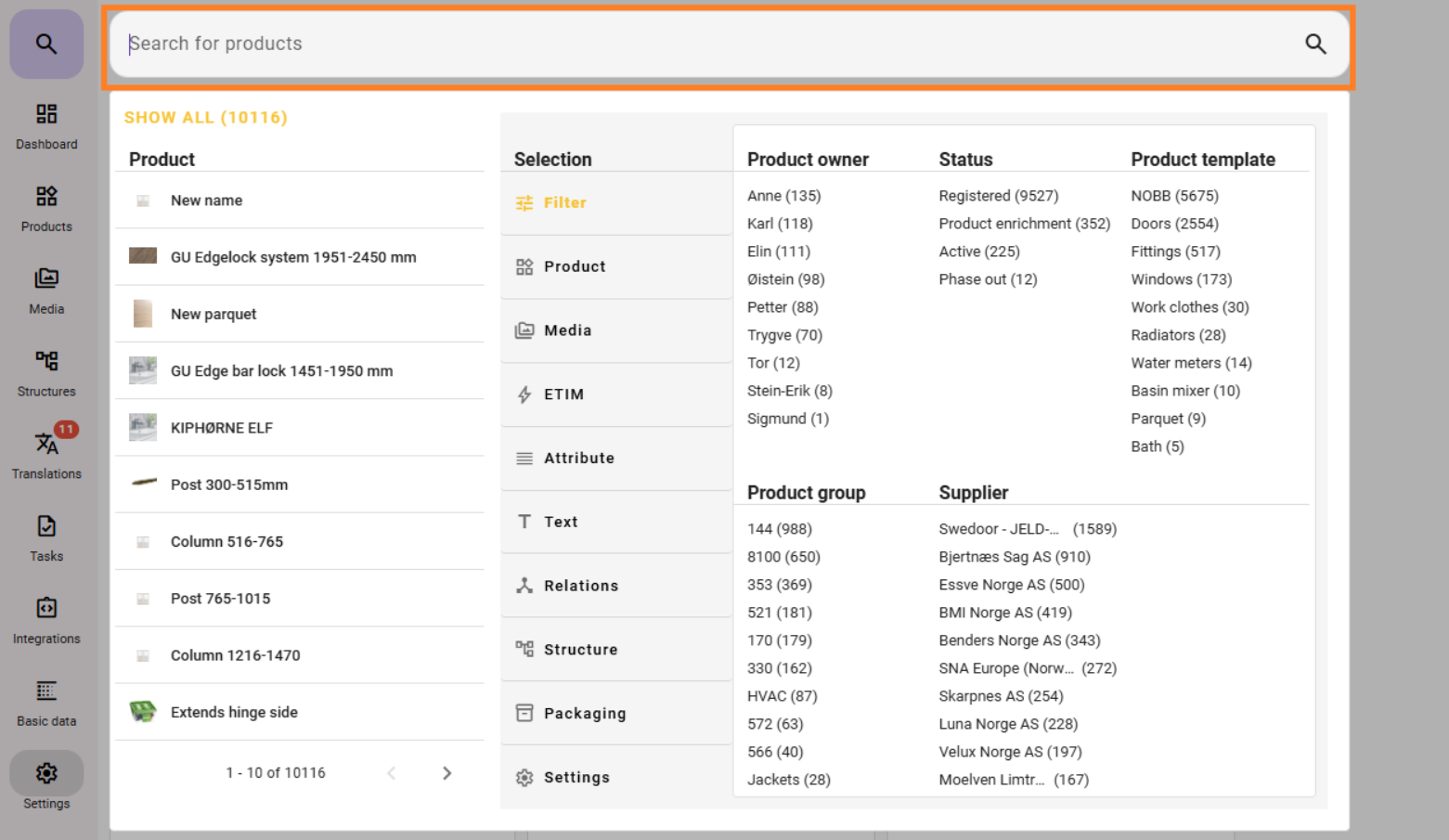
At the top of FEED, you always have access to the search field, where you can quickly perform a free text search by entering search terms directly.
The free text search goes through products for whole words or values that match the search criteria in the following fields:
Data in product headers
Attribute values
Content in text fields
You can also quickly filter by Product Owners, status, and type by clicking on the desired filters, which then add as search filters in the search bar and are visible as "chips" there.

If you wish to modify the chips that appear in the search bar, you can click on them to edit, or you can click the x to the right of them to remove them.
Advanced Search

If you want to narrow your search to spesific attributes, texts or other criterias, then the advanced search is the way to go.
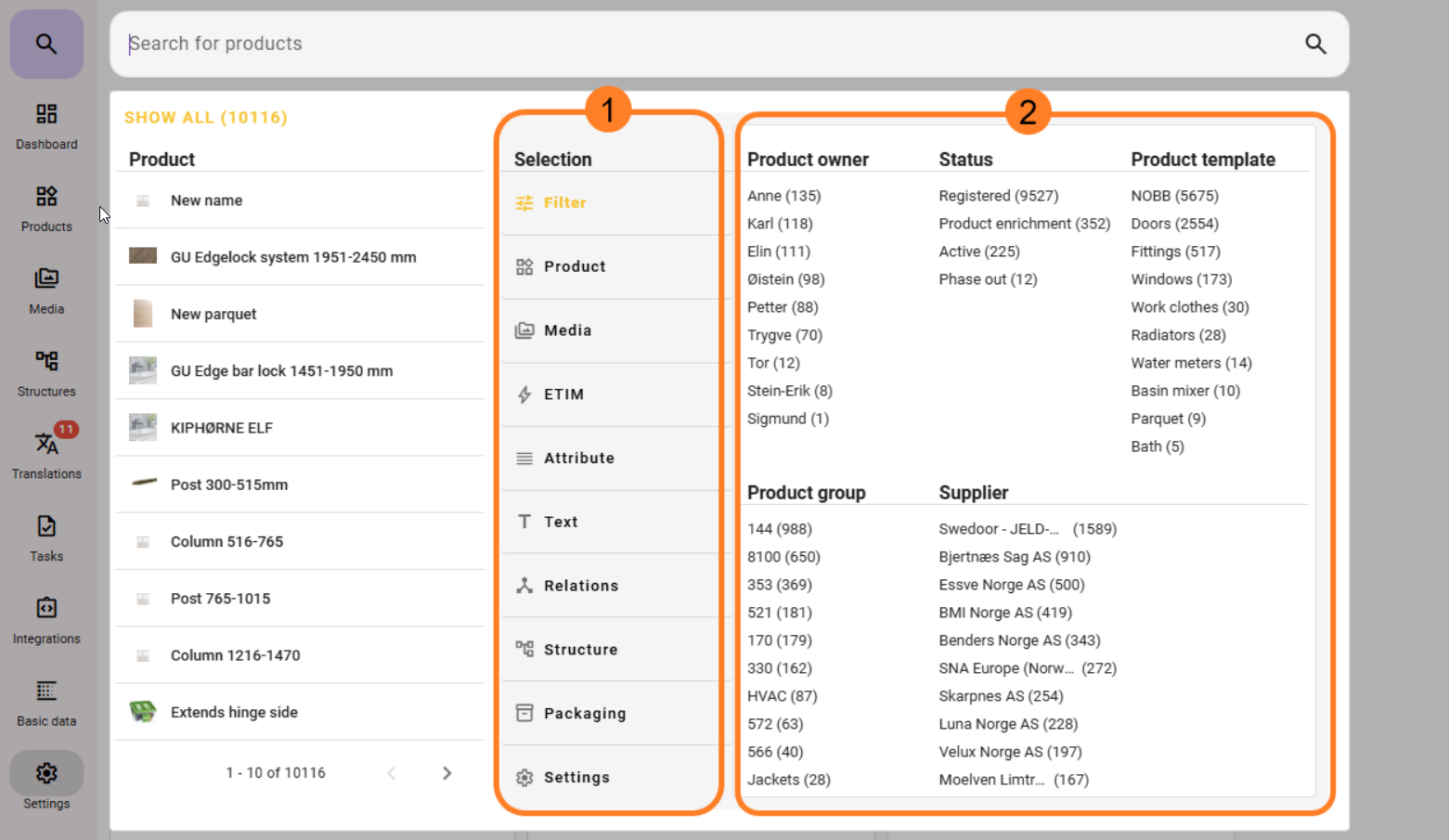
Here you first choose the type of field you want to search on under Selection (1):
- Filter
- Product
- Media
- ETIM*
- Attribute
- Text
- Relations
- Structure
- Packaging
- Settings
* Only for those who have the ETIM module activated

In advanced search, unlike free text search, it will search for results within the selection you choose.
Depending on the selection type, you get different options available on the right side of the advanced search (2).
For example you can get options like:
- Has value
- Missing value
- Exact match
- Range (for numbers that are set up with range)
Settings (under search):
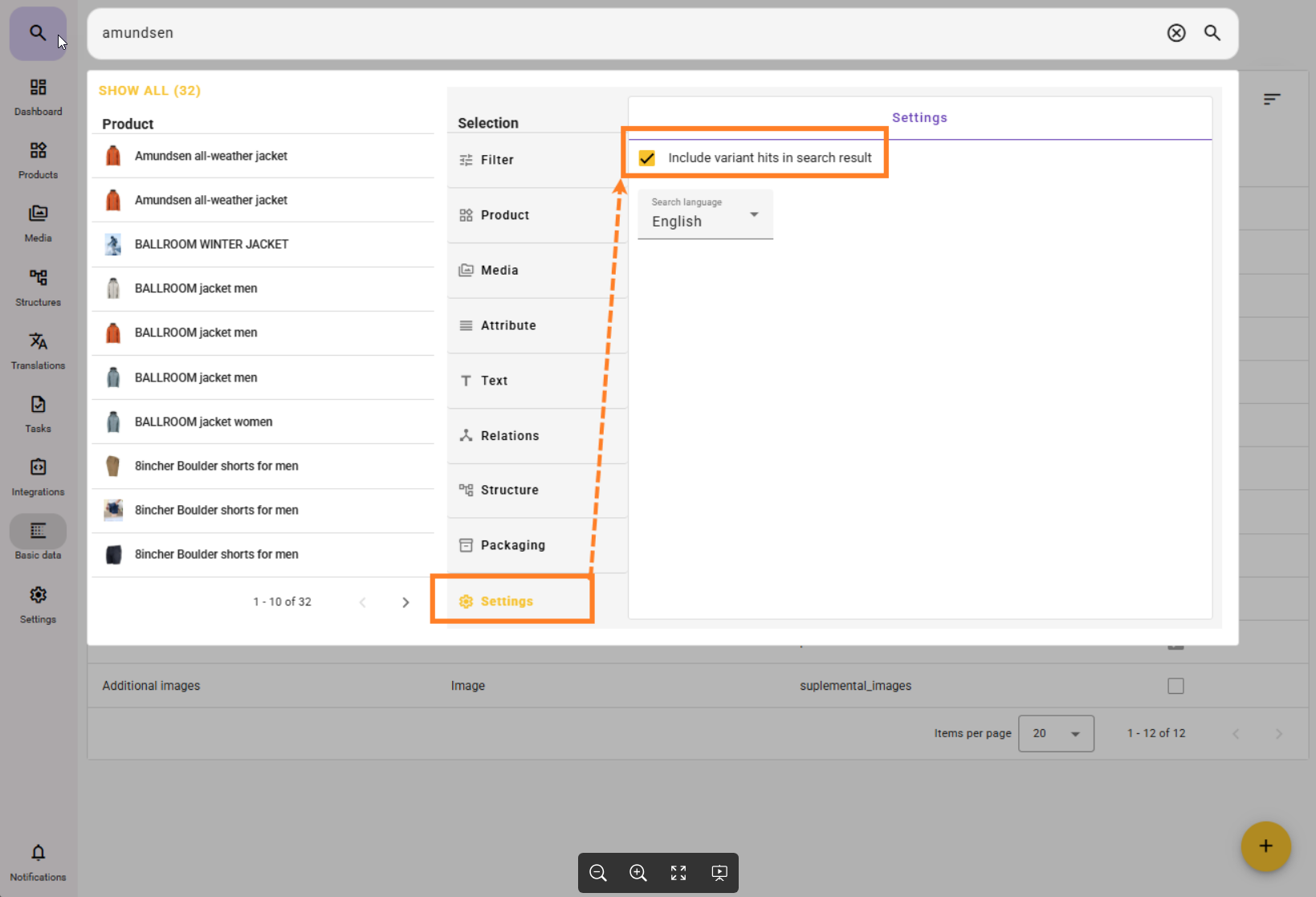
Include variant hits in search result: Search for values inherited from Base is for searching for variants that have values inherited from the associated base product. This is now standard functionality related to searching in feed®.
It can only be deactivated (or reactivated by this menu point, and it will affect all saved searches in feed.
Search Language: This will let you choose the language to use in a search result. Your user language can for example be English, but if you would like to search for text values, missing text values or has text values in one of the other languages you have active in feed, this is your go to filter.
The search result will still be in your language, but the match will represent what you have specified in the other language.
Combining Search Criteria
feed® supports the following options when it comes to building complex searches.
Combining searches on the same data field:
For all data fields where products can only have one value, you can combine searches by adding multiple search criteria ("chips").
By adding different values you are looking for the same attribute, text field, or product field. This will combine these in the search to look for products that match one or more of these values. In other words, an "OR" search. For example, you can search for products that have status "Registered" or "PIM in progress".
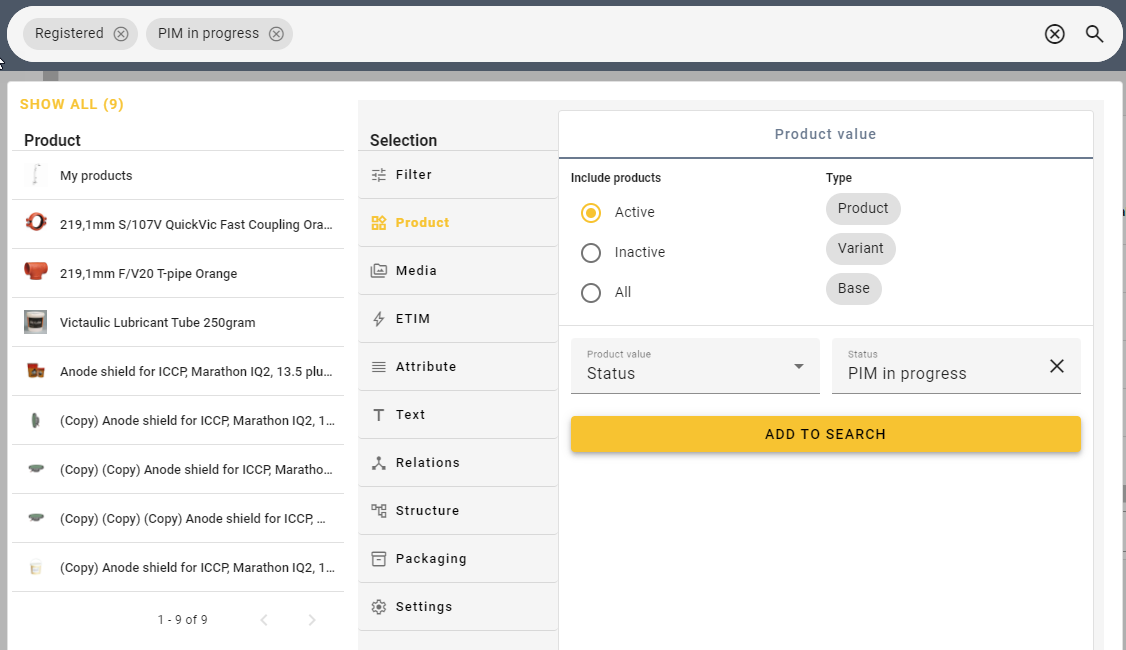
For data fields where a product can have multiple values, typically attributes of type "Multi-select data registry," when adding a search criteria, you can choose multiple values to search for. Then you will search for products that have all these values selected. In other words, an "And" search. So if you add a "search chip" for colors "blue" and "yellow," only products with both of these colors selected will match in the search. If you want to search for products with color "blue" OR "yellow" instead, you need to add color search twice, first for one color, e.g., "blue," and then for color "yellow" as two different "chips". This will then be an "OR" search and give results for all products with color "blue" or "yellow" (or both...).
Combining searches based on multiple data fields
It is also possible to combine searches on different data fields in feed®. For example, you can search for all products where Status = active and Product Owner = John Smith.
Every time you add a search criteria for a new field in the search, this is an "AND" search. This means that as in the example above, you search for products where criteria a = X AND criteria b = Y.
Currently, it is not possible to make an "OR" search for products based on different data fields. In other words, you cannot create a search that returns products where Status = active OR Product Owner = Ola Nordmann.
Chips
A chip will visually look something like this in the search bar:  ,
,  .
.
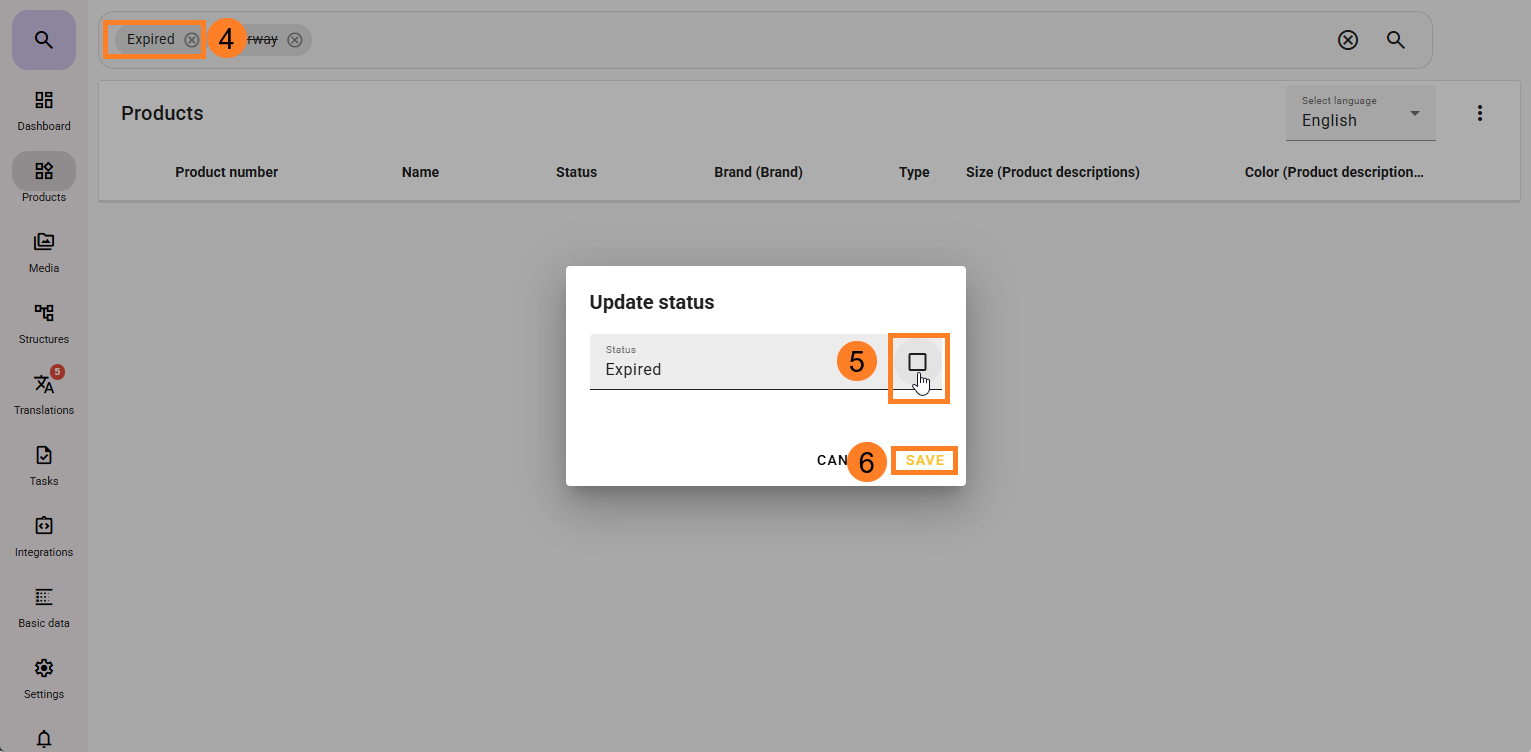
Some "chips" is added above the "Add to search" before it appears on the search bar in feed. This gives you the option to click on the chip to give it the opposite value (from true value to false value)
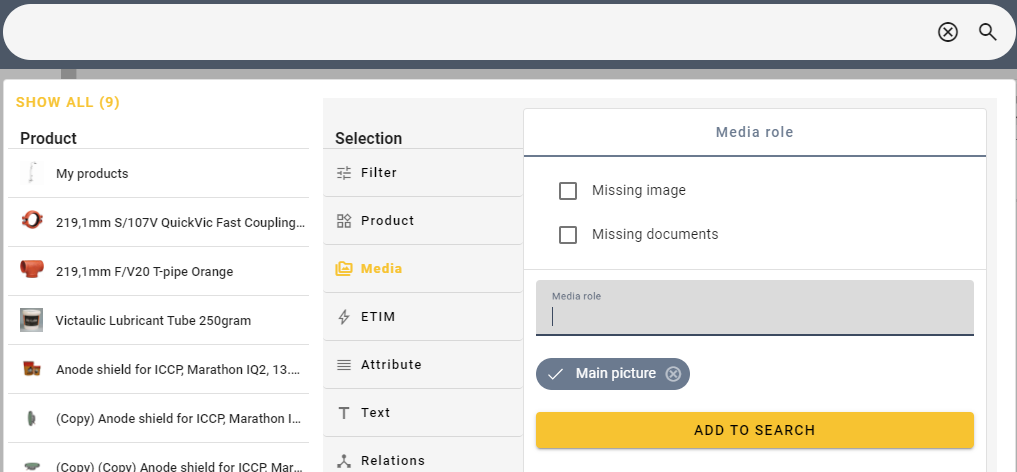
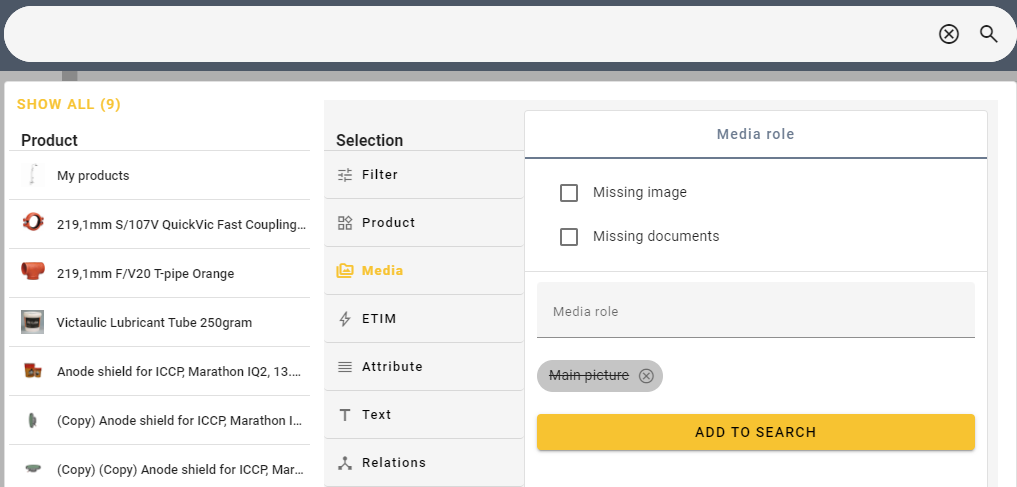
It is also possible to click on chips after they have appeared in the search field (1) and change them to the opposite value by clicking the chip (2), or remove the chip and change the value directly to, for example, "has value" or "missing value" before saving the change (3).
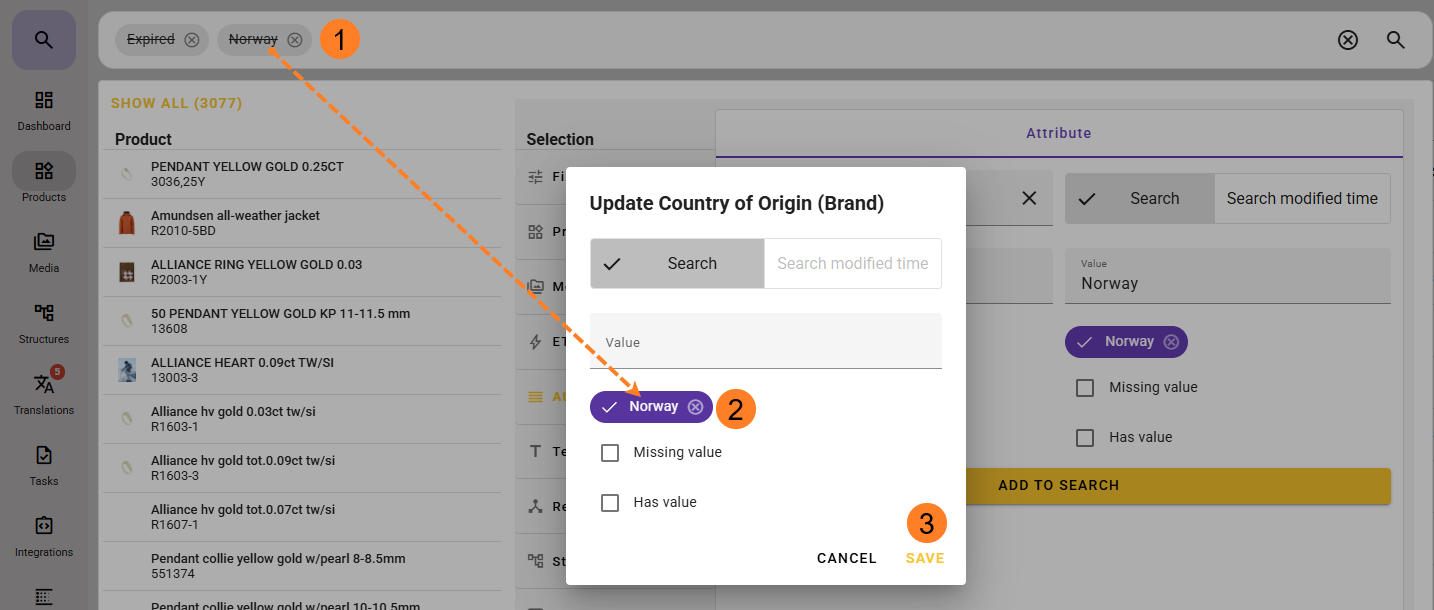
Some of the chips you click in the long search field (1) will not display an option to change or remove the chip through clicking on it.
Check whether a checkbox appears to the right of the field. A checkmark in this box sets the value to TRUE, while an empty box sets it to FALSE and places a strike-through on the search chip.
You must save after making the change (5).
Inherited values
Values on a variant product in feed will (with some exceptions) be inherited from the base product if the variant value is blank and the base has a value.
Variants with inherited values will be included in the search result on that value.
Search results in feed on inherited values will appear in italics, similar to their appearance on the product card.

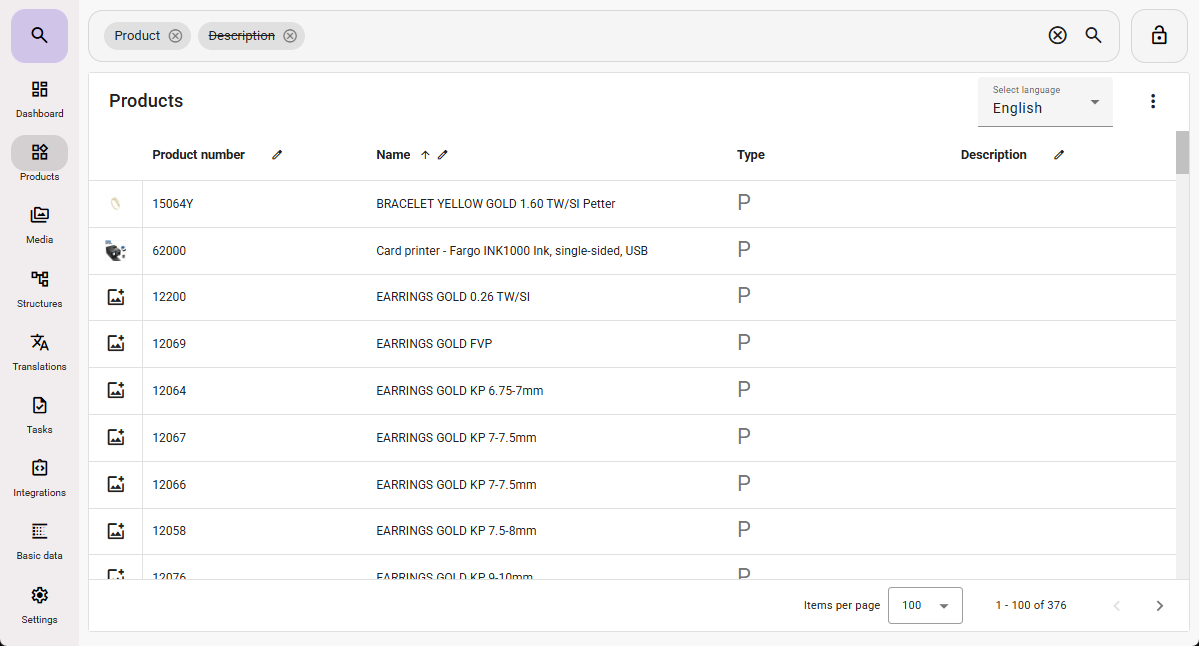
Search using “Does not contain”
It is now possible to search using “Does not contain” on the following product fields:
Product number
Alternative product number
Name
Description
Activating the search
After the criteria have been set and you want to activate the search to display the product list in the feed, you must click the magnifying glass on the right-hand side.

The column view that appears after you have generated a new search may not show the information you want to display.
This can easily be customized. Read more about this here: Product table and bulk update
Search for duplicates in “Integer” or “Universal Text”
Certain values must not appear on multiple products. This could be GTIN, supplier item number, product number, alternative product number, or any other value that must be unique to a single product.
Duplicate checks for Product Number and Alternative Product Number can be set as unique to prevent this. Read more about this here.
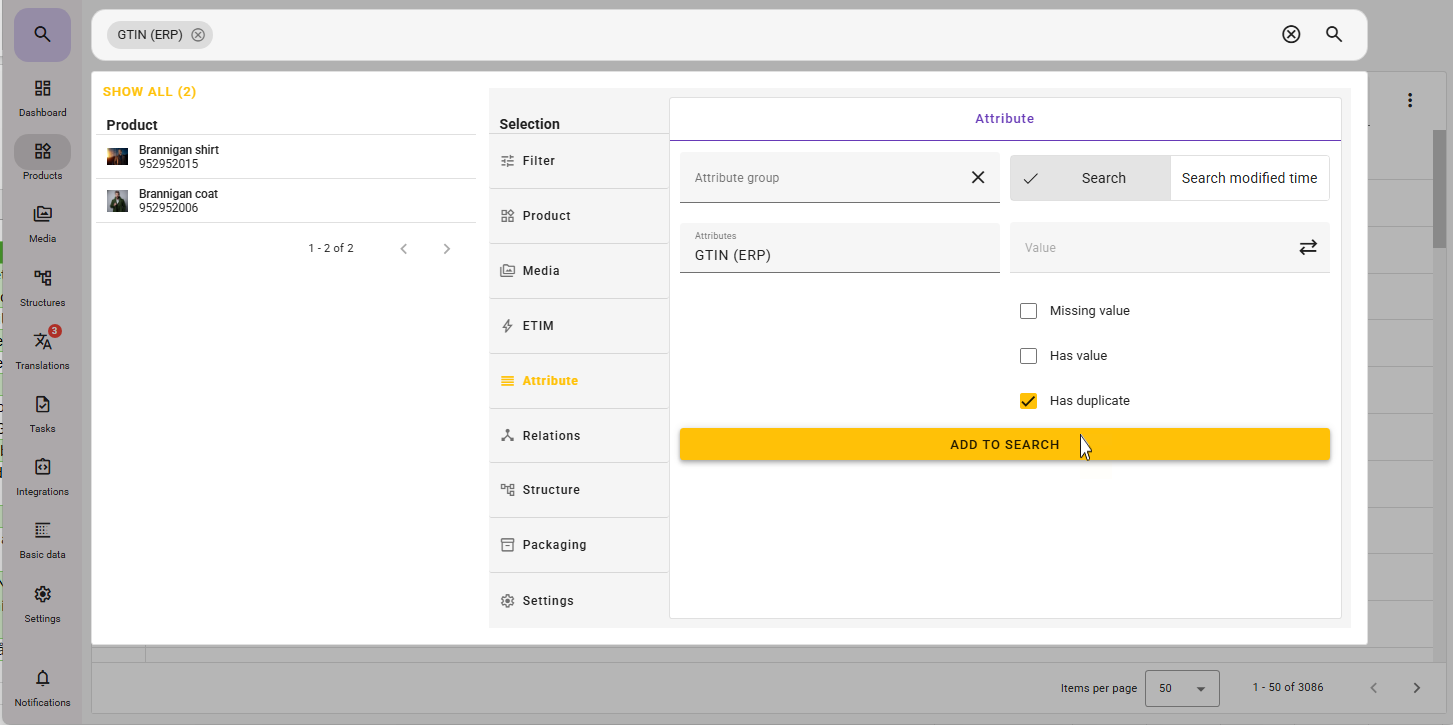
For Integer and Universal Text, you can search for attribute duplicates by selecting the checkbox “has duplicate”, and then open the products that appear to correct the errors.
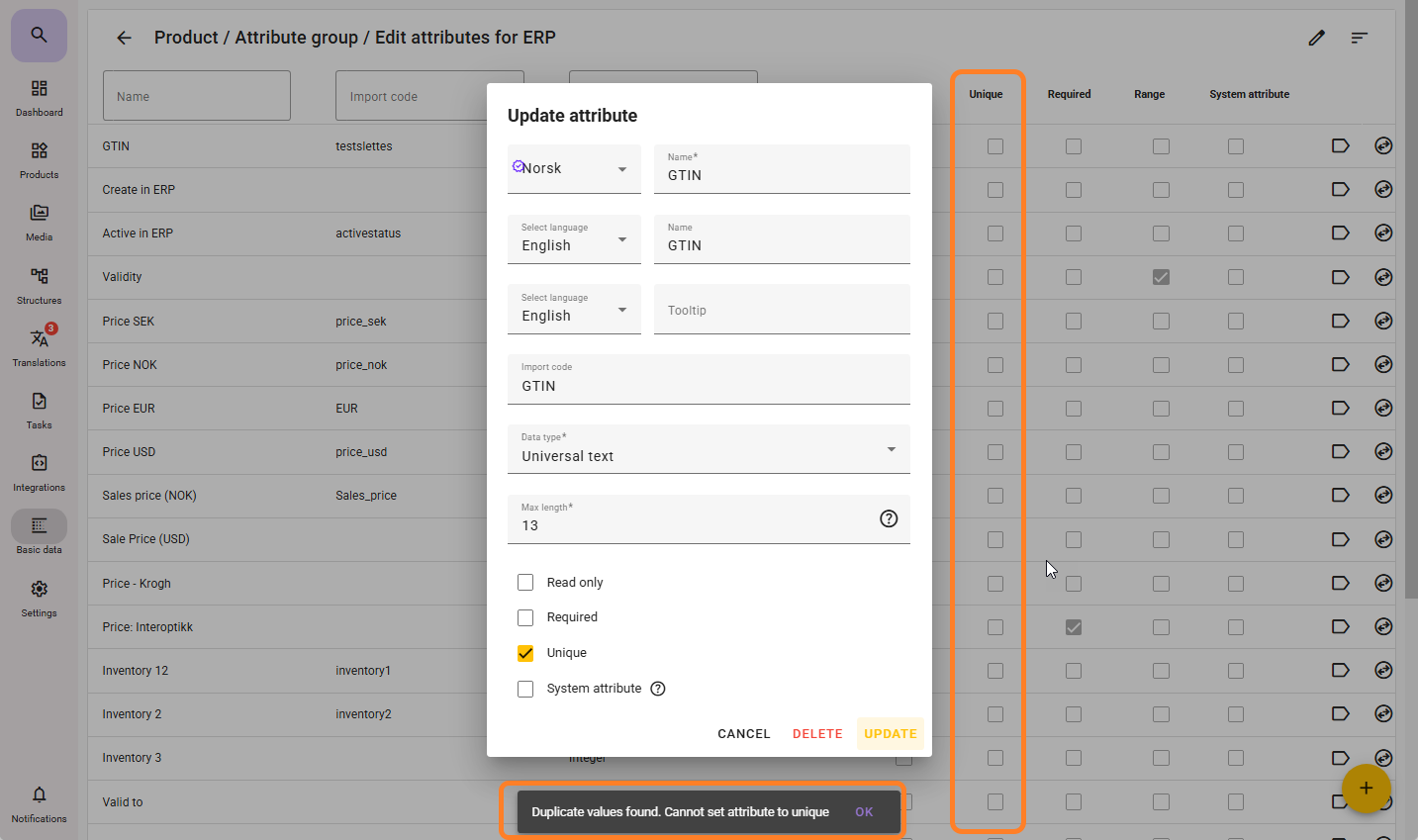
These attributes can be set as unique under “Master Data – Attributes – Attribute Group” and the relevant Integer or Universal Text attribute. Before setting an attribute as unique, you must first check whether it contains duplicates. If it does, you must resolve these before enabling the unique setting.
If duplicates exist, you will receive a warning when attempting to update the attribute.
Attributes that are set to UNIQUE will be shown in the attribute group with a checkmark in the column indicating UNIQUE.
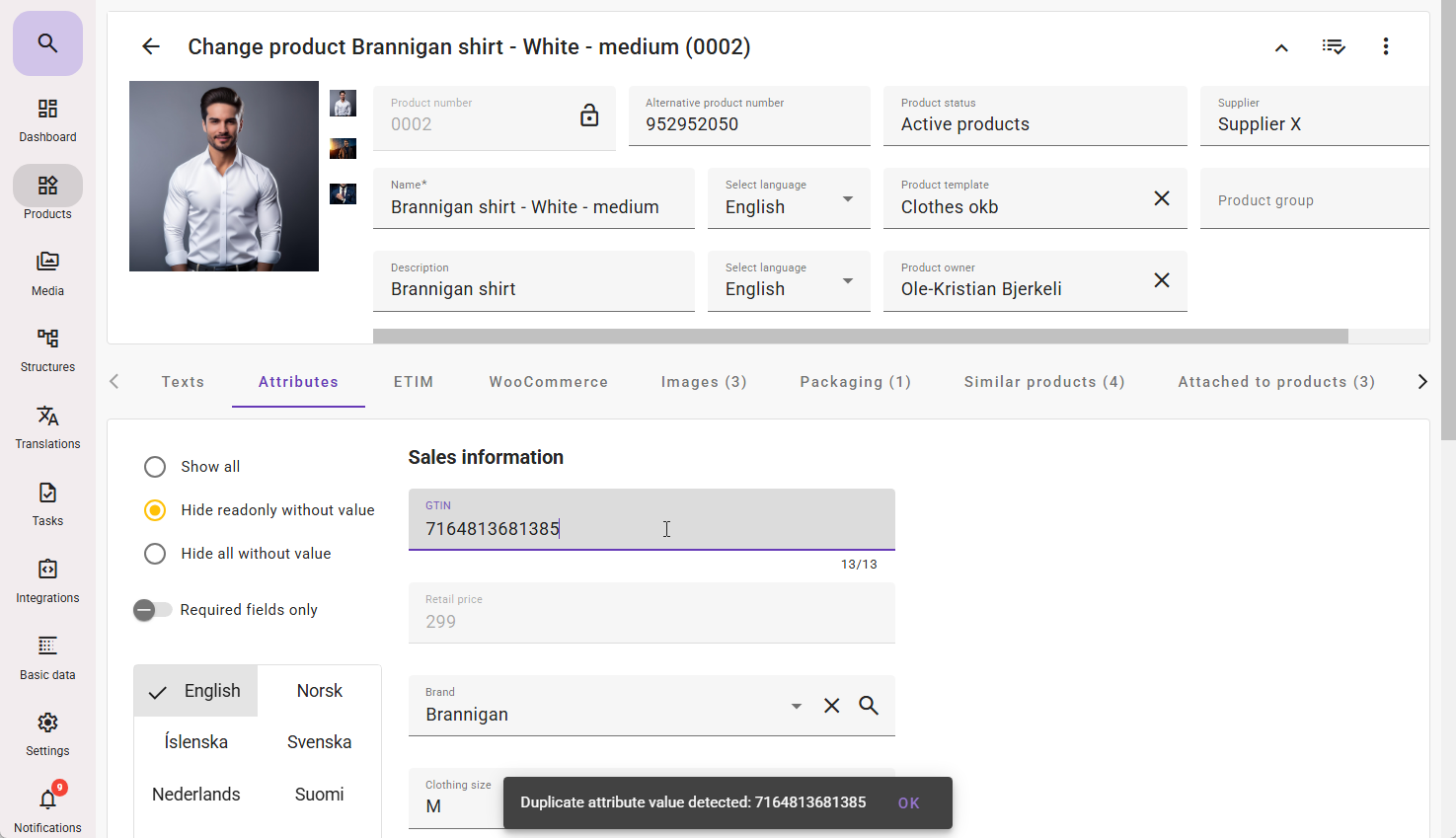
If a field has been set to UNIQUE and you later enter a duplicate value, you will receive a warning.
Search for duplicates in “Integer” or “Universal Text”
Certain values must not appear on multiple products. This could be GTIN, supplier item number, product number, alternative product number, or any other value that must be unique to a single product.
Duplicate checks for Product Number and Alternative Product Number can be set as unique to prevent this. Read more about this here
.
For Integer and Universal Text, you can search for attribute duplicates by selecting the checkbox “has duplicate”, and then open the products that appear to correct the errors.
These attributes can be set as unique under “Master Data – Attributes – Attribute Group” and the relevant Integer or Universal Text attribute. Before setting an attribute as unique, you must first check whether it contains duplicates. If it does, you must resolve these before enabling the unique setting.
If duplicates exist, you will receive a warning when attempting to update the attribute.
Attributes that are set to UNIQUE will be shown in the attribute group with a checkmark in the column indicating UNIQUE.
If a field has been set to UNIQUE and you later enter a duplicate value, you will receive a warning.