
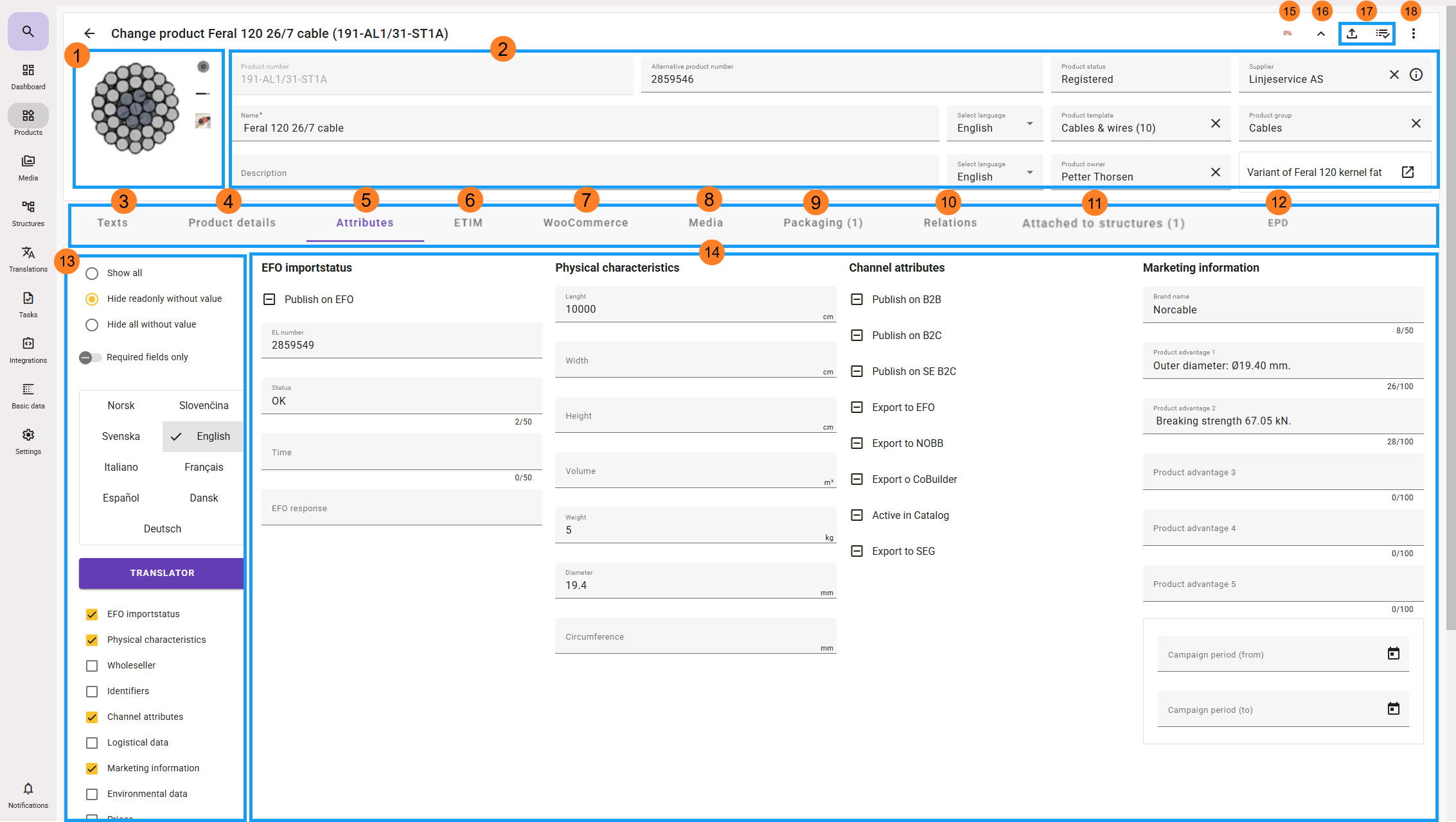
1. Product Images
If there are more than one image of the product, by default, the one with the lowest sorting order will be displayed. Additional images are available in a carousel.
2. Fixed Product Header Data
These are fixed fields that exist for products in all FEED installations.
3. Texts
Text fields in feed originate from earlier versions. These have been replaced by text attributes only. If you want to collect important texts in a single tab, you can create a custom tab (see bullet 4)
4. Custom Product tabs
This is an example of a custom product tab. You can create a custom tab under Settings – Product Tabs and move the desired attributes to this tab. If you do so, the attributes will no longer be visible under the Attributes tab that you have placed the attribute, but will instead appear in the custom tab, with the attribute group visible within that tab.
This applies to the product view only. In the API, all attributes will appear under the attribute group to which they have been assigned. Read more about custom "product tabs" here.
5. Attributes
These are customer-defined attributes. This tab is only shown if there are defined attributes in the "Basic data" available for the product type.
6. ETIM
This is only shown for installations where the ETIM module is activated. Here, all ETIM information for a product is displayed and maintained.
7. WooCommerce
Separate integration module you can purchase from iSYS (optional) that makes integration with WooCommerce sites easy. This module needs to be ordered, contact salg@isys.no for more information.
8. Media
This tab is shown if you have connected images or documents to the product. From this tab you can upload or connect images and documents to the product. You can rearrange the sort order and add media roles to the images and documents.
9. Packaging
This shows the number of packages registered for the product. You can also create new packages here. This requires that Basic data has been defined for this under Basic Data - Product - Packaging. If no packages are set on a product, this tab will not be visible. You can add packaging from the contextual product menu 
10. Relations
The relations tab will show each type of relationship that products are linked to. For example, "Accessories", "Spare parts", etc. The relationships to be defined are done in a separate basic data function. You will also see Attached to products if the product has been added to a relation on another product (as for example a spare part).
11. Attached to structures.
This is shown if there are any structures that the product is attached to. If the product is a base/variant product and you have attached the base to a structure the variant will not show up as attached, but it will be included by the base.
12. EPD module
Our EPD module! Environmental data is becoming increasingly important, and it is now super easy to incorporate environmental data into feed®. This module needs to be ordered, contact salg@isys.no for more information.
13. Filter.
Depending on which tab you are on, there may be filters for the desired language to be displayed, which attribute groups, ETIM version etc. which should be displayed in the information area (point. 15).
Important: on the Attribute tab you get a dropdown menu that enable you to choose what type of empty attributes you want to view. The options available are : "show all", "Only with write access", "hide all".
This area also has a translation button. If multiple languages are set up in the feed, you can translate text fields into the available languages. If you also have the AIDE module, you can use AI to translate a text field from one language to the other languages of your choice.
14. Information area.
Here the product information for the selected tab for this product is displayed. What is visible here depends on what is defined for the product type of the product.
15. Completeness
This will be visible if you have created one or more completenes rules in feed. Read more about Completeness here.
16. View/hide header data
This option will collapse or expand header data.
17. Quick task/Pinned options
- The contextual menu (point 18) lets you place pins on the options you would like to have quick access to. Once you have pinned an option, they will show up here.
18. Contextual menu
- The
 button gives more options on the product you are working on:
- Edit Pinned buttons: This option let you activate a quick task for options you use on a regular basis on the top right side of the product.
Useful for the options you use often. - Export product to NOBB (Visible only if you have this add-on module). This will export the product to NOBB if it is activated for NOBB. For more information contact salg@isys.no
- Export to WooCommerce (Visible only if you have this add-on module). This will export the product or base to WooCommerce if it is placed in a feed WooCommerce structure. Read more about this module HERE. For more information, contact salg@isys.no
- Open Product list: Activating this will let you view your product search results on the left side of the product you edit. This way you can effectively work your way trough several products in ease.
- Document Generation (Visible only if you have this add-on module): From here you will get a list of document configurations you have set up in DocPro and you can create a document for a single product. This is good for testing purposes.
- Open Aide (Visible only if you have this add-on module). Here you can easily create AI product texts and also translate your current texts to other languages. For more information, contact salg@isys.no
- Upload media (upload a media to feed media bank and automatically attach it to this product. Remember to add appropiate media roles)
- Get media from media bank (let's you search the existing media in feed)
- Create relation (let's you connect products as a relation to this product. For example accessories, similar products..) Look here for creating relations.
- Attach to products (This is the opposite to relation, and can be used if you for example need to add a product as a spare part to several products).
- Attach products to to structure folder (if you need to add a single product to a structure, you can use this menupoint for doing so)
- Add packaging (if the product doesn't have a packaging, you can create it from this menu)
- Convert to base product (only available as an option on products with product type: "product". This option let you convert a single product to a base product. Do not perform this action on a sellable product).
- Duplicate as base (only available as an option on products with product type: "product". This will duplicate the single product, and create a base product with the same text and data as the original product. The original product will become a variant of the new base.
Remember to create a product number for the base. - Add base product: (only available as an option on products with product type: "product". This will let you choose from a list of available base products in feed)
- Add variant (only available as an option on products with product type: "base". This option lets you search and add products to the base.)
- Change base product (only available as an option on products with product type: "variant". This option lets you move the product to another base).
- Convert to product (only available as an option on products with product type: "base". This option will let you convert a base product to a single product. The option is only visible if you have no variant product connected to the base.
- Copy (makes a copy of the product)
- Change log (for details look here)
- Create task for this product
This function allows you to assign tasks to yourself or others for changes you want to be made to the product. - Delete (PS. There is not an undelete option in feed)
- Edit Pinned buttons: This option let you activate a quick task for options you use on a regular basis on the top right side of the product.
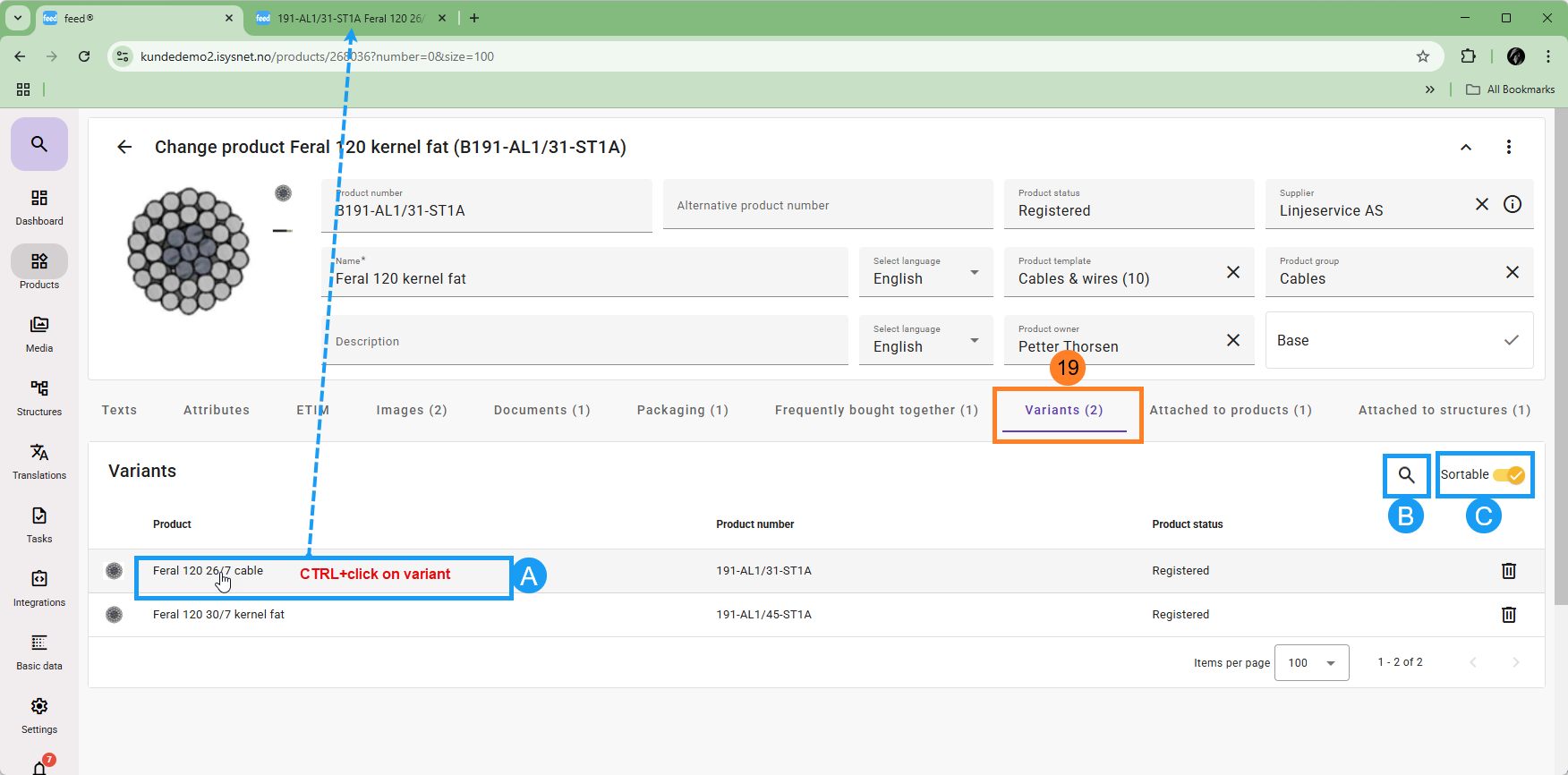
19. Base product - Variant tab
- A:
If you want to keep the base open in your browser but open a separate browser tab for some of the variant products, you can click on the Variant tab and then CTRL+Click on the variant of interest. This will open a browser tab with that variant. - B:
This icon will create a search that contains the variants of the specific Base product.
Here you can easily add the columns you want in the search, and do a mass update directly in feed, or you can export the search to Excel for external enrichment.
Even if you prefer to work on one product at the time, this is useful. You can trough the contectual menu, open "product list" that will give you a column list of the products on the side of the product card. From here you can swap between the variants, and do your work. - C:
You can drag and drop the sort order of the variants if this option is active.