Completeness (completion rate) allows you to select elements within Media roles, attributes, required attributes, and ETIM that you want to measure as an overall completion rate.
By default, all products are included when you create this, but you must add what you create here to a Custom Widget before it becomes visible on the feed Dashboard. Through the Custom Widget, you can filter which products should be included in the completion rate.
You can read more about how to link completeness (completion rate) to a Custom Widget here:
How to create a completeness rule (completion rate):
Go to Settings → Completeness (under the Settings column).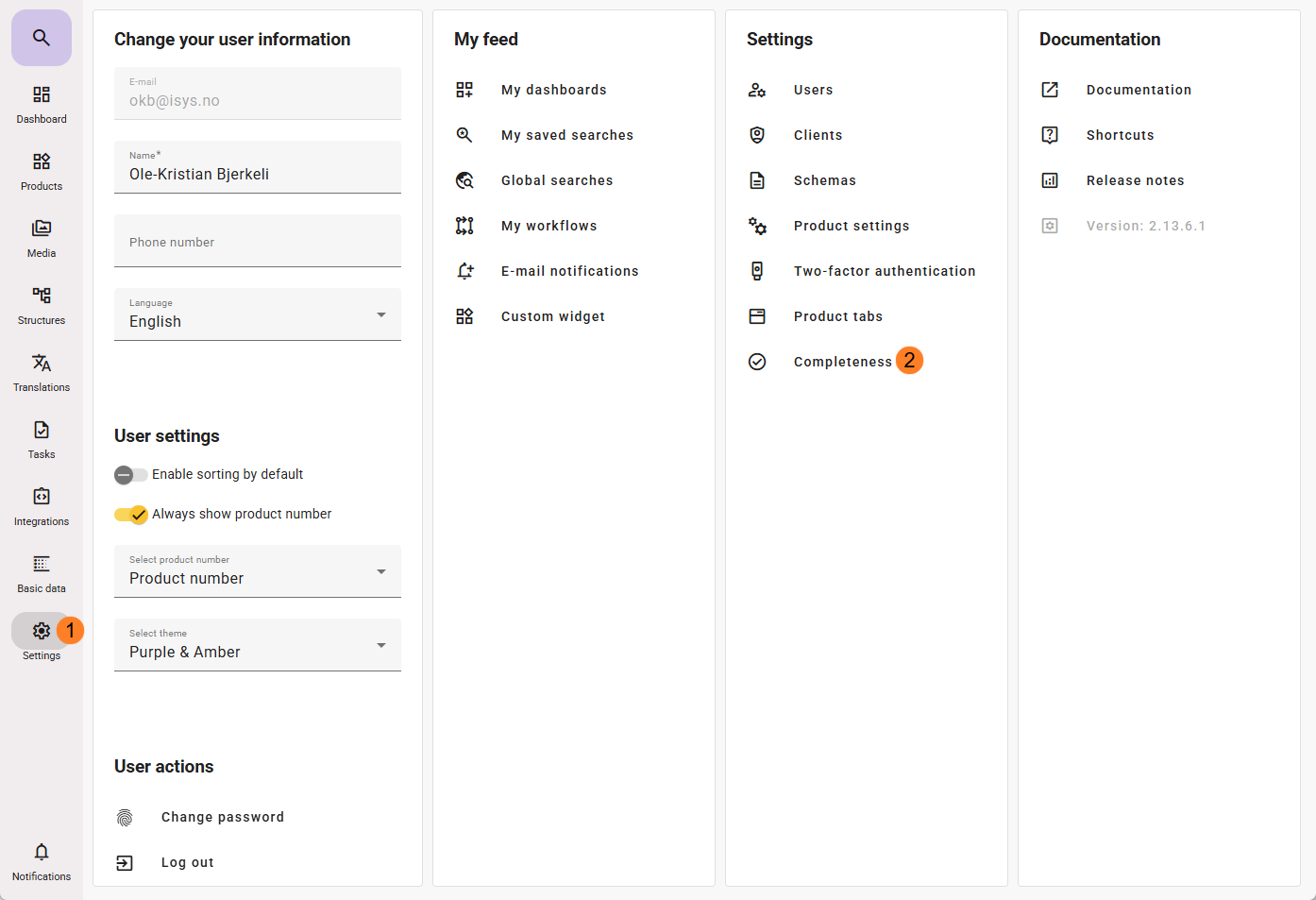
Click the + icon in the bottom right corner, or press c on your keyboard. Enter a descriptive name and click Create.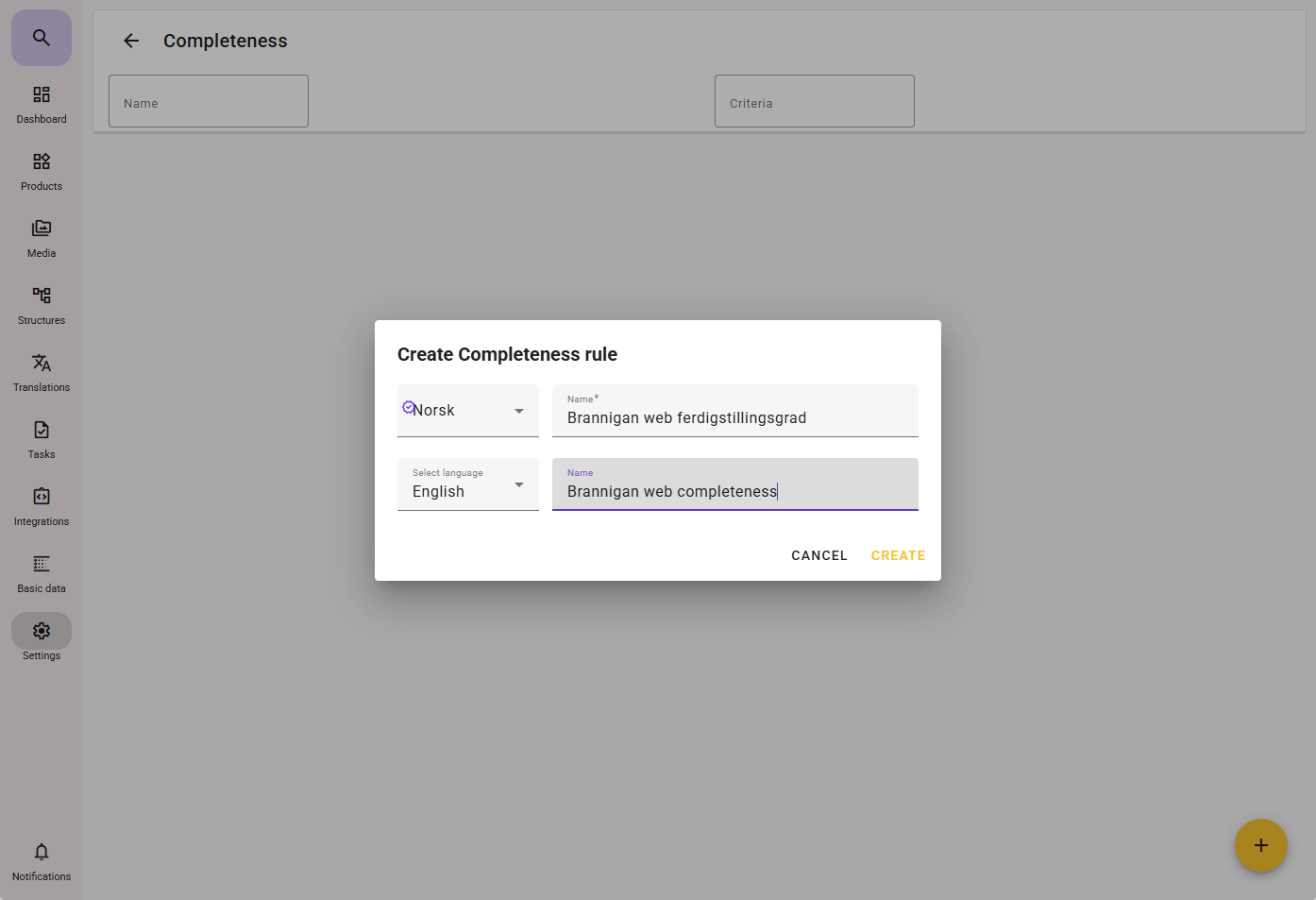
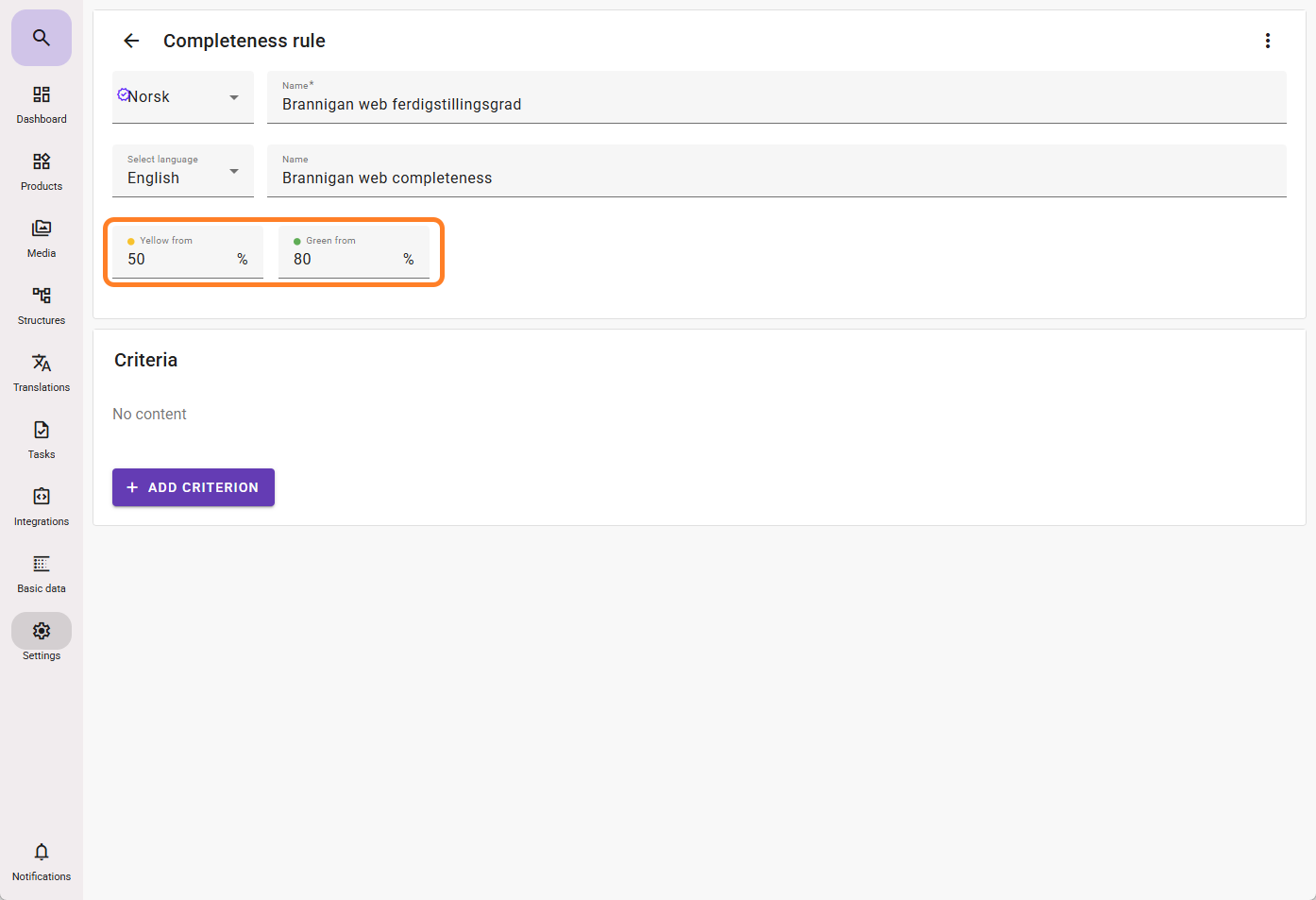
Adjust the percentage values if you want warning colors different from the default:
Warning below 50%
Warning between 50% and 80%
Click Add criteria to add one or more criteria that should form the basis of the completion rate.
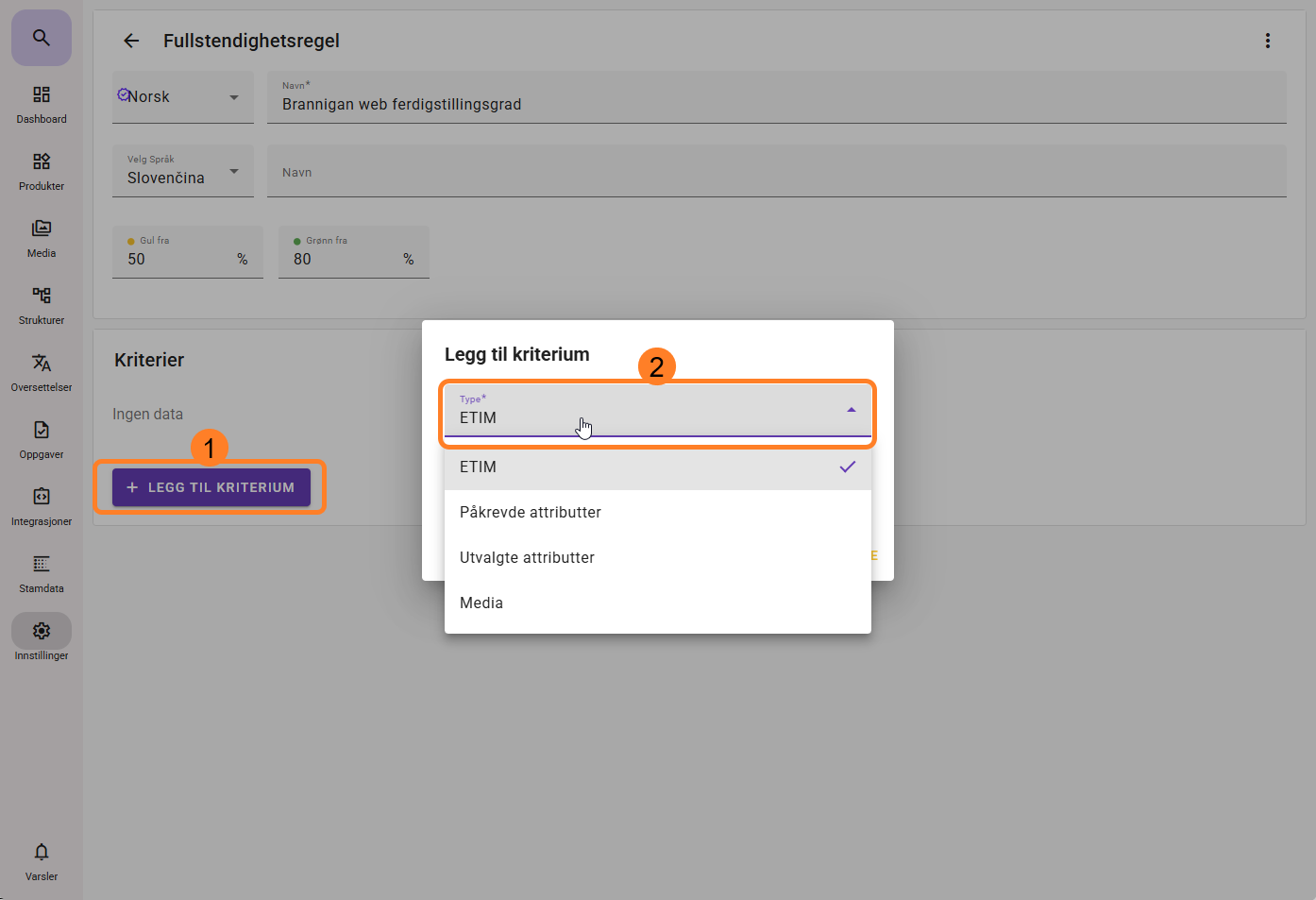
Available criteria:
ETIM allows you to select the ETIM version
Required attributes include all attributes marked as mandatory in the master data setup. You must choose which languages to include in the criteria
Selected attributes gives you a list of available attributes you can define as criteria. You must also select the languages to include
Media allows you to choose media roles to include in the completion criteria
In the example below, I have selected which attributes I want to measure completion against for an e-commerce channel.
Click Save once the attributes are selected.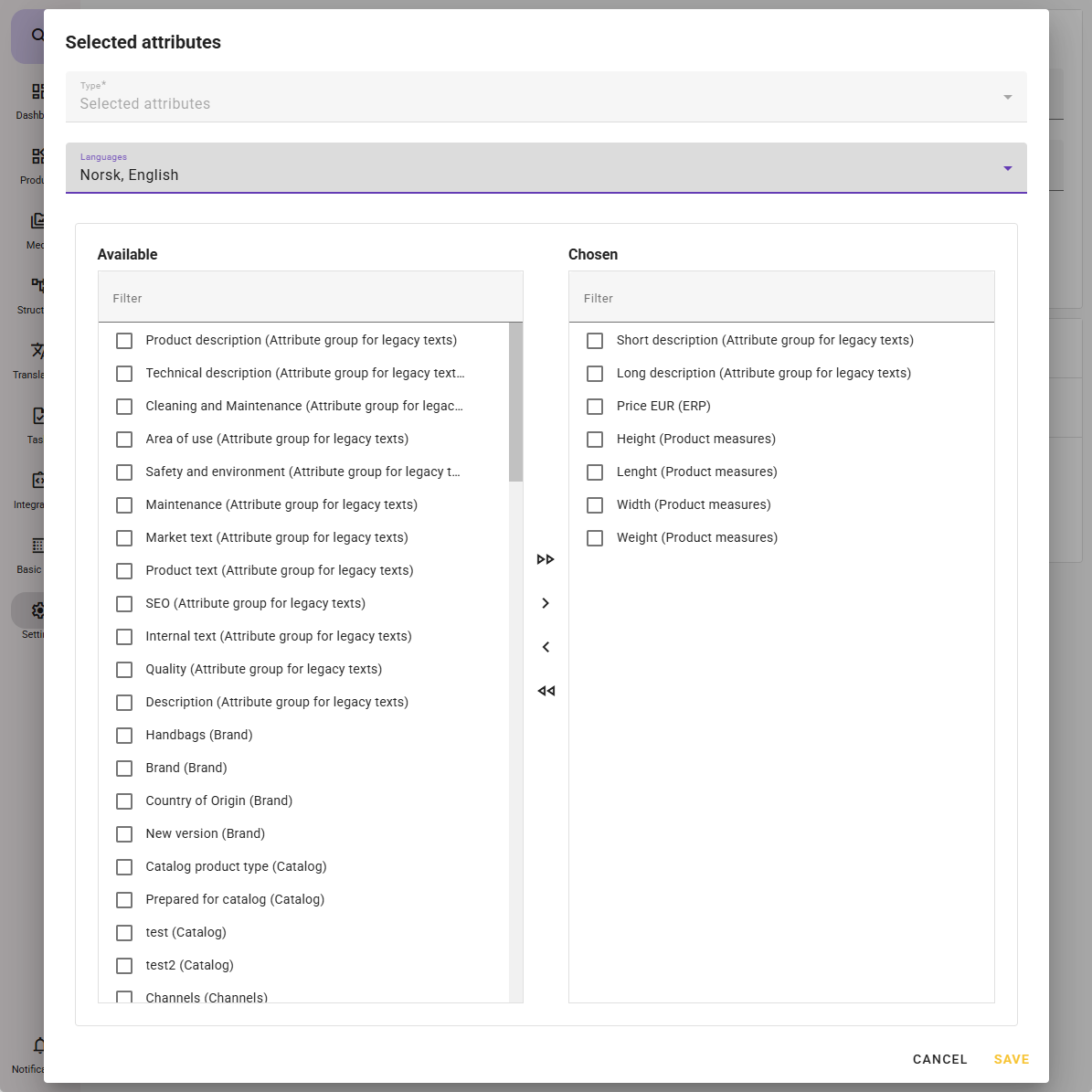
I also set a requirement for having a main image for the e-commerce channel. You can select multiple media roles before clicking save.
If you are creating a completion rule for an industry database, there may be requirements for documents in addition to images.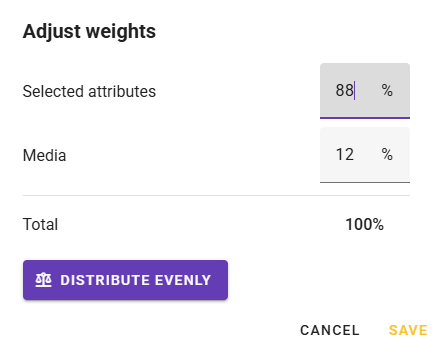
After selecting and saving the desired criteria, you can adjust the percentage weighting of the different criteria types by clicking “Adjust weighting”.
The adjustment cannot be done at a lower level than the criteria type.
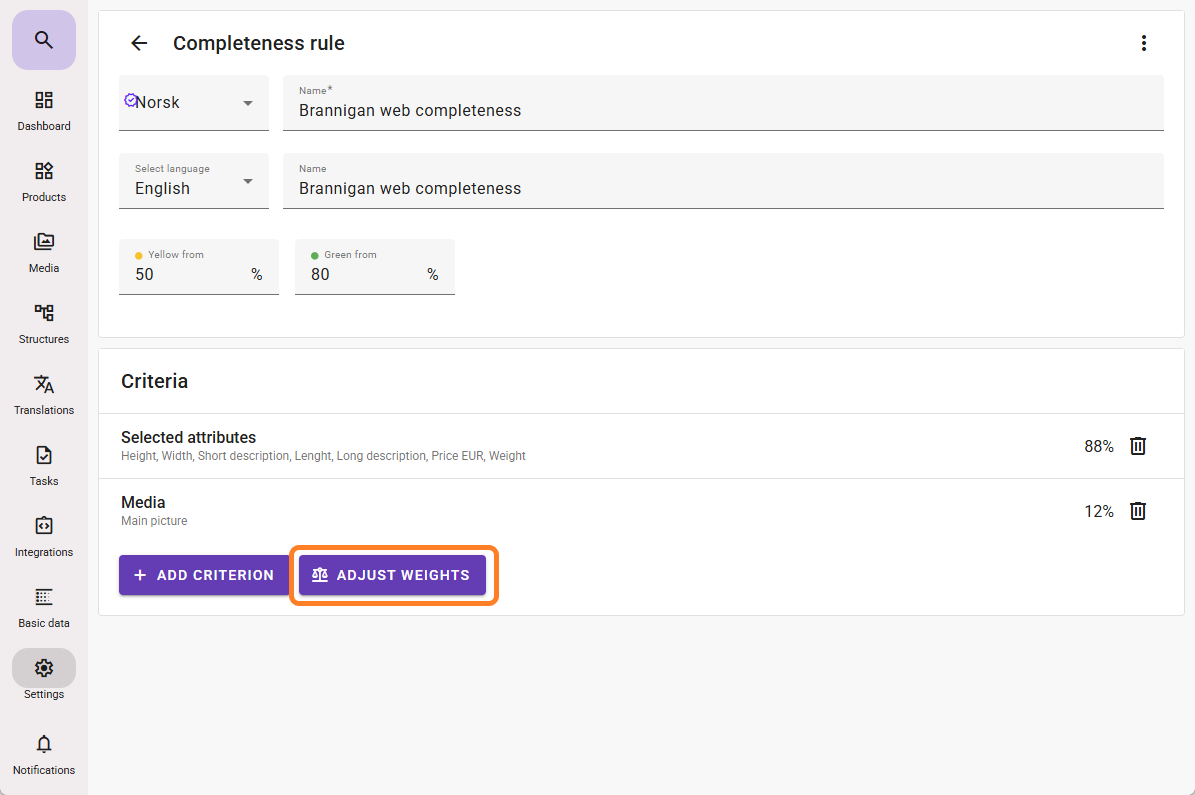
When you are satisfied with the setup, click the arrow in the top left corner or select another menu item to continue working.
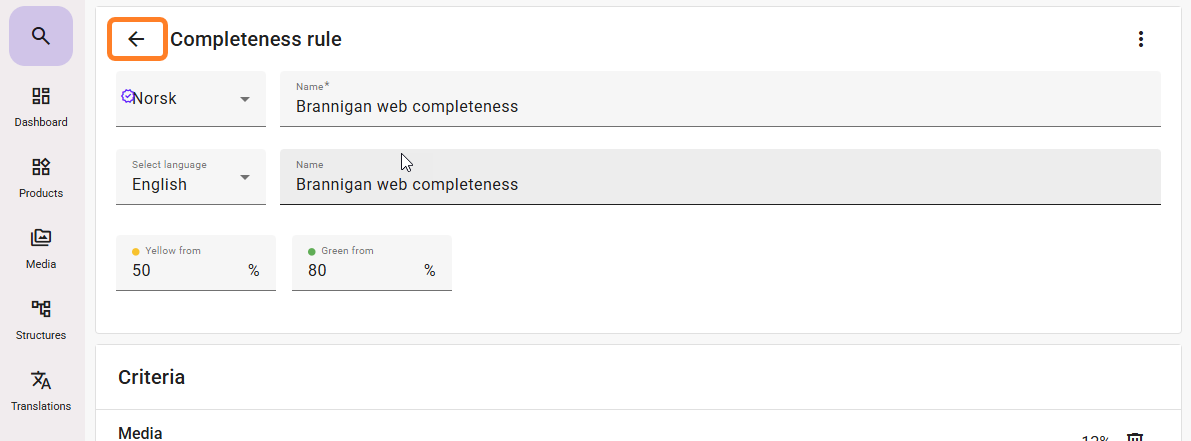
If you want to edit what you have created later, go to Settings → Completeness and click on the item you want to edit.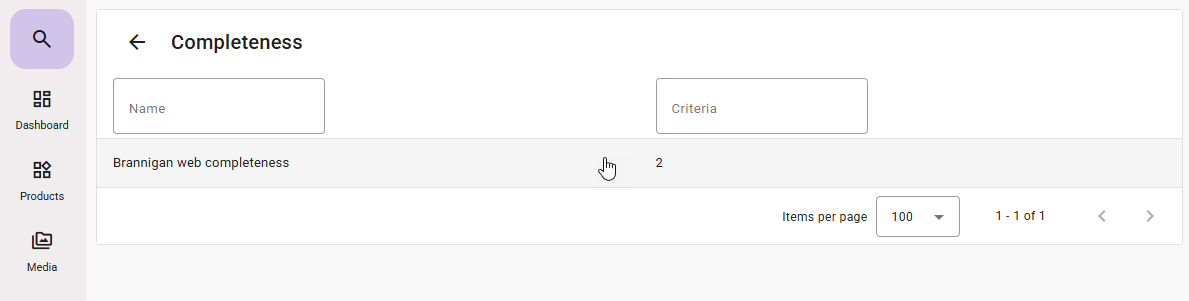
You can also delete items you no longer want by clicking the context menu (three dots in the top right corner) when viewing the completion rule.
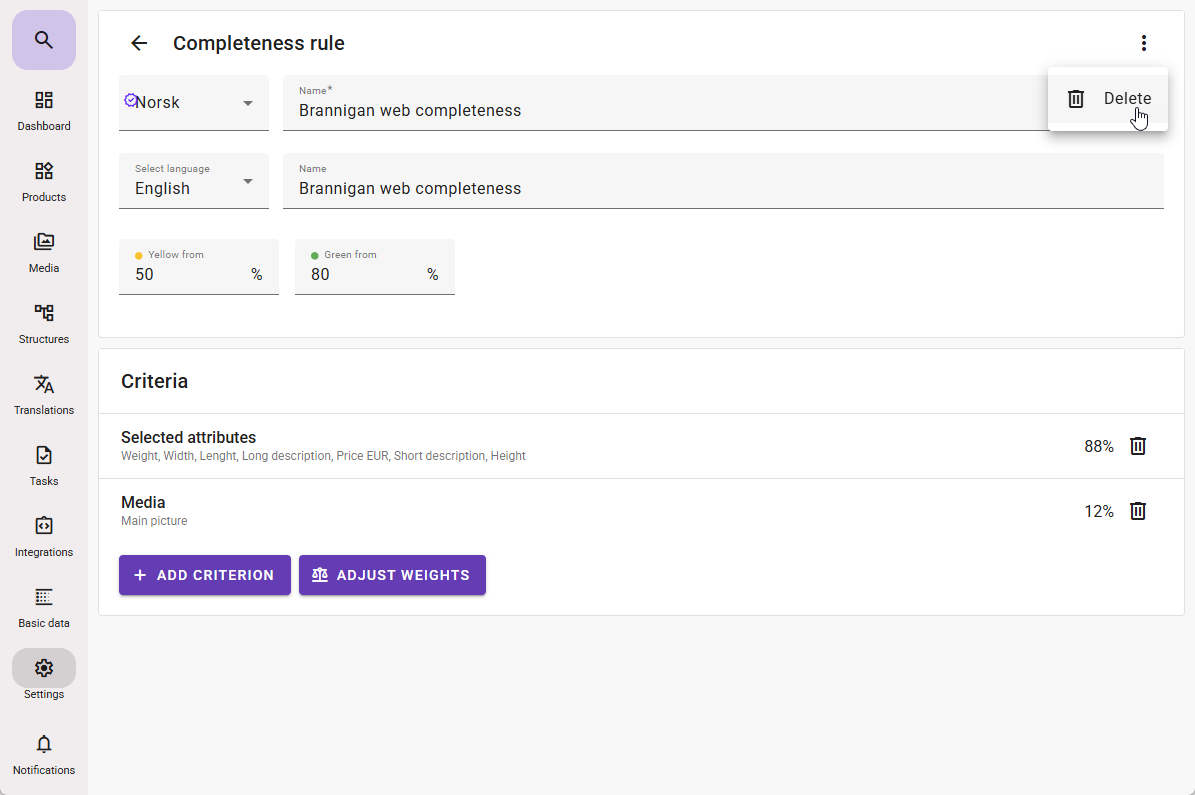
Before you can use the completion rule you created, you must link it to a Custom Widget. Read more about that here.
After creating a Custom Widget with the completion rule, you can add it to the dashboard. Read more here.
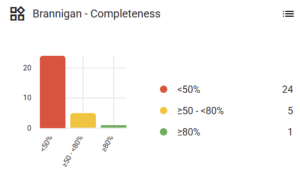
Example of a completion rate chart on the Dashboard: