
You can create your own custom widgets for your dashboard.
There are 2 types of “Custom Widgets” that can be created on the dashboard:
Attribute
Completeness (Completion rate)
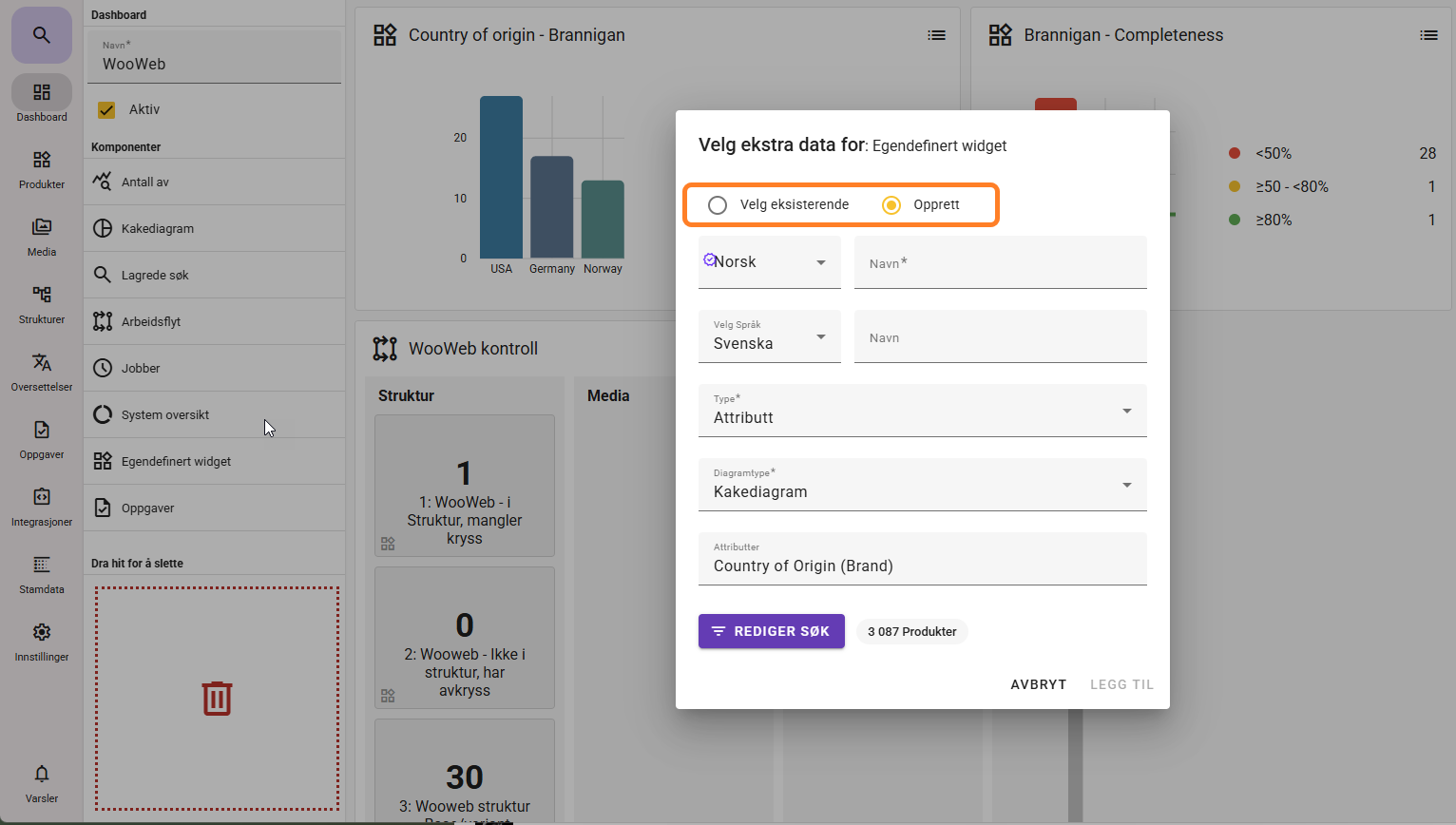
Creation of a “Custom Widget” can be done under Settings → My Dashboards via Custom Widget.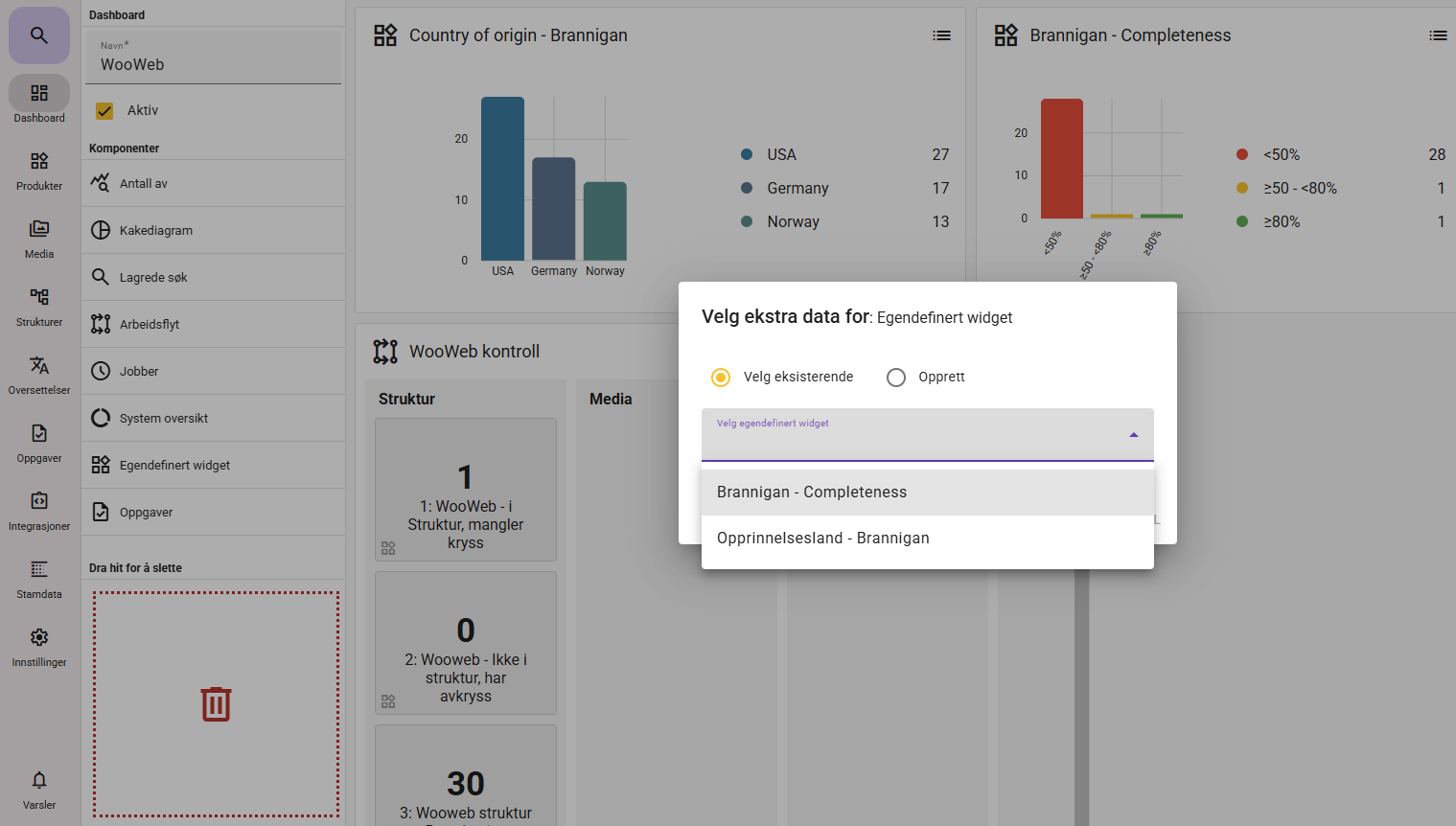
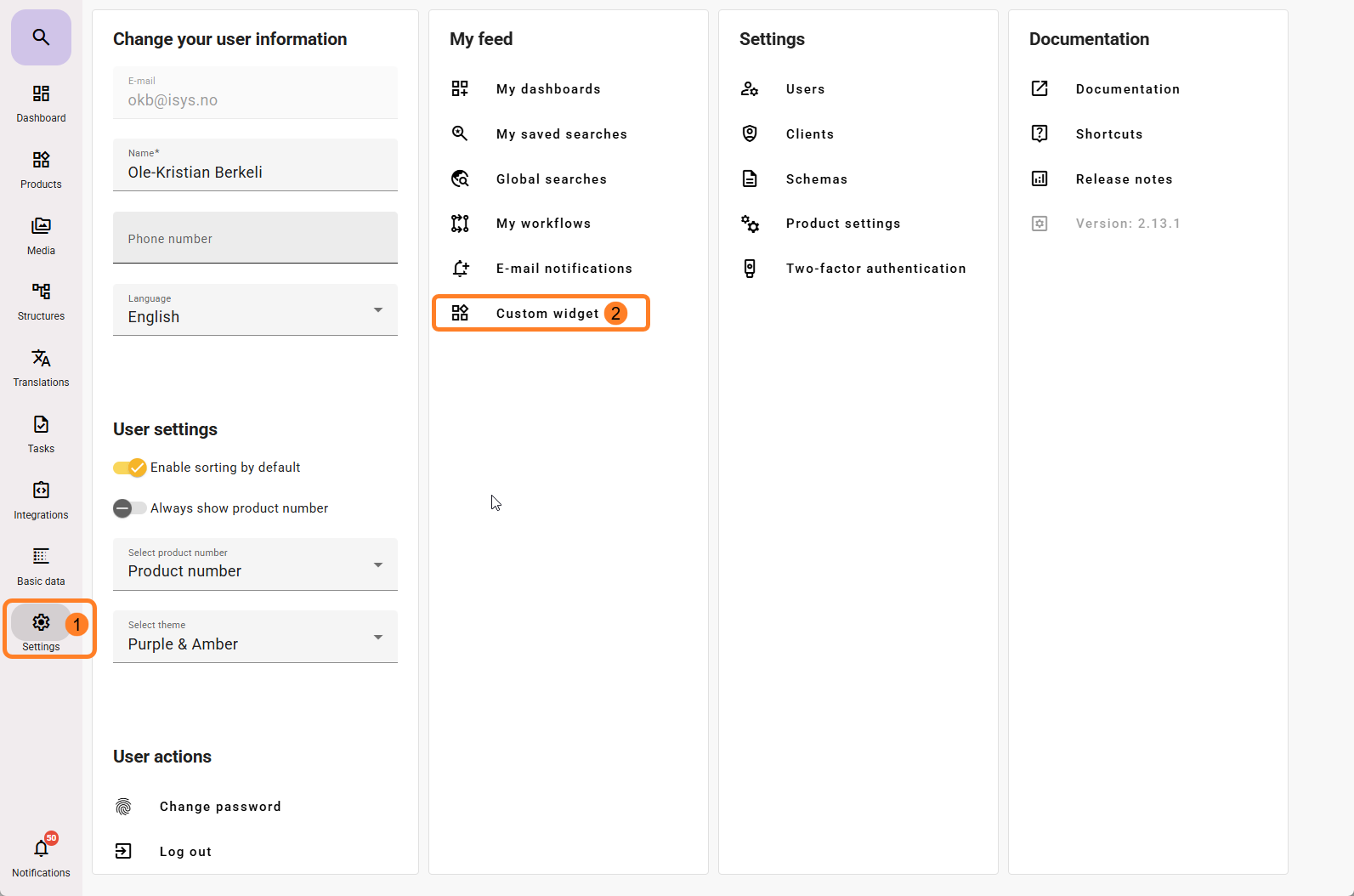
It can also be done via Settings → “Custom Widget”.
The difference between the two locations for creating a “Custom Widget”
Via My Dashboards
Through Settings → My Dashboards, you can add a Custom Widget directly to the dashboard for visual chart display.
This location allows you to both select existing Custom Widgets and create new ones.
Via Settings
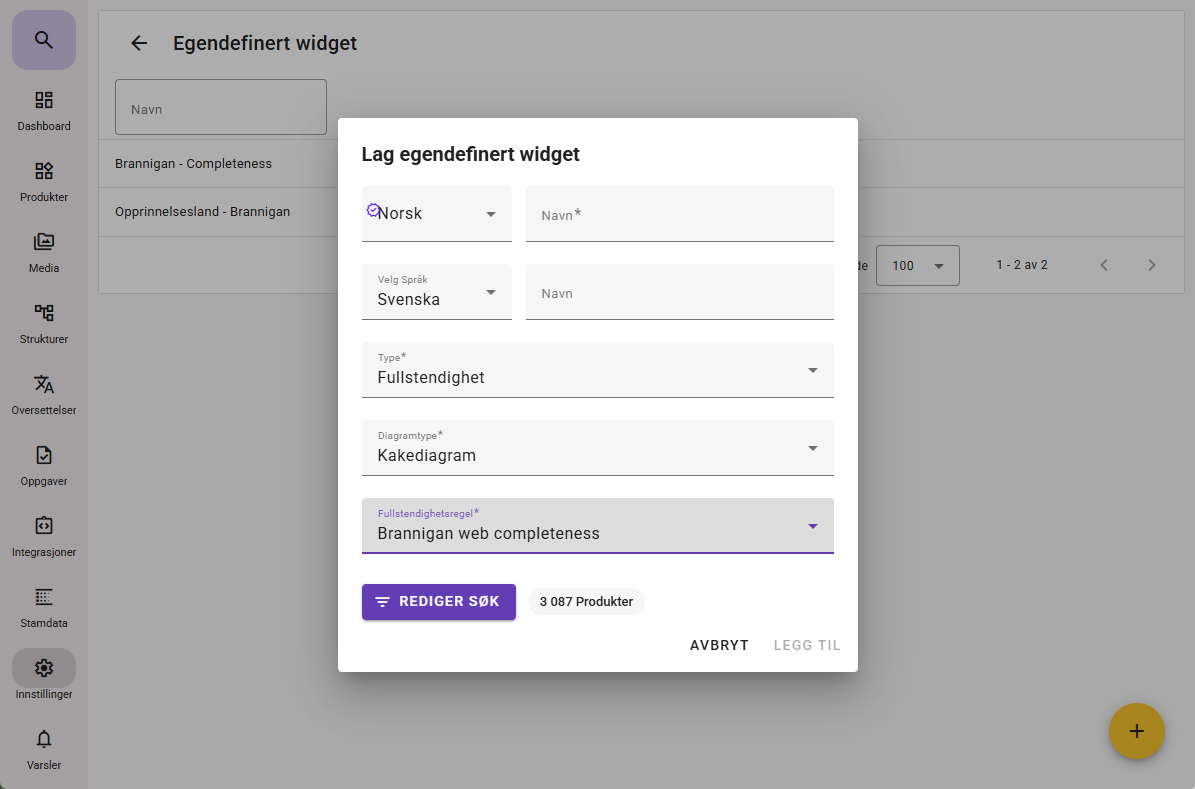
Through Settings → Custom Widget, you can only create Custom Widgets, but not make them directly available on the dashboard.
Therefore, the option to use existing Custom Widgets is not available when creating from this location.
However, from this location you will see a list of all created widgets.
You can click on them, edit them, and delete them.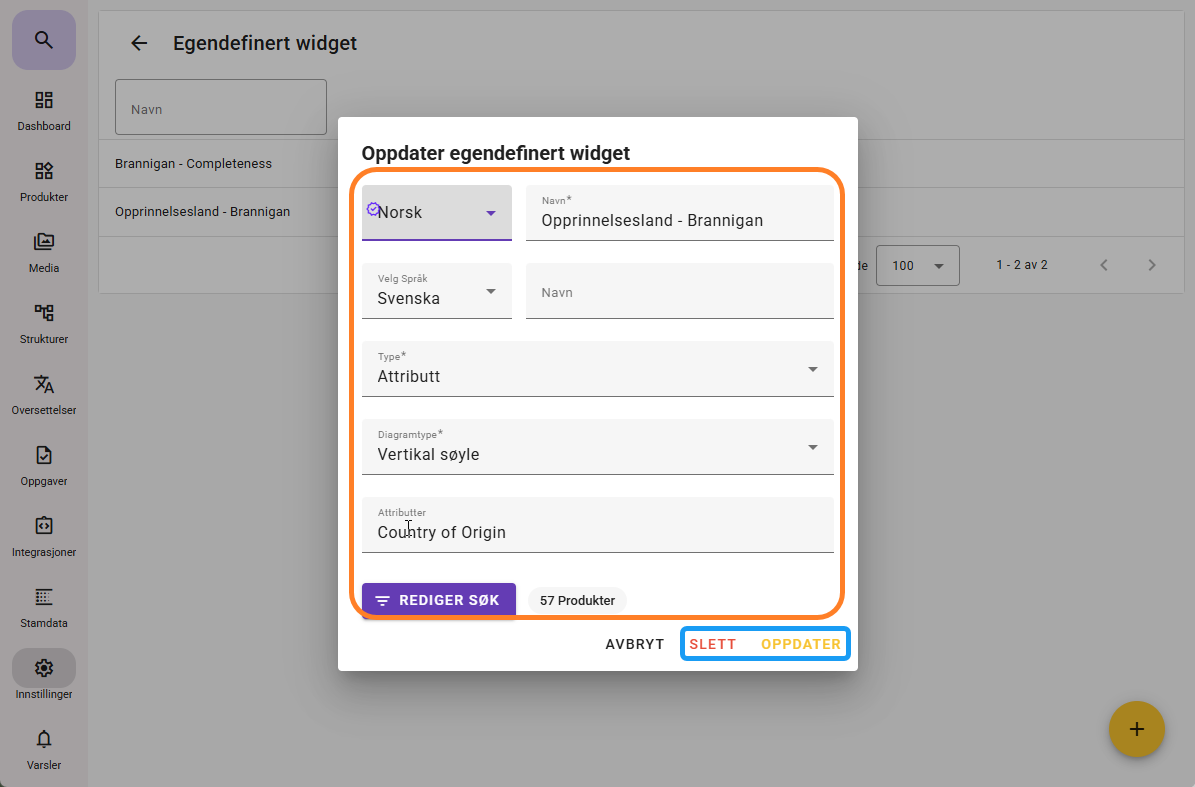
Editing and deleting are not available via My Dashboards.
Creating a Custom Widget
The process for creating new Custom Widgets is the same in both locations. Click here to read more about how they are created.
If you want to create a Custom Widget of the type Completeness (completion rate), it requires that you have first created a completeness rule that can be selected from the dropdown.
You can read more about how to create completeness (completion rate) here.