If you want to add metadata to media, this can be done via Excel import.
The Excel file must contain a Media ID that the feed system recognizes.
Accepted IDs are:
The feed’s internal Media ID, which can be seen in the URL when viewing a media item, or
A Source ID that has been imported from an external system.
Both of these IDs can be obtained by exporting media from the feed.
Read more about Media export here: Excel export: Media
Before media metadata can be imported, the data must be prepared in an Excel file.
In general, the Excel file consists of:
One column containing the ID (as described above), and
Additional columns containing metadata headers, with cell values representing the metadata values.
The column names are not imported into the feed as fields, except through the “Properties” field.
Excel example – Properties:
| Media id | SKU | Variant | Brand | Collection | Target Audience | Image title | Alt Text | Keywords |
| 93 | 952952001 | Color Grey / Size Large | Brannigan | Winter 2026 | Men | Brannigan coat grey large - front view | Grey Brannigan winter coat large size, front view | winter, coat, Brannigan, men |
Properties allow you to define:
Field names (column headers)
Field values (cell values)
Properties are useful when you want to add metadata such as:
Basic image information
Product identification
Image usage and context
Marketing and content
SEO and discoverability
Rights and legal information
Localization and markets
Technical and performance-related metadata
Complete, consolidated metadata per image
Well-structured media metadata improves search, conversion rates, automation, accessibility, and consistency across channels.
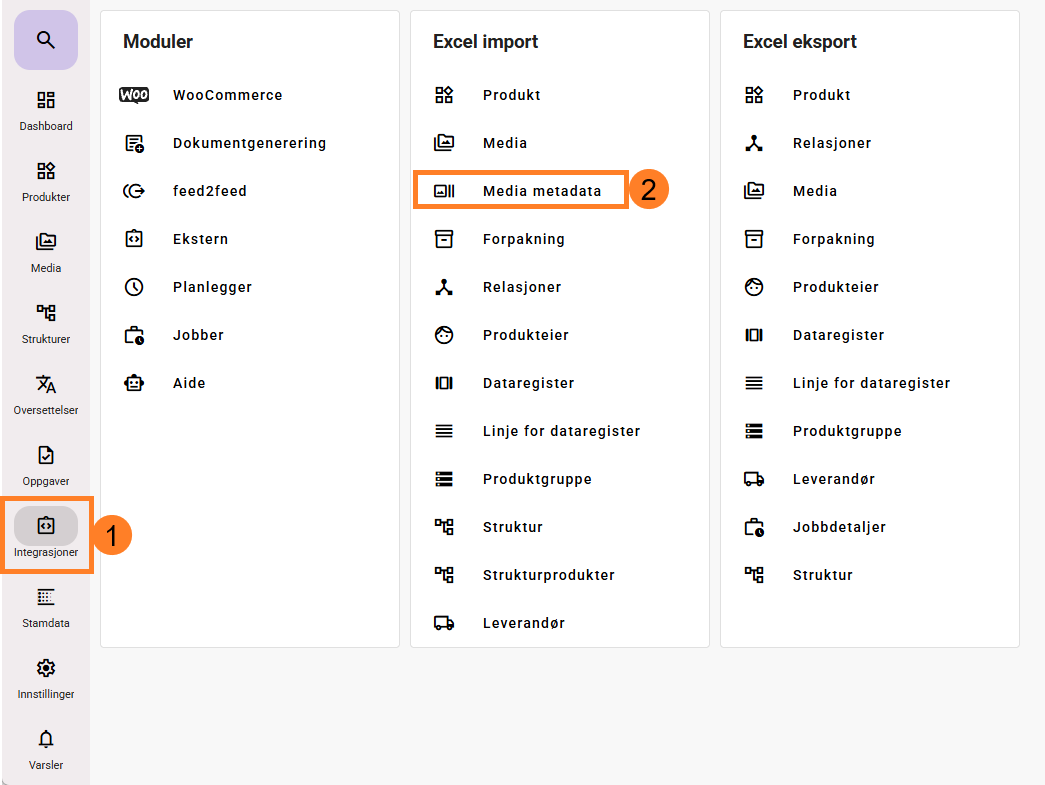
This functionality can be found under Integrations (1) and Excel Import – Media Metadata (2).
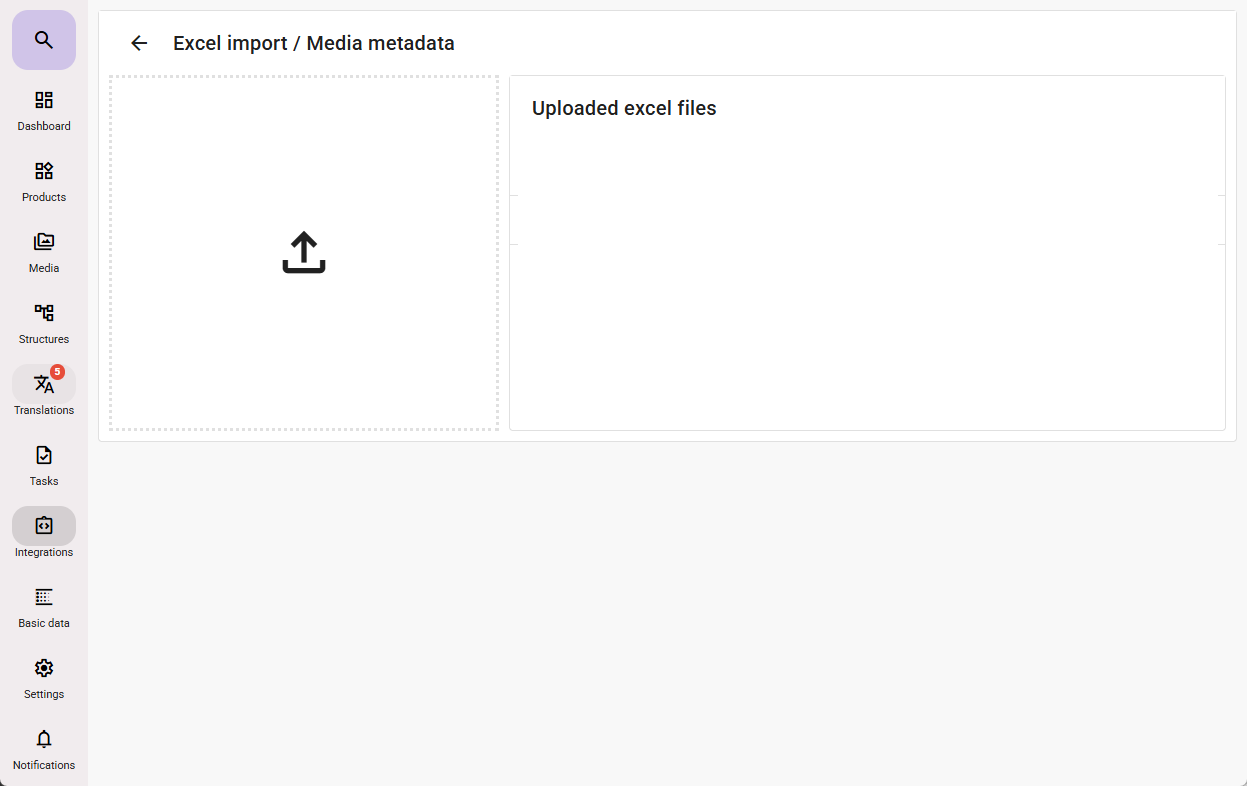
You can drag and drop the Excel file into the box below, or click the box to browse and select the file.
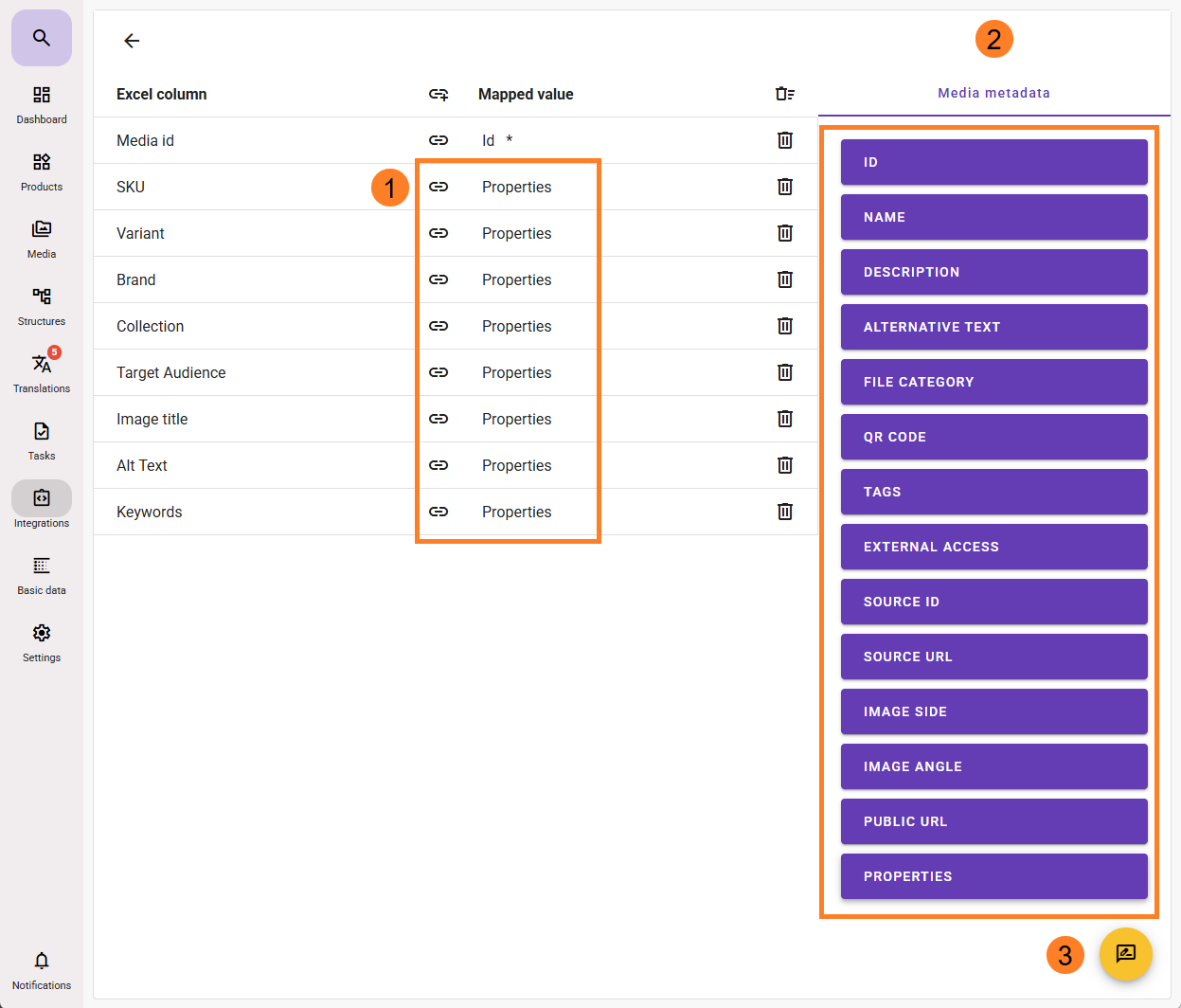
First, you must map the ID column from Excel to the ID that should be used in the feed by clicking the link for the Excel ID field and selecting one of the options on the right-hand side.
As mentioned above, this can be:
The feed’s internal Media ID, or
A Source ID imported from an external system.
Not all media items necessarily have a Source ID, but all media in feed always have a feed Media ID.
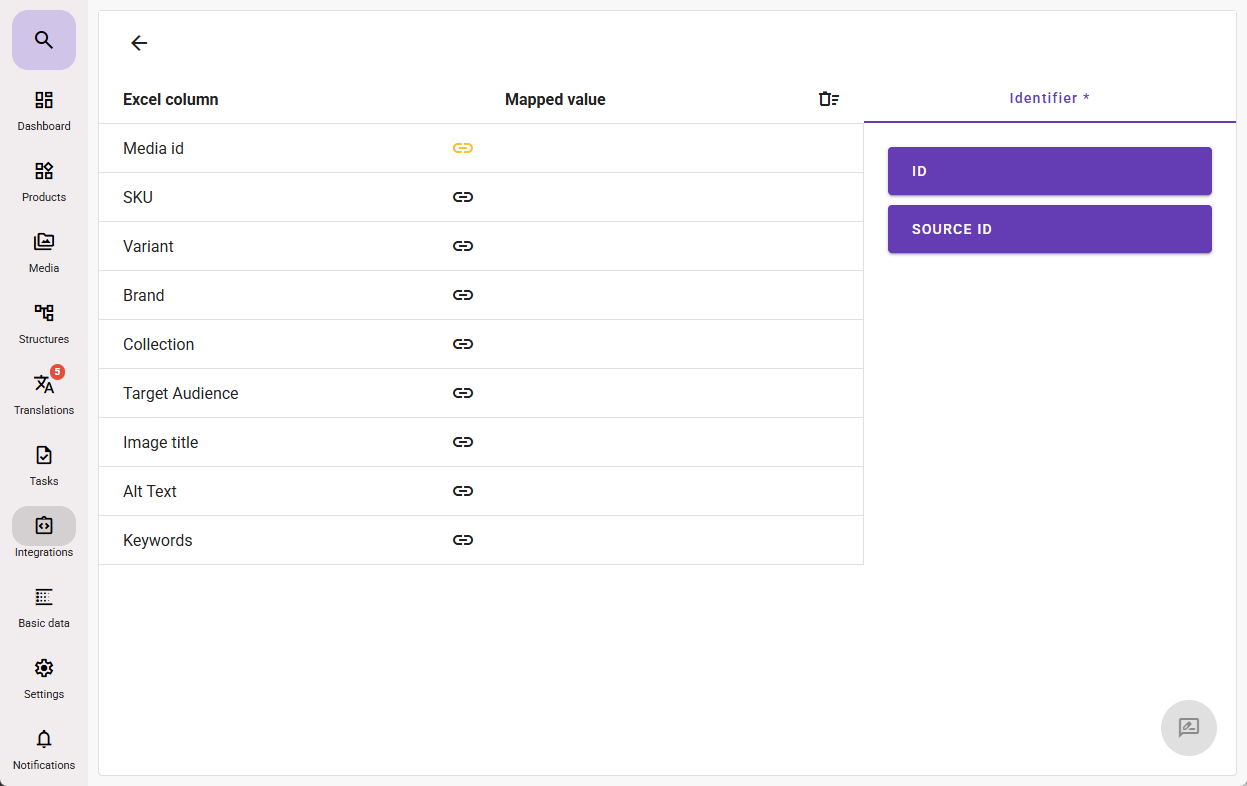
In this example, all mappings (1) have been linked to Properties, which is the bottom field on the right-hand side (2).
This means that:
The column names become the metadata names, and
The cell values become the metadata values in the feed for the media being imported.
To start the import, click the icon at the bottom of the right-hand side (3).
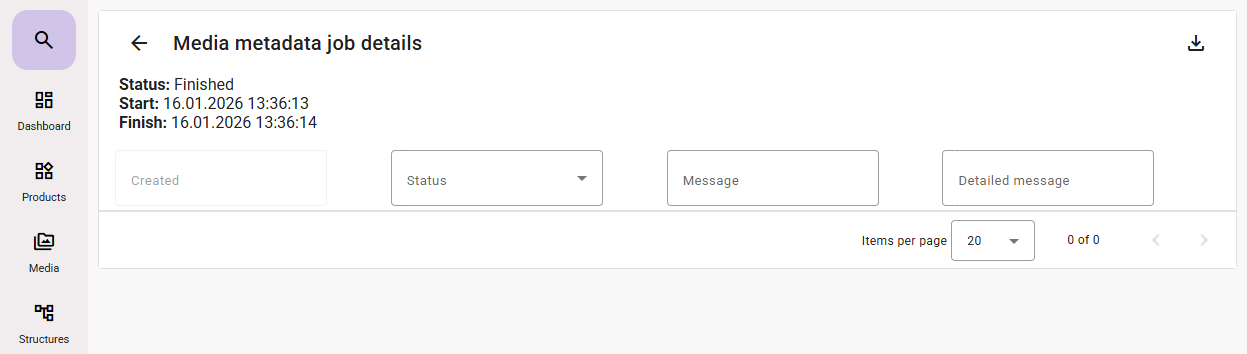
When the import is complete, the status will be shown as Finished.
You can click the row to view import details, or you can delete the import if you no longer want to see it in the list.
Deleting the import does not reverse the changes that were made.
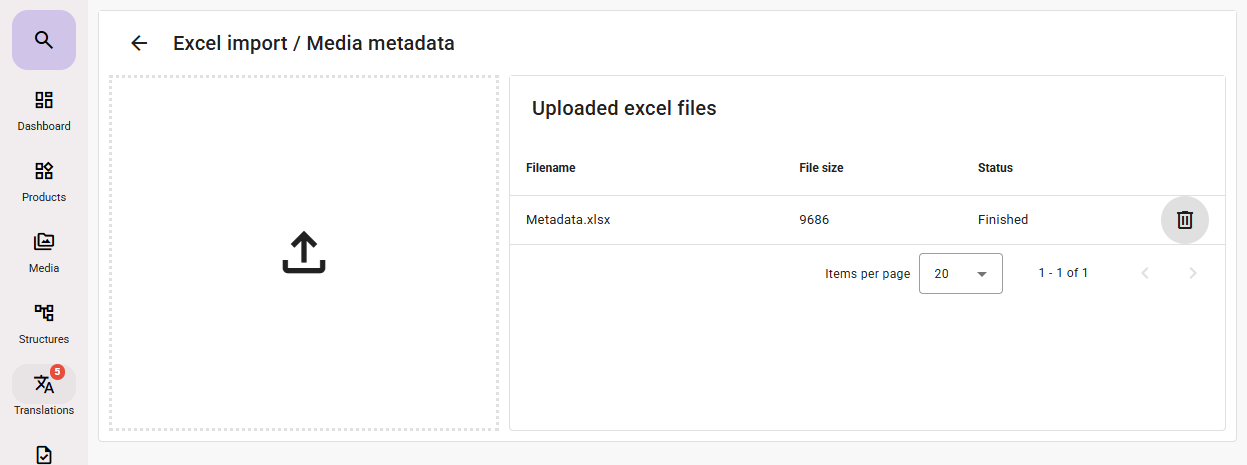
If there are errors or warnings in the import job, they will be displayed here.
You can also export the results to Excel if you want documentation of the warnings or errors that occurred.